Just shipped
November 14, 2026MERS had a facelift
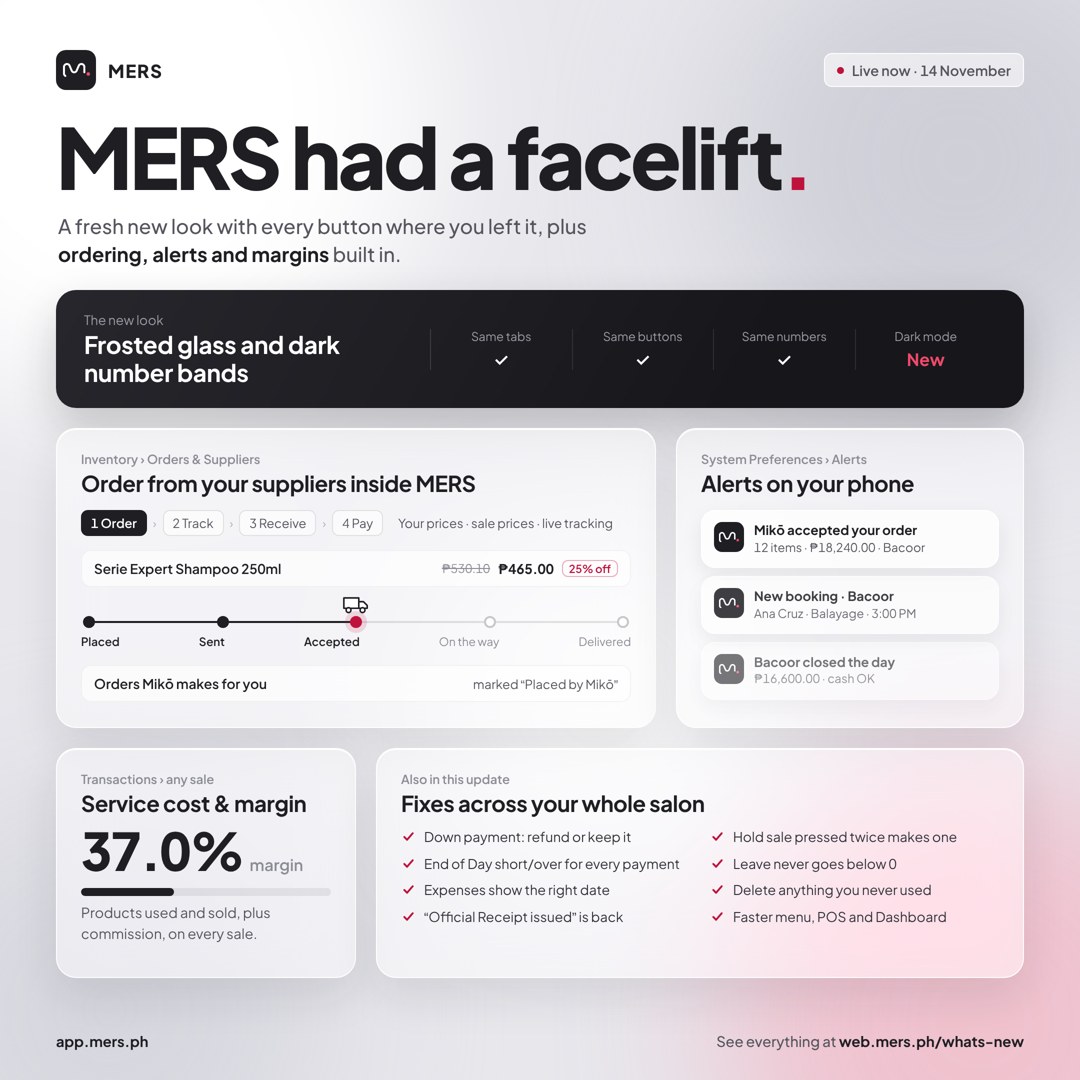
MERS looks new today, but nothing has moved. Every screen has the same tabs, buttons and numbers in the same places. It’s lighter, cleaner and easier on the eyes for a long day at the salon.
What changed
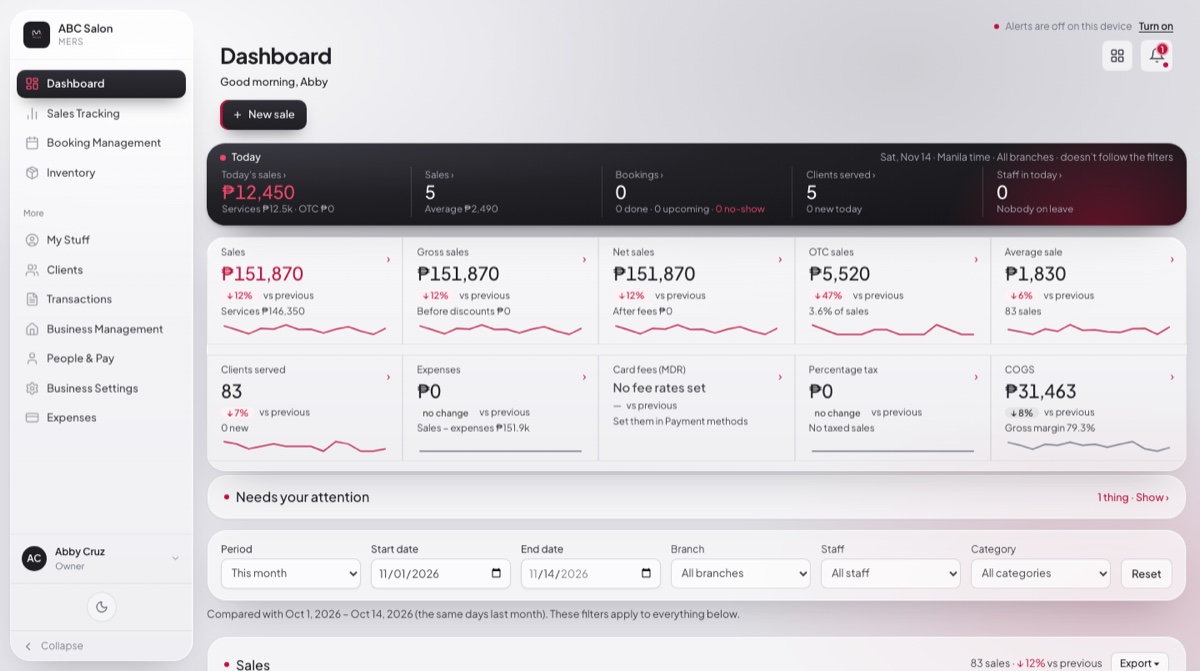
- Frosted glass panels, with the first band of numbers on each page in dark so the key figures stand out.
- On the Dashboard, only the top band is dark. The tiles below stay light and compact.
- Sales Tracking stays light and simple, as before.
- Payment and “Sale completed” open in the middle of the screen.
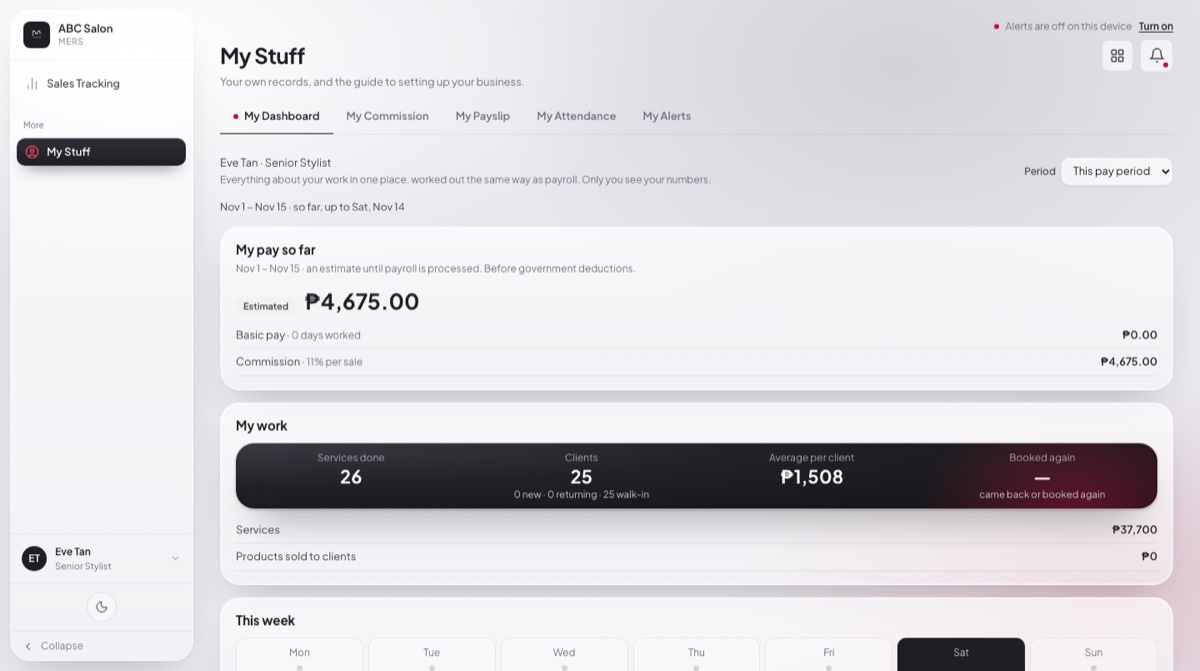
- My Stuff shows your week at a glance and your next commission step. Expenses has a “Where it went” bar.
- Dropdowns instead of rows of buttons for periods and filters, on every screen.
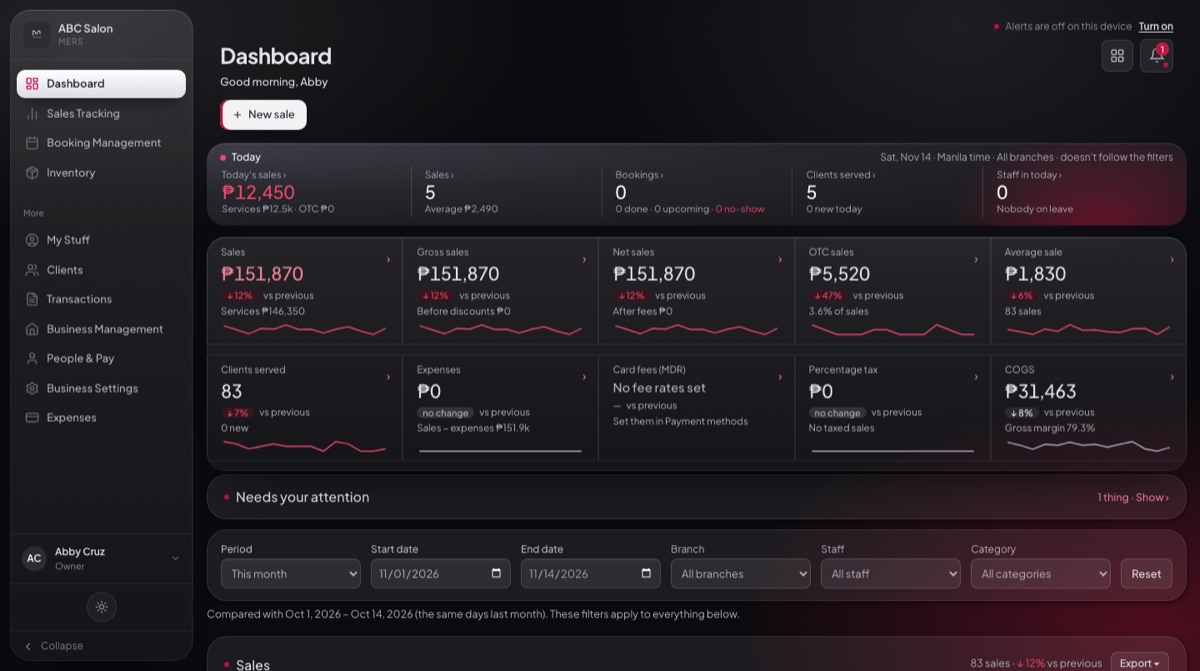
- Dark mode: tap the moon button. On a phone, the bands are smaller so more fits on the screen.
The sign-in page and the kiosk look the same as before.
Orders & Suppliers, step by step
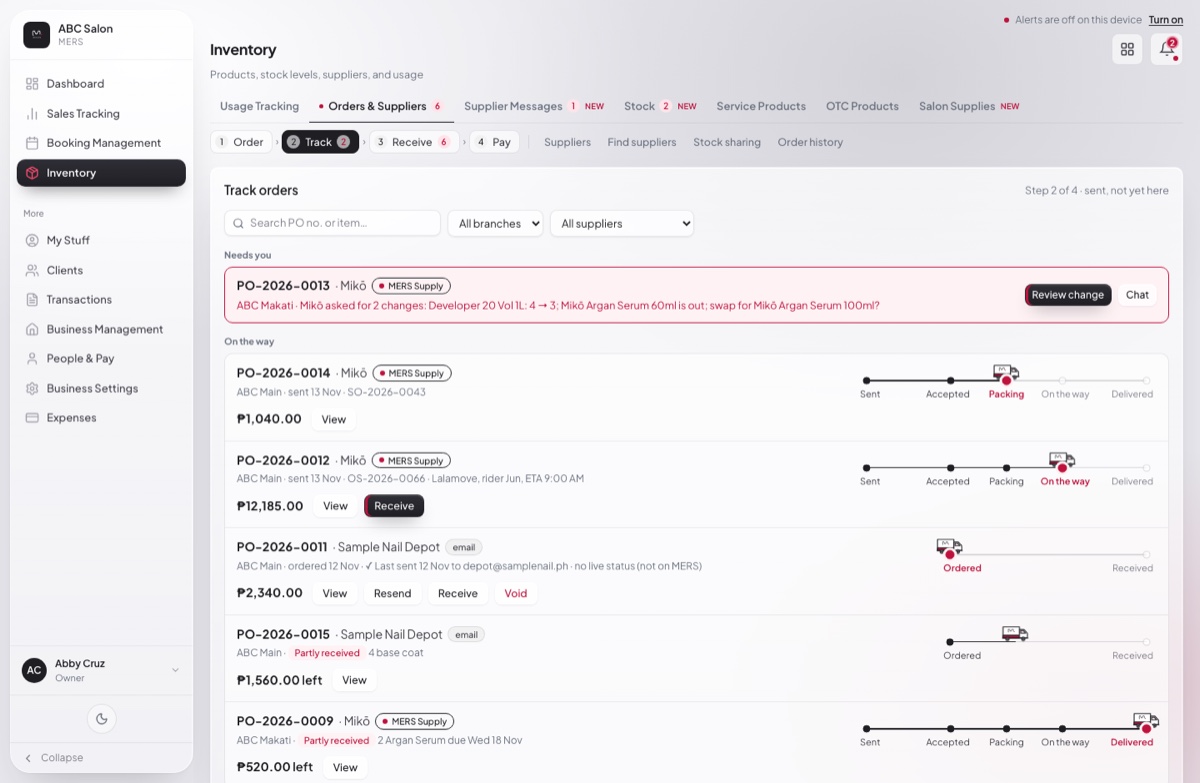
Inventory → Orders & Suppliers now follows your order from start to finish: Order → Track → Receive → Pay, plus Suppliers and Order history. Each step shows how many are waiting.
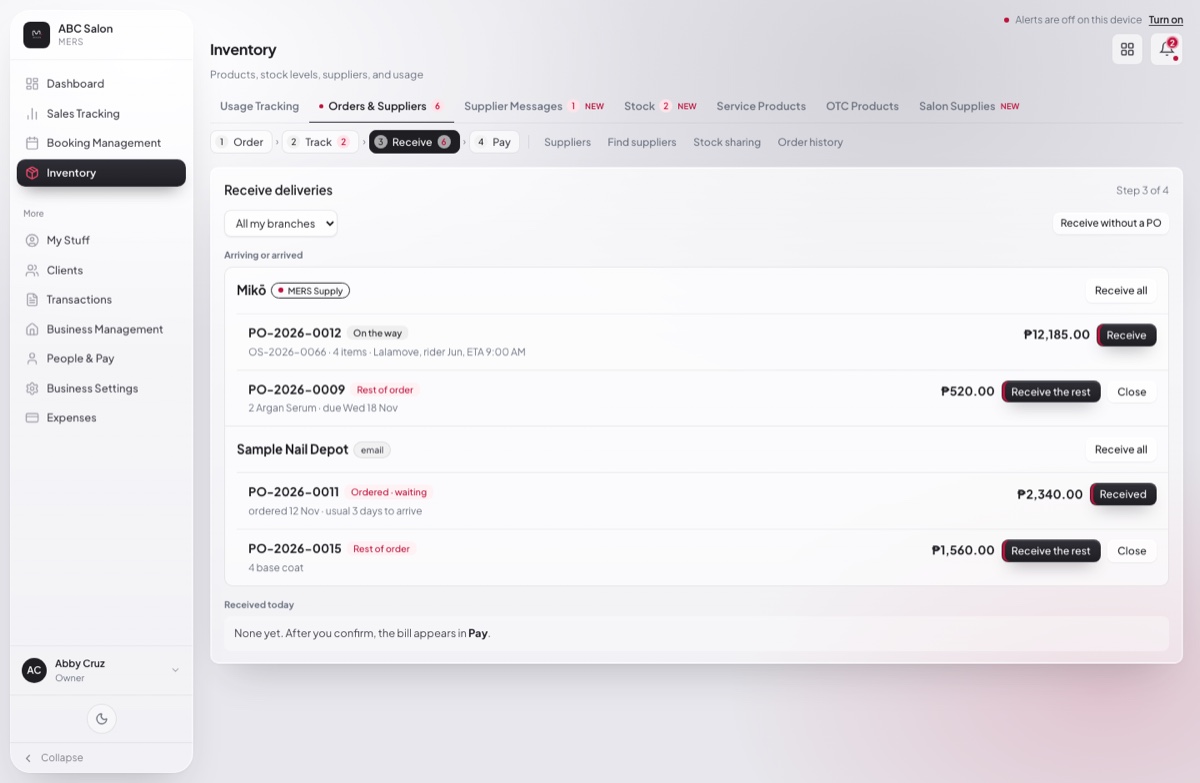
- Track: every open order has a small truck that shows where it is.
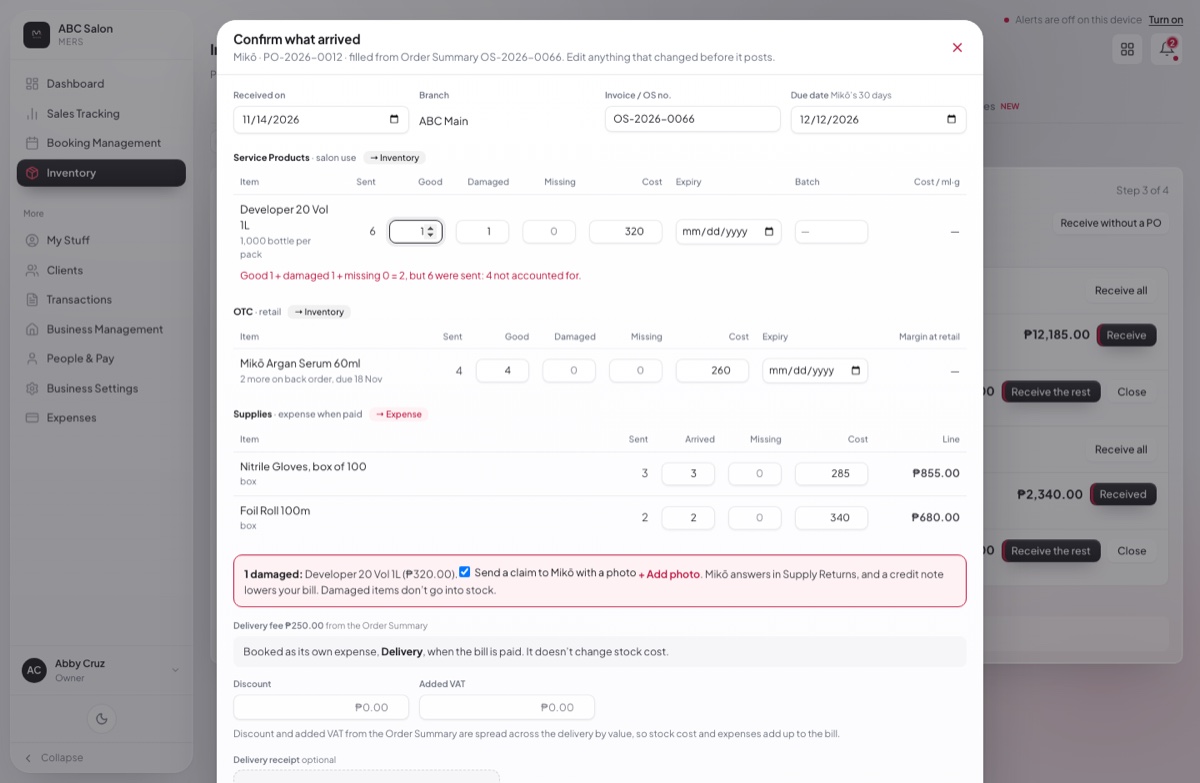
- Confirm what arrived: good, damaged and missing per line, expiry and batch, cost per ml or g and your margin, and the delivery fee. Mark the rest Still coming or Not coming.
- Payment terms on each supplier fill the bill’s due date when you receive.
- Pay: see what you owe each supplier, Pay all pending in one go, or split a bill into installments. A damaged claim shows on its bill.
- Running low is one list with each item’s supplier, tagged Salon use or Retail.
- A draft order can change branch and supplier. Order emails show the branch’s delivery address and say plainly if sending failed.
- Suppliers you never used can be deleted.
Stock and Salon Supplies
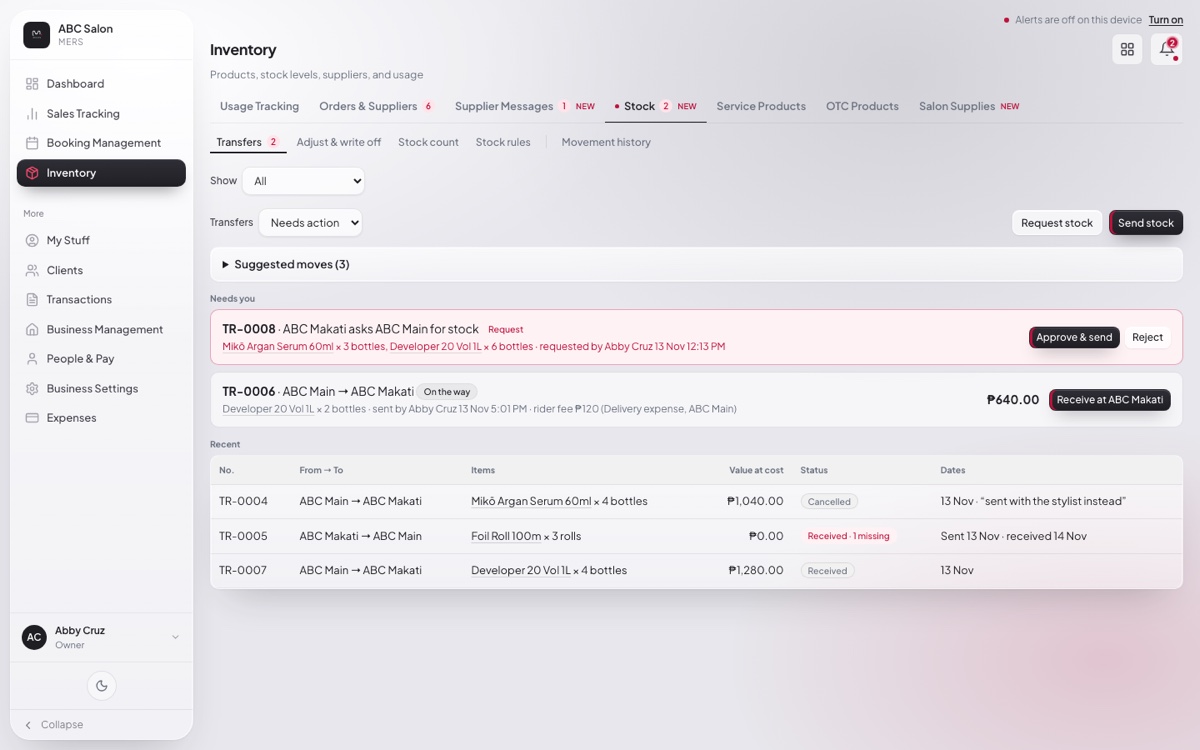
Two new tabs in Inventory keep track of every product from the day it arrives to the day it’s used.
- Transfers between branches: send stock or ask another branch for it. Batches move with their cost and expiry, and the receiving branch confirms what arrived good, damaged or missing.
- Adjust and write off: pick the batch and the reason, and see the cost before you save. You can add a photo.
- Stock count: count a shelf or the whole branch, print a count sheet, or count blind so the system numbers stay hidden until you post.
- Movement history: every product in and out, with where it came from: an order, a transfer, a sale or a count. Filter it and export every row.
- Stock rules: choose which batch is used first, the oldest received or the one expiring soonest.
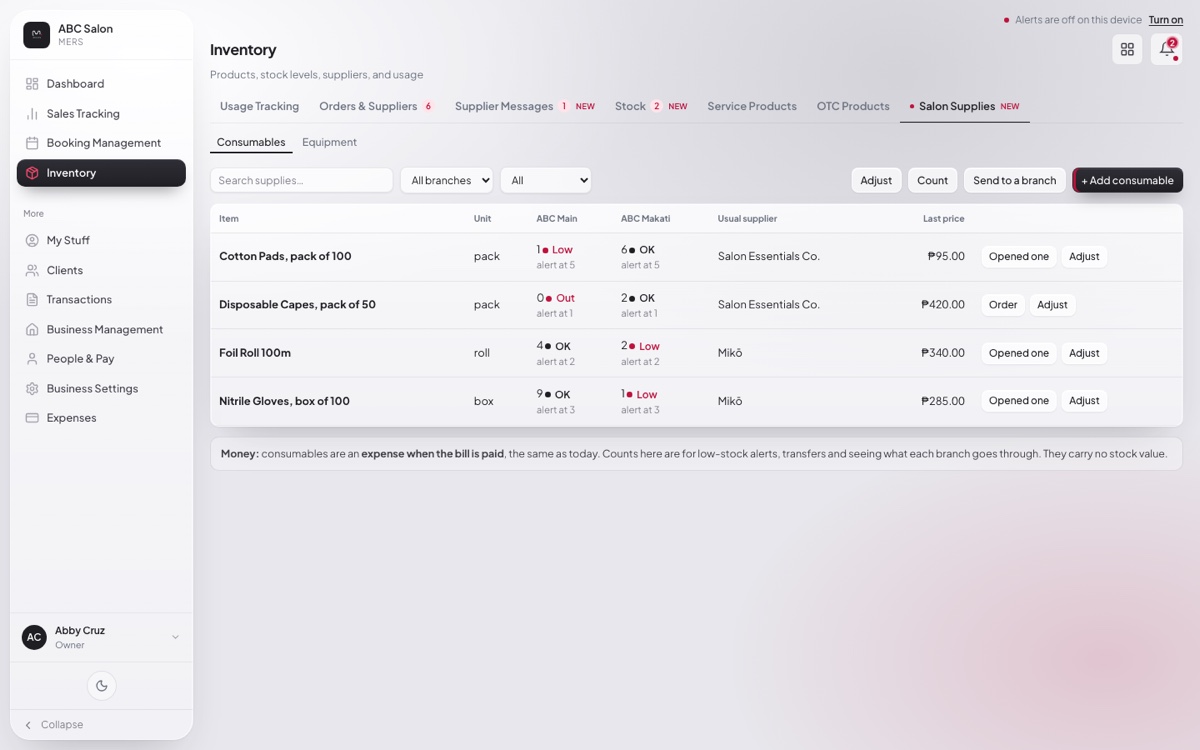
- Salon Supplies: track consumables like gloves and foils without touching your money, with a low-stock alert per branch. Equipment keeps its cost and life in years, and MERS reminds you a month before it’s worn out.
The new booking, now on for every salon
The booking changes from October 31 are now switched on for every salon. Open System Preferences → Booking to set them up.
- Booking Setup, rebuilt one branch at a time, with a cleaner booking page for your clients.
- Book by station: tell MERS your chairs, stations and beds, and it never books more clients than you have room for. You can show clients how many spots are left.
- Adaptive booking: offer the earliest time first, keep a buffer between clients, and take small groups booking together.
Order from suppliers on MERS Supply
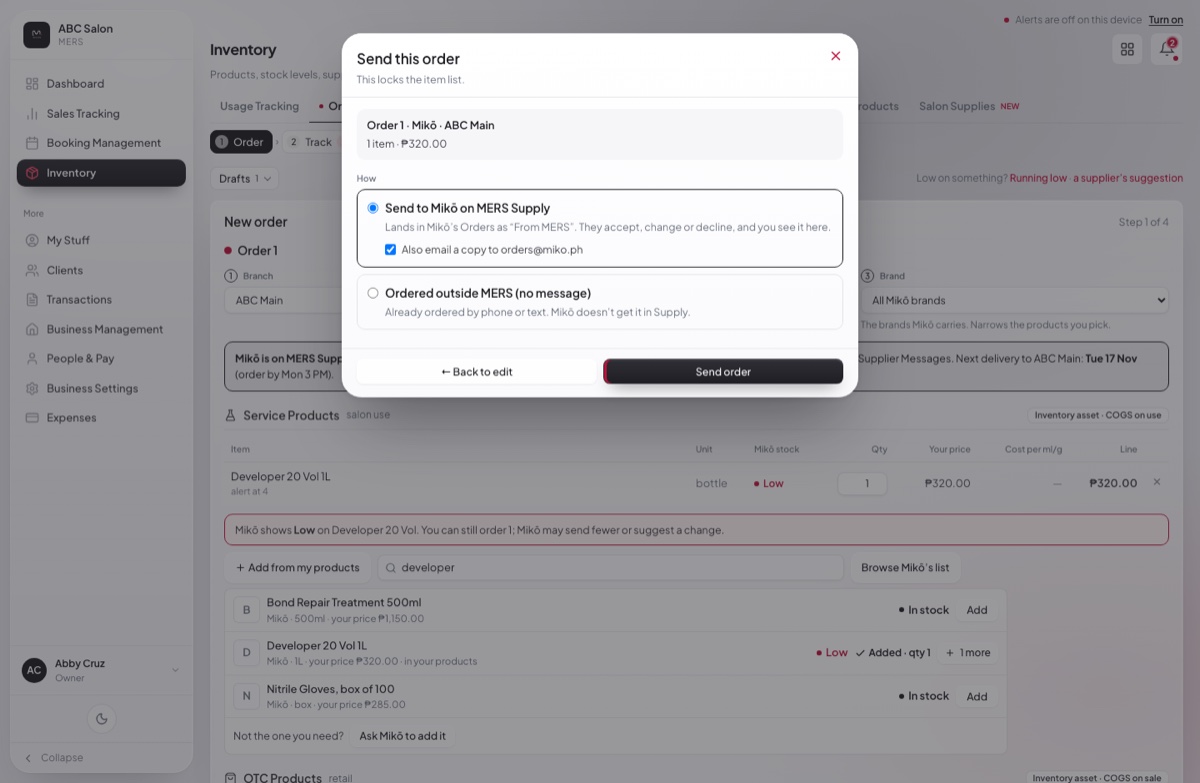
If your supplier is on MERS Supply, your order goes straight to them from MERS. You don’t need to email or message anyone.
- Your prices: every item shows the price your supplier gave your salon. Items on sale show the sale price, with the usual price crossed out.
- Products you don’t stock yet: browse your supplier’s list and add them to the order.
- Track: the truck follows your supplier live, from Sent to Delivered. Orders your supplier makes for you are marked “Placed by” your supplier.
- Supplier Messages: chat with your supplier, with the order right beside the chat.
Alerts on your phone and computer
MERS can now tell you when something needs you, even when it’s closed. Turn it on in System Preferences → Alerts, then tap Send a test. Your team turns it on for themselves in My Stuff.
- Bookings: new, moved or cancelled.
- Orders: accepted, changed, on the way, or delivered by your supplier.
- Money: a sale voided or edited, an expense waiting for approval, a branch closing its day.
- Stock: items running low or out of stock.
- Your team: leave filed, schedule changes, and payslips ready.
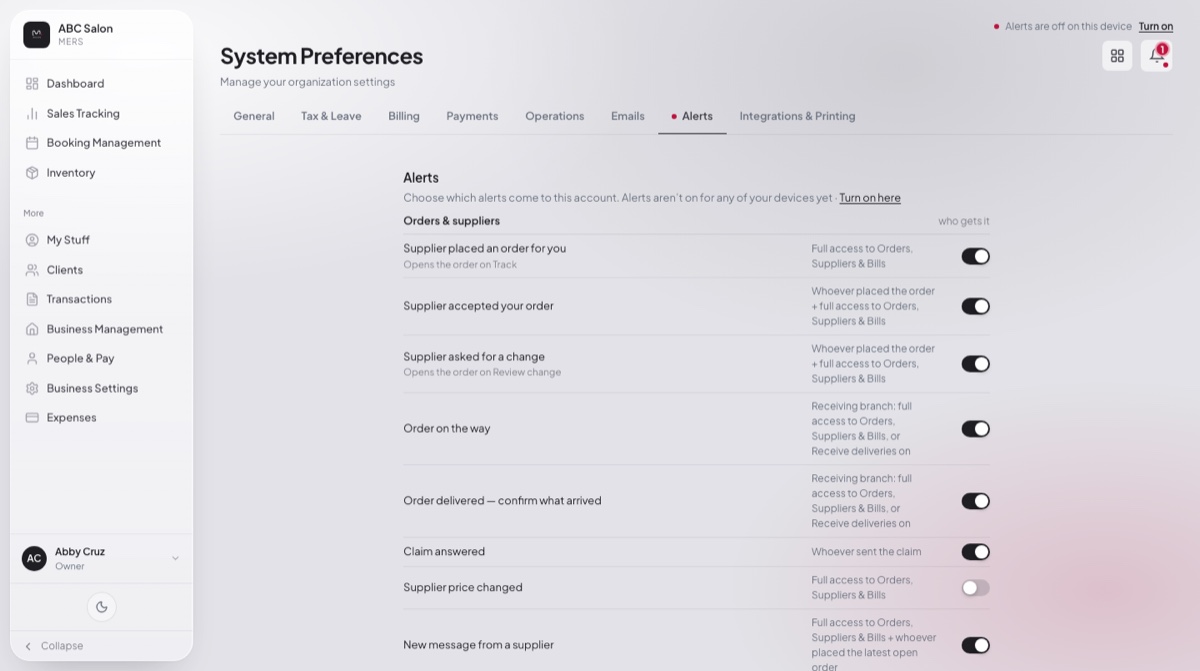
Each alert goes only to the people whose access covers it, and it’s also saved in the bell. Pay amounts and client phone numbers never show on a lock screen. On a phone, MERS first helps you add it to your home screen. Some emails are now sent as alerts instead; the Emails tab marks those “Now an alert”.
Service cost on every sale
Open any sale in Transactions to see its Service cost: the products used, the products sold, each person’s commission, the total cost and your margin %. A product with no cost set is marked, so it isn’t counted as ₱0.
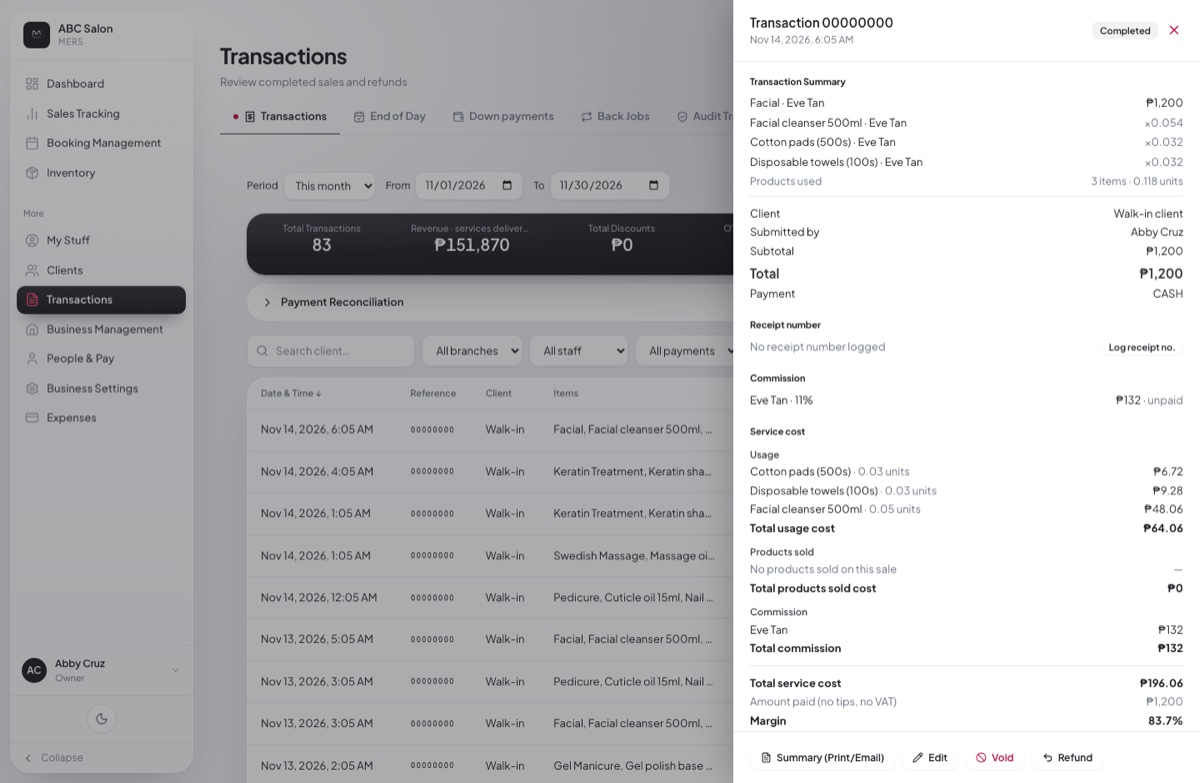
Only people with Payroll · Commission access see it, and it never appears on the client’s summary. The Commission section now follows the same pay privacy: no one sees the pay of someone above them.
Clean up what you never used
Services, people, discounts, inventory, packages and suppliers that were never used now have a Delete button. Anything with history is turned off instead, so your reports stay complete.
Bookings and down payments
- Cancelling a booking with a paid down payment asks: Refund the deposit or Keep it. A kept down payment counts as income.
- Moving a booking that’s waiting for its down payment keeps it waiting, and the down payment moves with it.
- Anyone who can edit the calendar can add a booking by hand.
Sales and Transactions
- Pressing Hold sale twice makes one held sale, not two.
- Editing a sale keeps its promo code, and a back job keeps its Free or Discounted charge.
- When a Senior or PWD discount and a promo give the same price, MERS uses the Senior or PWD discount.
- The Transactions totals count every sale in the dates you pick, even on busy months.
- Transactions and End of Day show Manila time on any device.
People & Pay
- Pay screens follow your Access settings for each person, not their job title.
- Someone who left gets no SSS, PhilHealth or Pag-IBIG after their last day, and their tax is worked out on what they were actually paid.
- Leave never goes below 0. Days past the balance are saved as unpaid leave, with a warning. Leave to cash is capped at the days left.
- Someone who forgot to clock out can still clock in; yesterday’s shift is flagged for a manager.
- Kiosk-only staff count as ready for payroll.
- Payroll reads every sale and clock-in of the period, even for big teams.
- Package and set commission on “normal price” pays what the sale showed.
- Commission sales, payslip balances, SSS year to date, the Everyone’s pay headers and the 13th month estimate all show correctly.
End of Day and logins
- End of Day shows short, over or matches for every payment method, not just cash. The saved day, the email, the Excel file and the Dashboard all match.
- End of Day won’t close if your sales didn’t load, so you never get a false ₱0 day.
- Changing a staff email moves their sign-in to the new email, so they can sign in straight away.
- Someone whose staff record is deleted or turned off is signed out on every device, and can’t switch back into that salon.
- People who work at more than one salon no longer get stuck going round in circles when they sign in.
Fixed this round
- Process sale says “Official Receipt issued” again, with “OR number (from your BIR-accredited system)”.
- Expenses show the day the money was spent as a plain date on every device, with no shift to the day before.
- Approval pop-ups always show the current list of managers.
- The tax estimate shows a branch manager only their own branches.
- Inventory shows every peso amount with centavos.
- Error messages are in plain words, never codes.
- MERS opens faster: the menu, Sales Tracking and long Dashboard ranges load quicker.
Last week
November 7, 2026A price for each branch, and promo prices
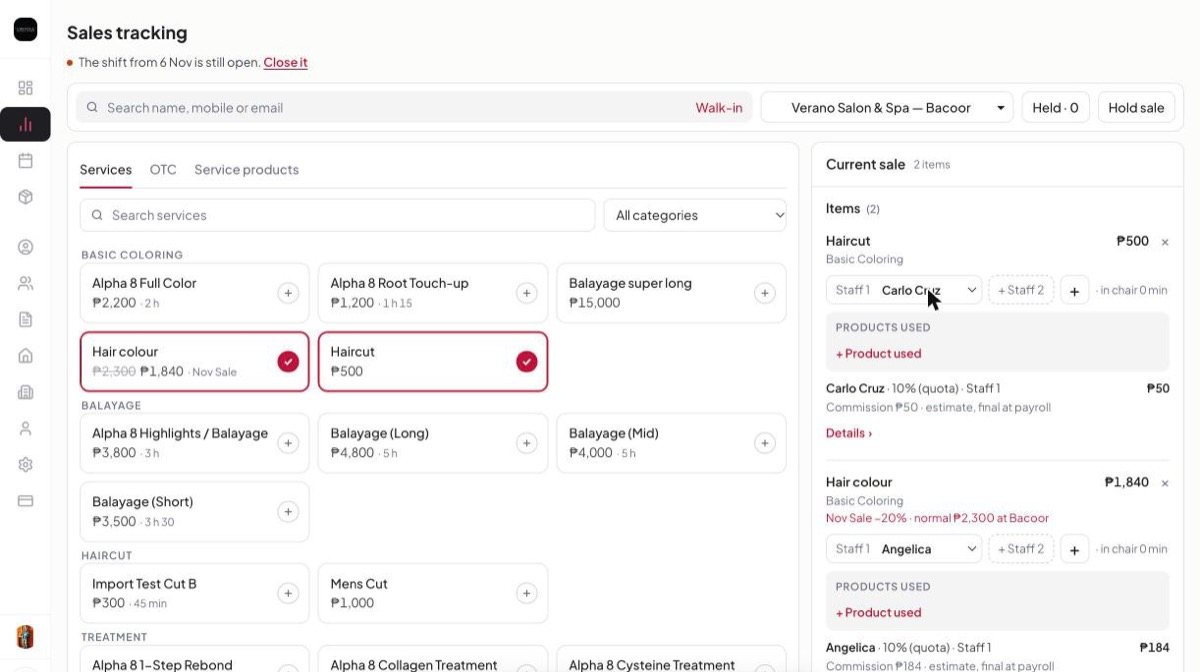
Your branches don’t have to charge the same. Set a different price for any service at any branch, and run promos with a start and end date. MERS uses the right price everywhere: the till, held sales, your booking page, receipts and reports.
Prices per branch
Go to Services → Prices to see every branch side by side. Change one price, or use Copy prices to make one branch match another. A branch with no price of its own uses the service’s main price.
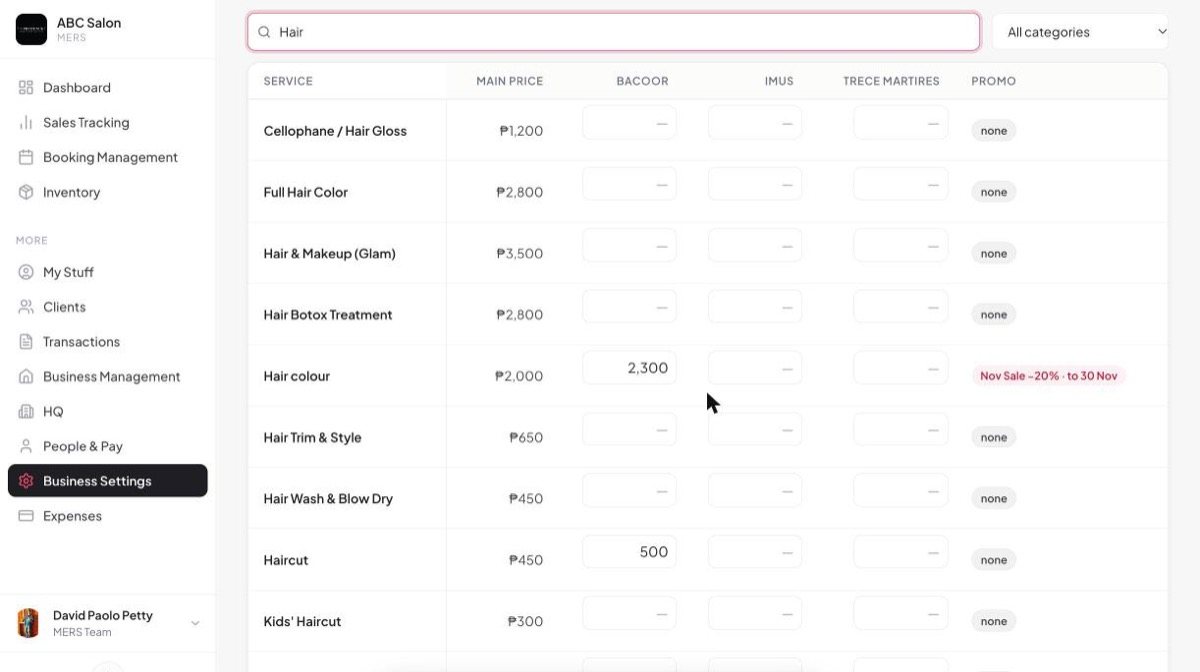
Promos that run themselves
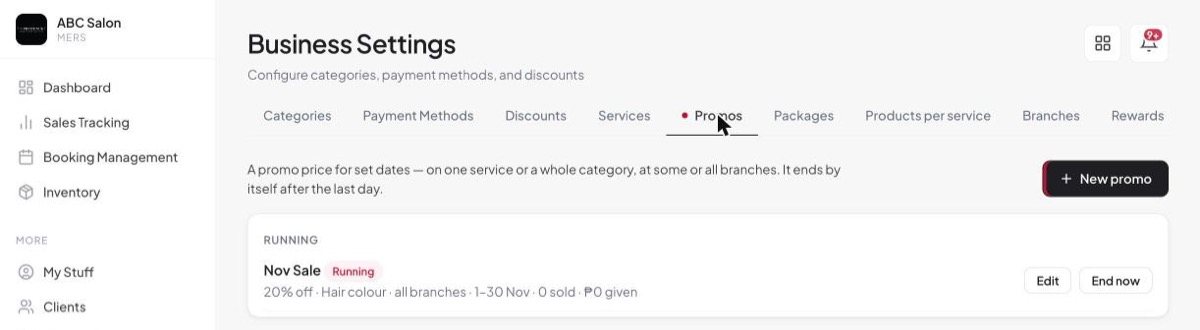
In Business Settings → Promos, set % off or a promo price, pick the services and branches, and choose the dates. It starts and ends by itself. The receipt shows the promo’s name, and the Promos list shows how many were sold and how much was given.
Senior and PWD clients always get the better deal
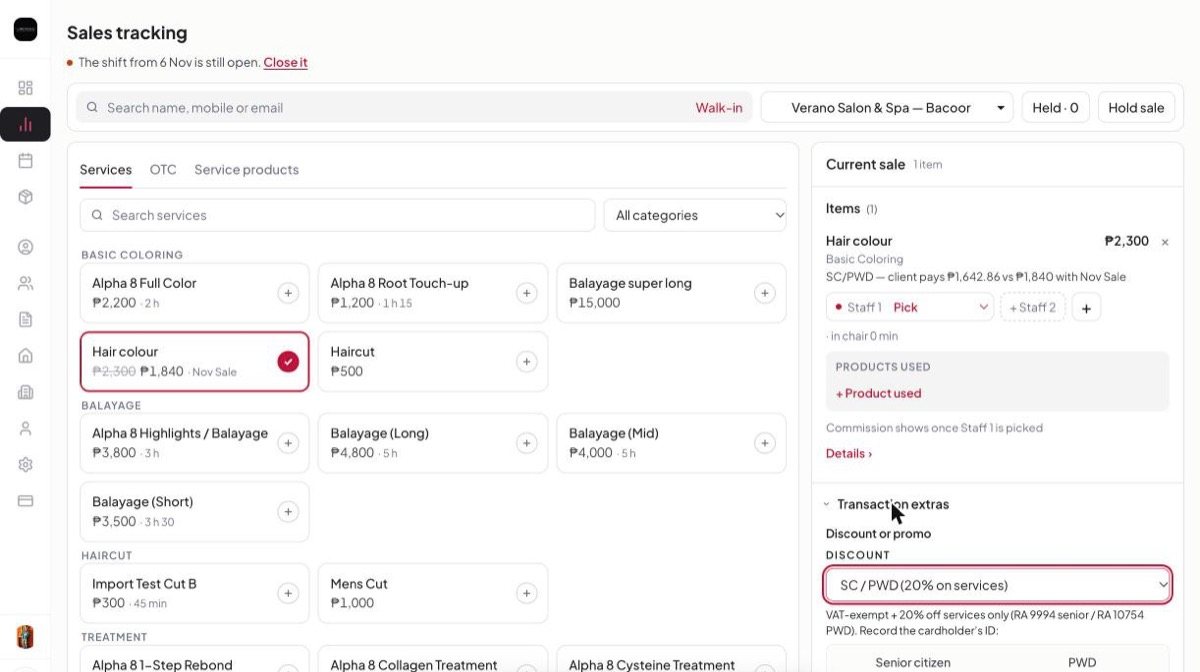
When a Senior or PWD client buys a service that’s on promo, MERS gives whichever costs the client less, never both. On a VAT branch it includes the VAT exemption, and the cart tells you which was used and why.
Old sales keep their price
Editing a sale in Transactions no longer changes the price it was rung at, even if the price has changed since.
Your money, clearly
The top of your Dashboard now shows two full rows of tiles. Click any tile to see how it was worked out. Only people who can see your money see these.
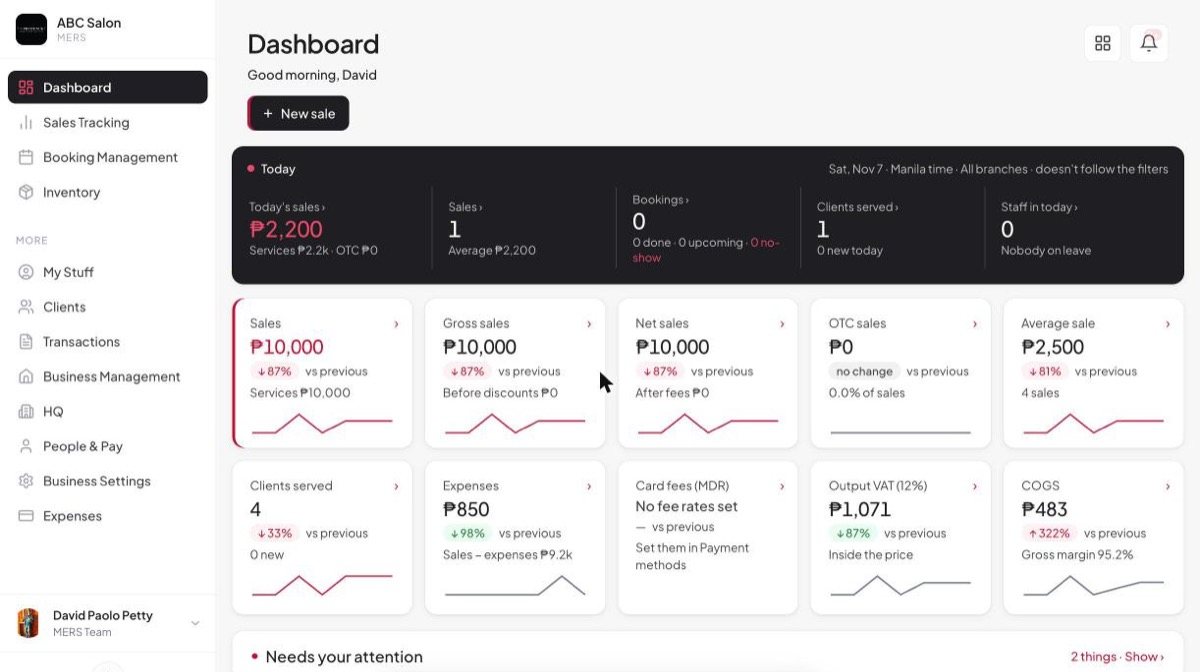
Gross and Net sales
Gross sales is what clients paid plus every discount. Net sales is gross minus discounts, refunds and card fees. Both now have a trend line like the other tiles.
Card and e-wallet fees (MDR)
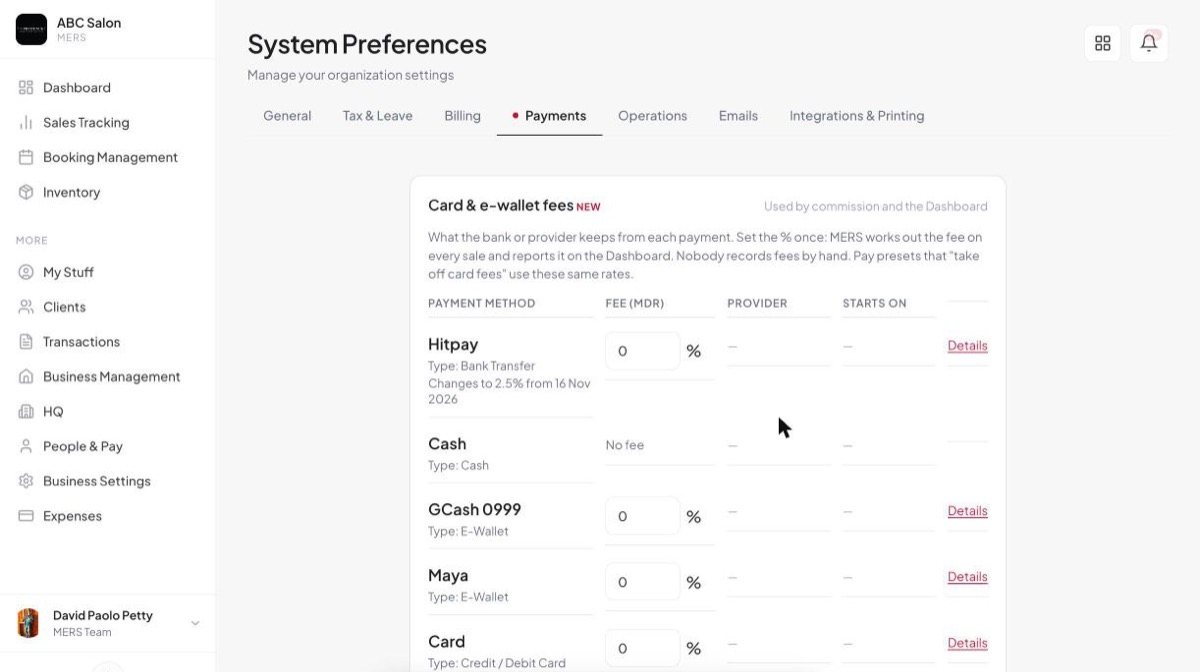
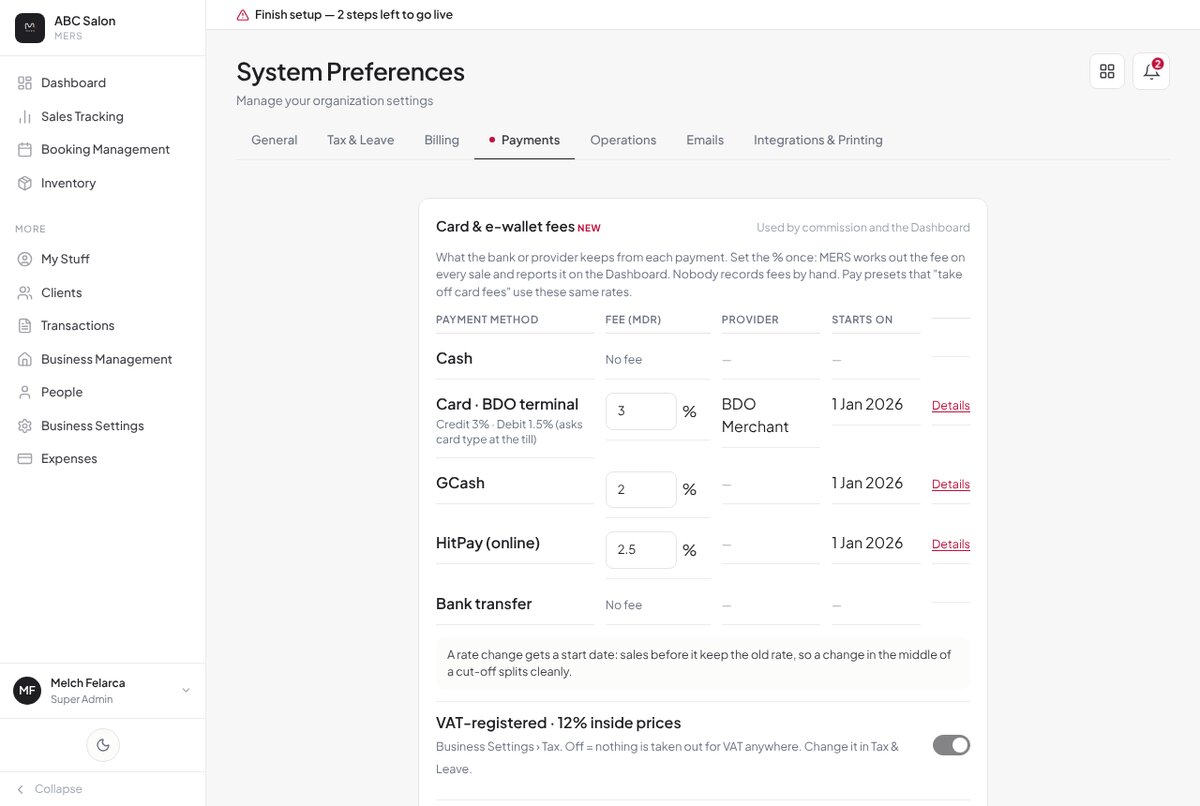
Every payment method except Cash can now have a fee: card, GCash, Maya, Hit Pay, bank transfer, even vouchers. Set it once in System Preferences → Payments with the date it starts. The Card fees tile shows what the banks and e-wallets kept, method by method, plus the 12% VAT on the fee when that applies. Net sales and commission use the same figure.
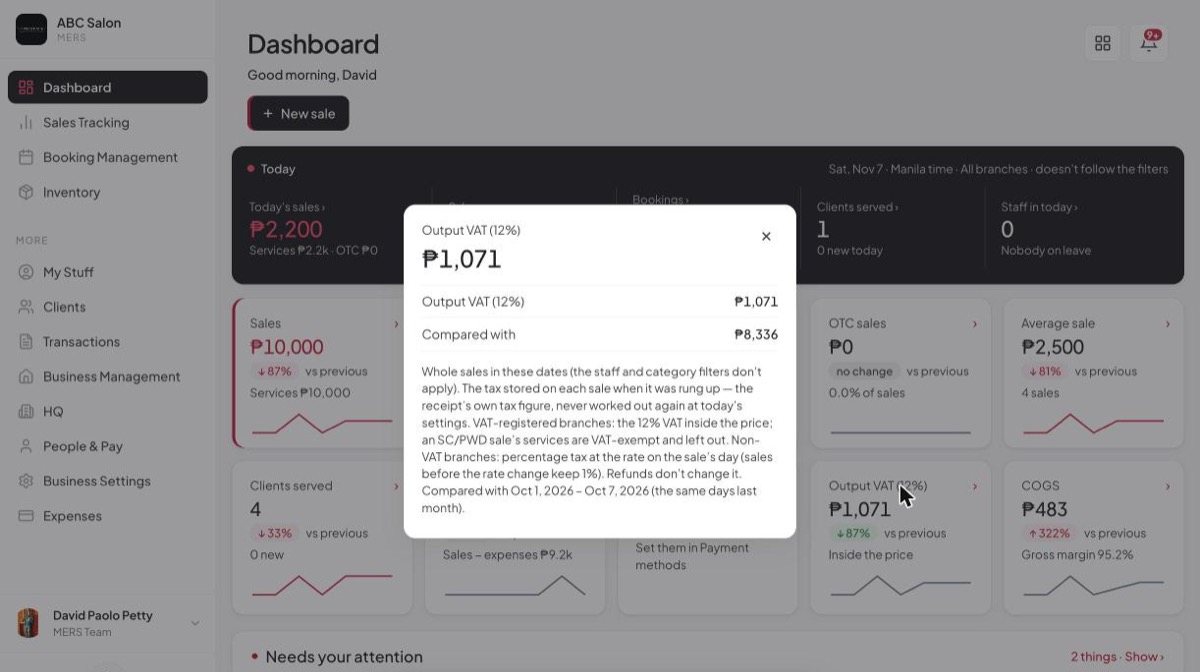
Tax: VAT or percentage tax
The Tax tile adds up the tax on each sale at that sale’s own rate. VAT-registered branches show 12% output VAT, with Senior and PWD services left out. Other branches show percentage tax at your salon’s rate (3% by default; sales from before the change keep 1%). The Tax section further down the Dashboard now shows exactly the same number.
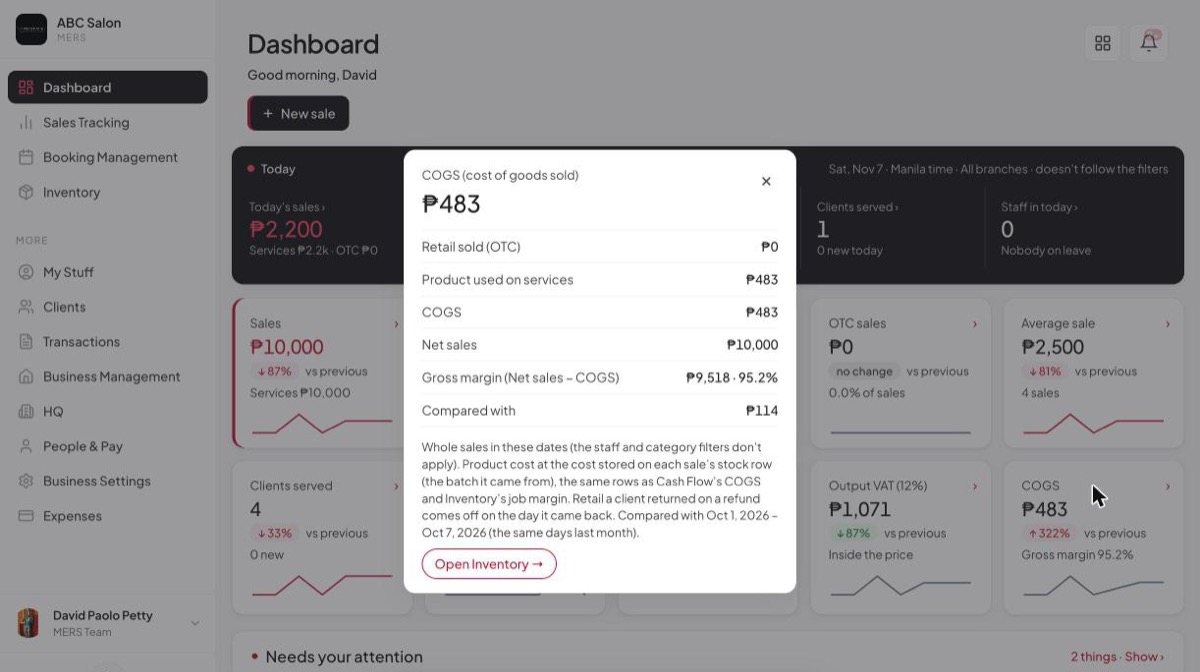
COGS and your gross margin
The COGS tile is the cost of retail products sold plus the products used on services, minus anything returned. Tap it to see your gross margin: what’s left from Net sales after product cost, in pesos and %.
Service sets
Sell a set of services as one. Choose a set the client uses on the same day, or a prepaid set they use one service at a time on later visits. Each service still shows who did it and the products used, and commission works out for each person.
Pay stays private
Managers no longer see each other’s pay or personal details, and nobody below the owner sees the owner’s. A General Manager sees everyone below them. Change it for each role with Can see other people’s pay and personal info in Permissions.
Only an owner can set or change their own PIN, and the payroll total in the bell goes to owners only. Other managers see “payslips are ready” with no amount.
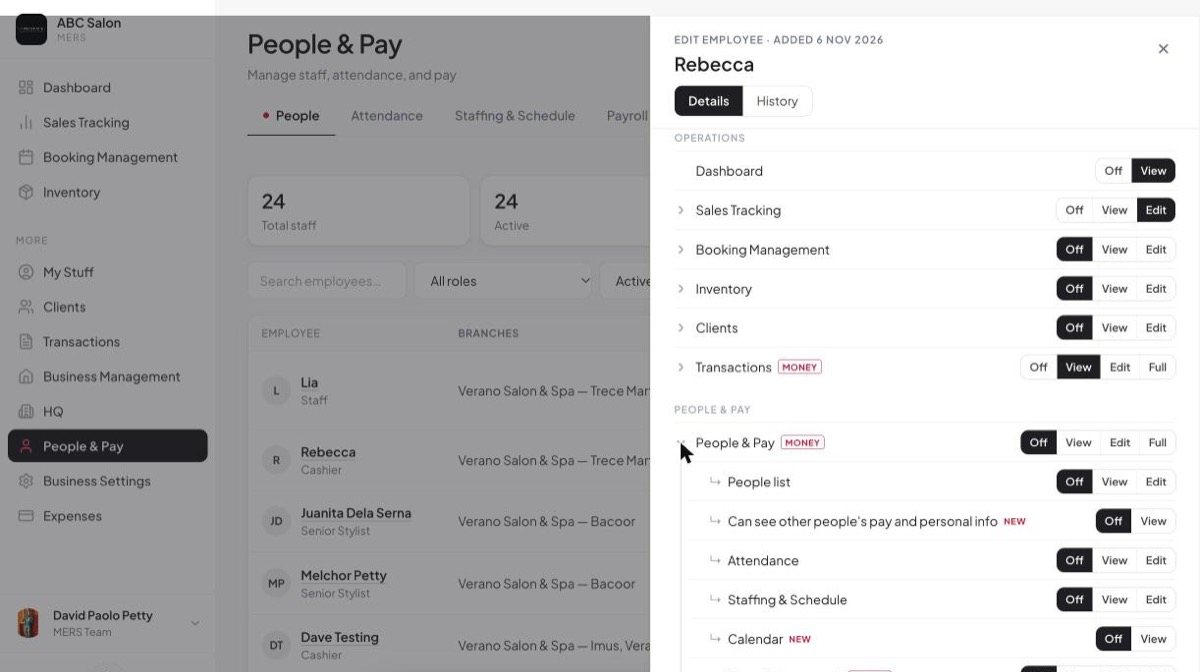
Payroll and commission
- A day at two branches: the payslip shows both branches and times, the gap between shifts isn’t paid, and each branch’s labour cost gets its share.
- Fixed ₱ commission is reduced when part of a service is refunded.
- Prepaid and membership refunds keep the same commission the refund screen shows.
- 13th month preview counts December to November and shows the amount.
- Cash advances and fixed adjustments across a cut-off are taken once, not twice.
- Monthly flat rate pays in full for a whole cycle.
- Leave report includes carried-over days.
Expenses that add up
- Months count by the date the money was spent, not the day it was entered.
- The tiles follow the period you pick, and All time really means all time.
- See these rows shows exactly what’s behind a total, and a CapEx / OpEx switch keeps equipment separate.
- Dashboard net profit uses the same expenses as the Expenses page.
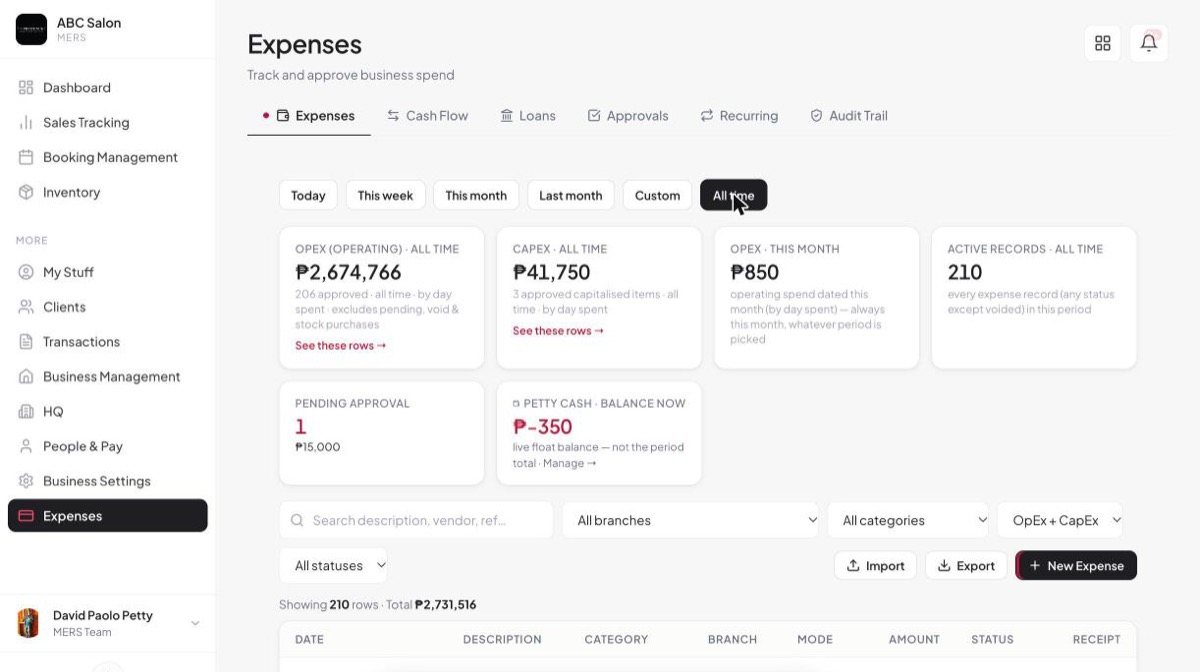
End of Day and refunds
- Starting cash fills in from your last count.
- Expenses paid from the drawer are counted.
- Closing the drawer after a shift ended counts that shift’s cash once, with no false shortage.
- A prepaid refund paid in cash comes off cash on hand.
- Returned retail comes off COGS, and editing an old sale keeps its product cost on the sale’s own day.
Also new
- Submitted by in Transactions shows who rang up each sale, also in the export.
- Senior and PWD receipts at a VAT branch show the VAT exempt line.
- Expired or used-up promo codes are refused at the till.
- Bulk upload templates have a Branch column, work in Google Sheets, and clients can include an address.
- Add a client with just a name; the mobile number is optional.
- MERS Supply is open for suppliers at web.mers.ph/supply.
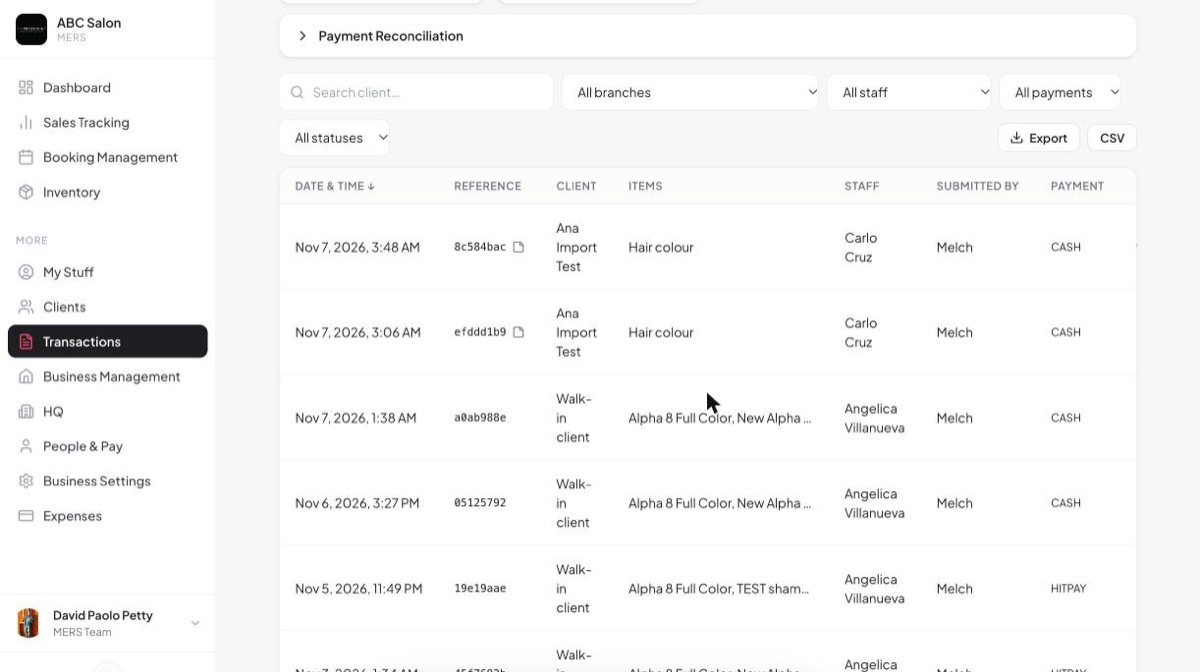
Fixed this round
- Kiosk QR works for someone who is staff at two businesses.
- A warning shows when you add staff with an email already used elsewhere.
- Names like Peña import correctly from CSV files.
- Your booking page no longer shows client details to someone who types an email.
- Editing a sale with a member or reward discount keeps the same total.
- Adding a team member no longer gets stuck on “Saving…”.
- Cash advances and loans open without an error.
Earlier this month
November 4, 2026People & Pay is here
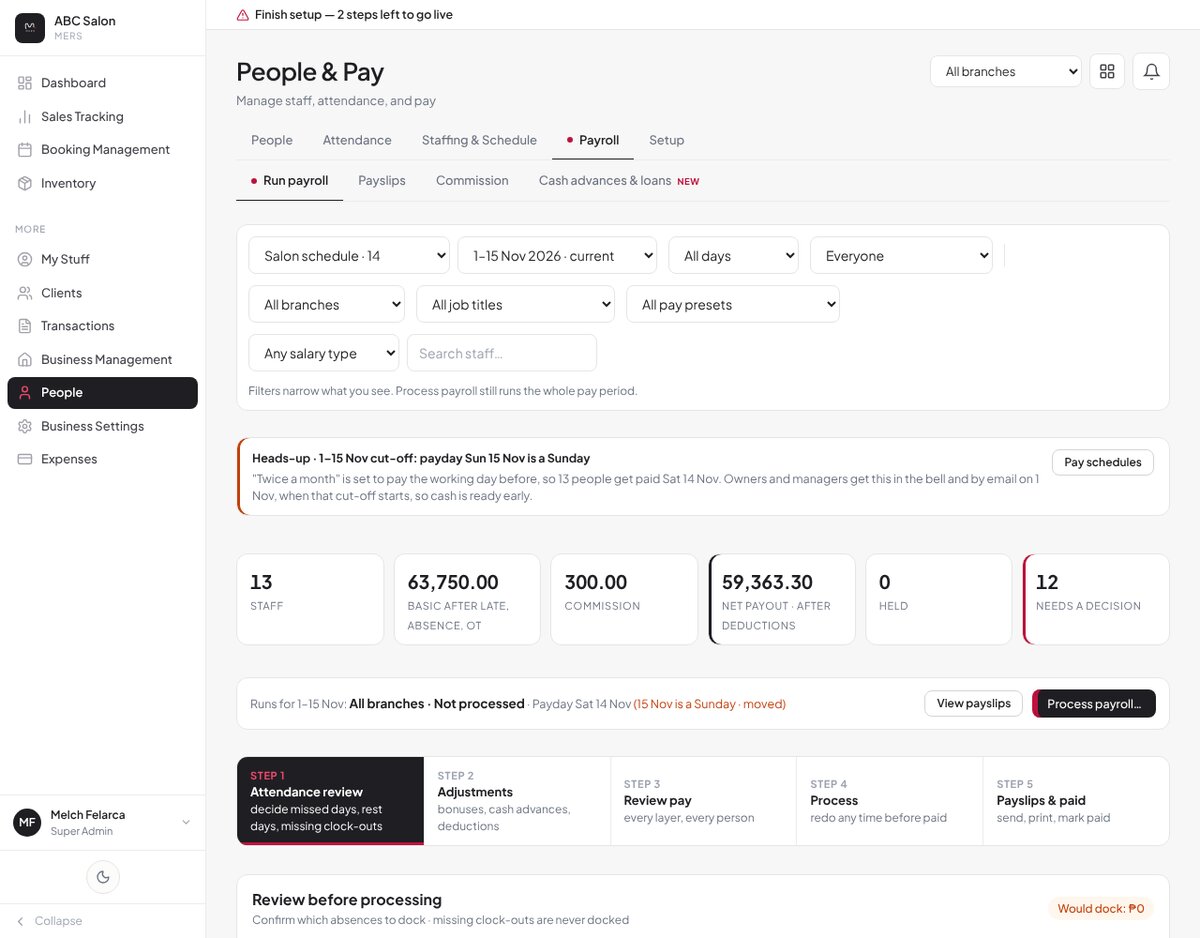
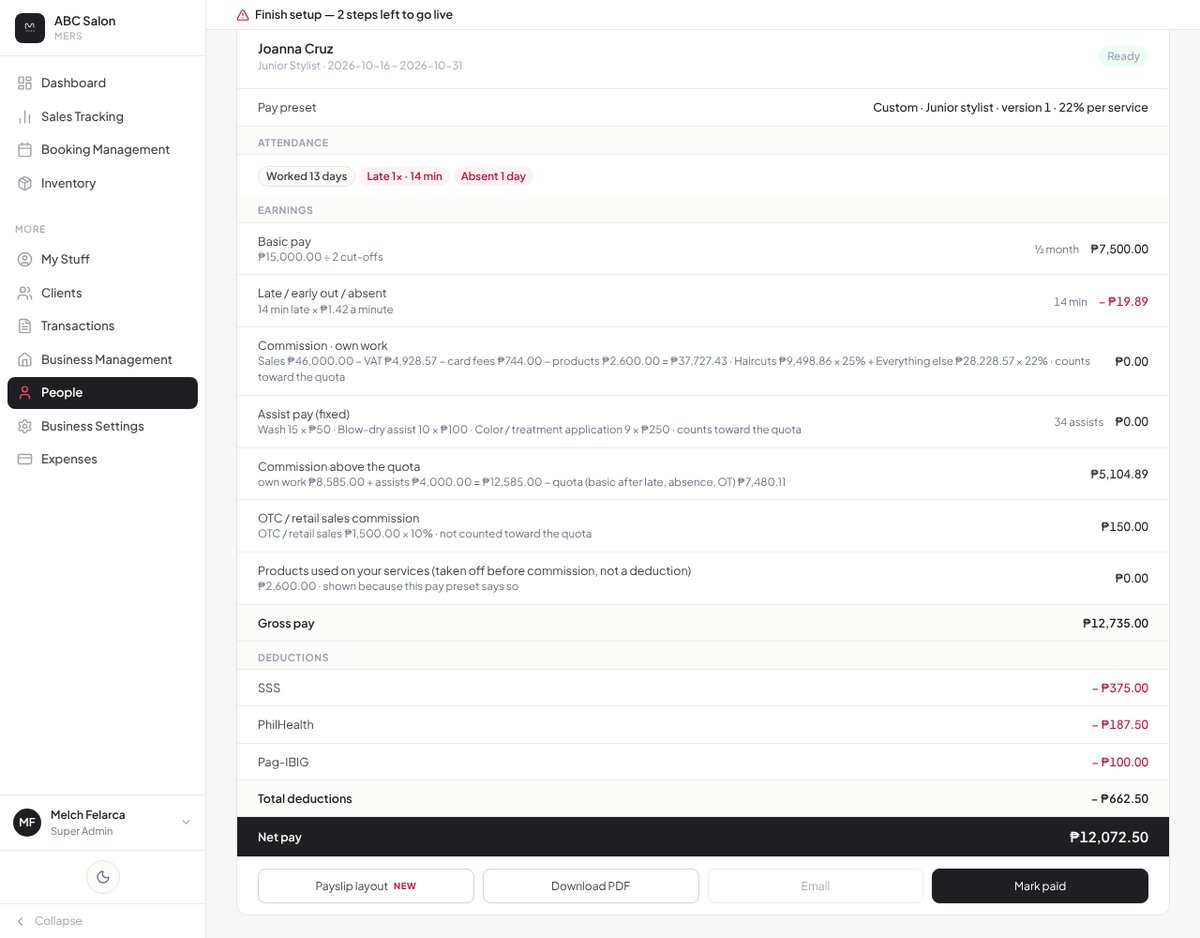
Payroll, commission and attendance now live in one place: People & Pay in the menu. Every amount on a payslip shows how it was worked out, so you and your team can check it in seconds.
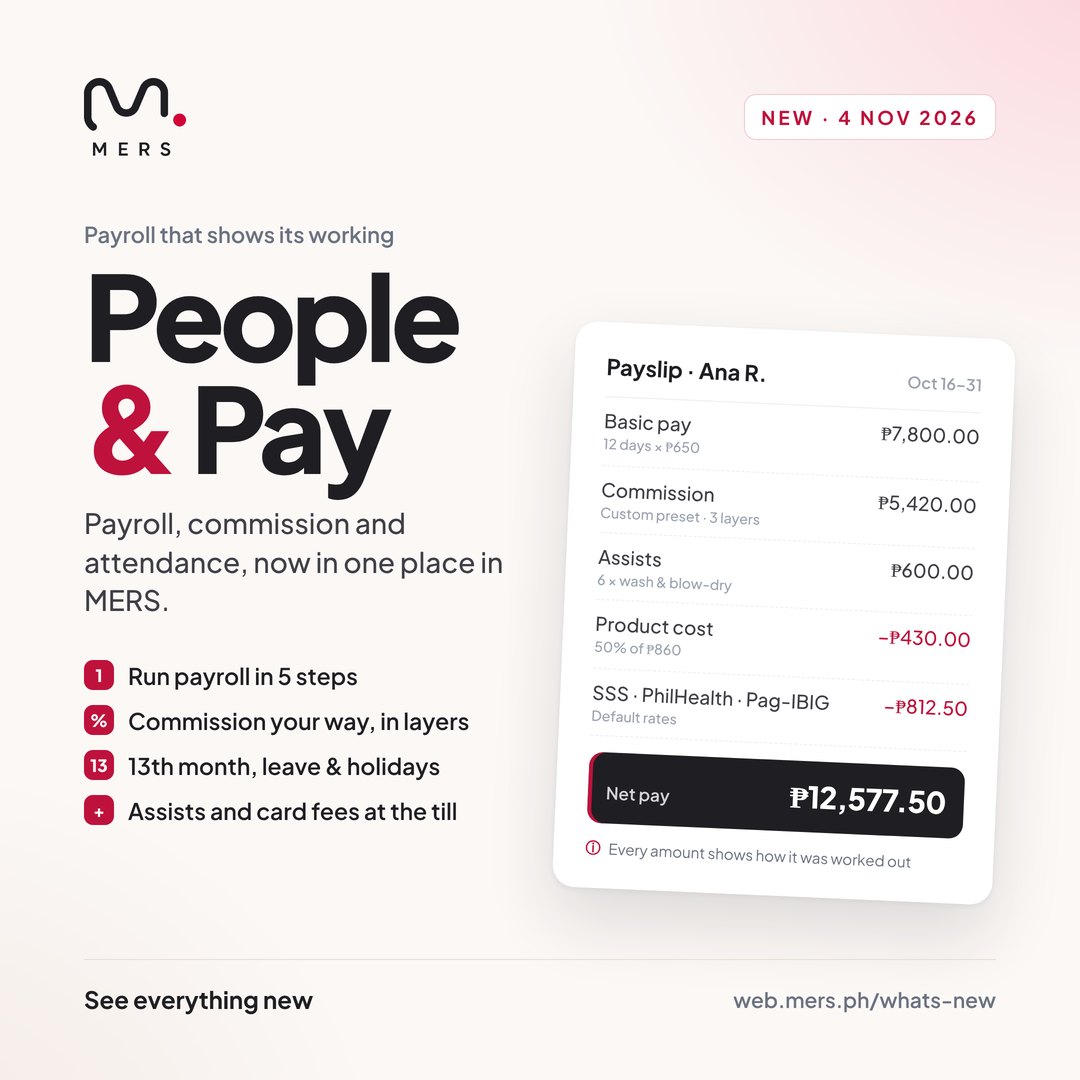
Run payroll in 5 steps
Pick the pay period, check attendance, review commission, review pay, then finish. Each step has a short ⓘ note, and the full working is printed under every amount on the payslip.
Commission your way
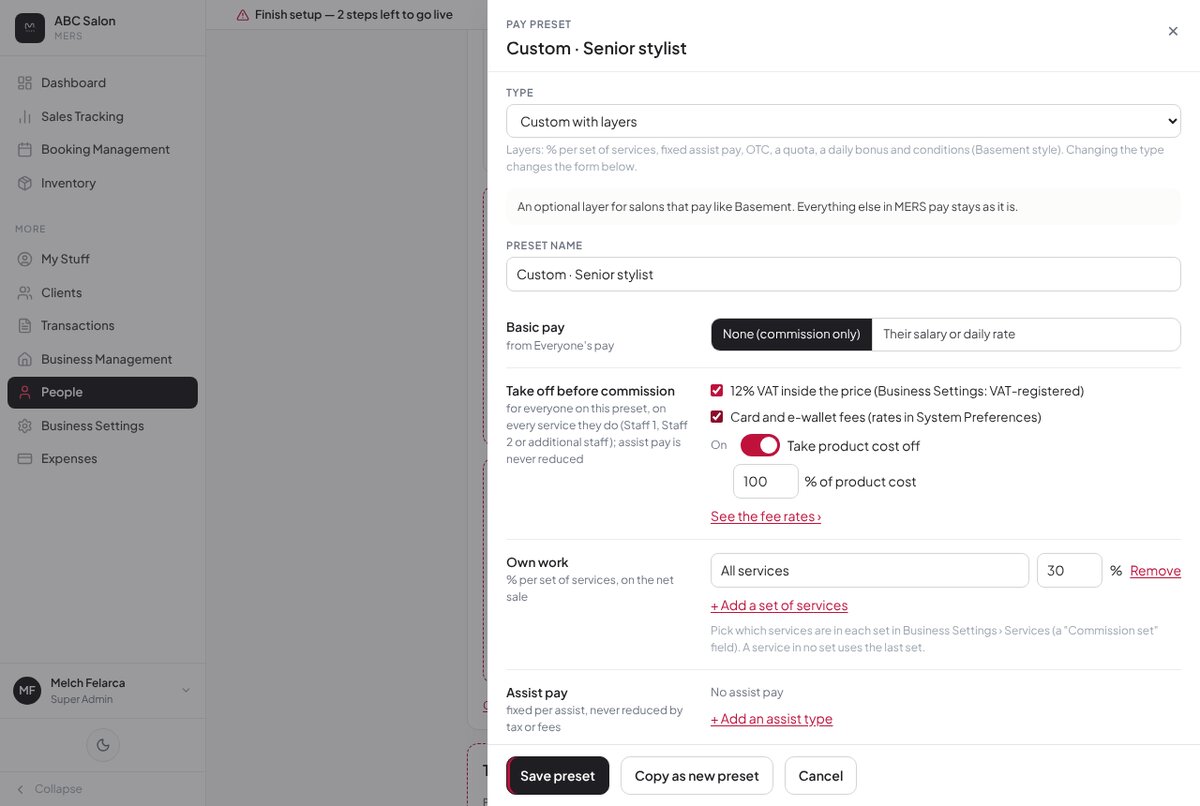
Start from a preset (Fixed %, Quota ladder, Fixed ₱ per service, Bonus) or build your own Custom preset in layers. On every preset, choose whether product cost comes off and how much, from 0% to 100%. Existing presets keep paying exactly as before.
Assists at the till
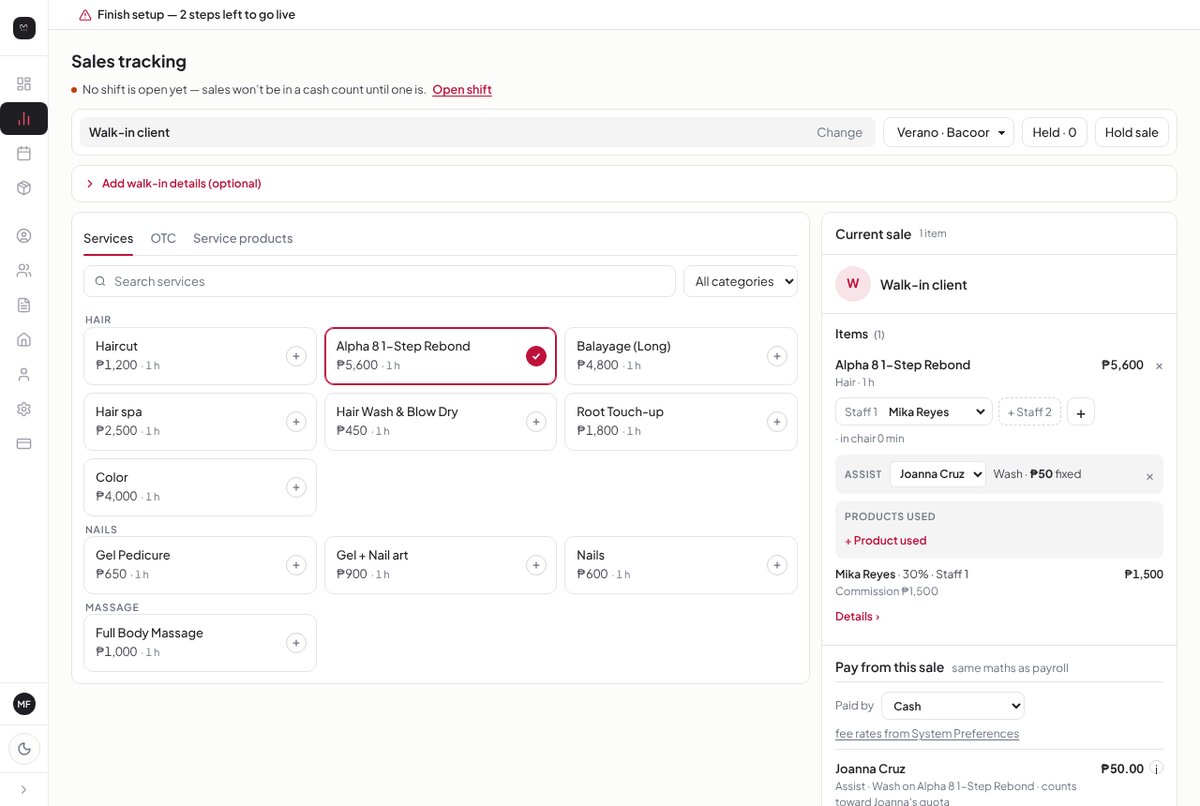
Tap + on a service to credit the person who helped, like a wash or blow-dry. It shows on their commission automatically.
Card and e-wallet fees
Set the fee for each payment method in System Preferences → Payments, with the date it starts. MERS works out the fees for you, and commission can be worked out after VAT and fees.
13th month, leave and holidays
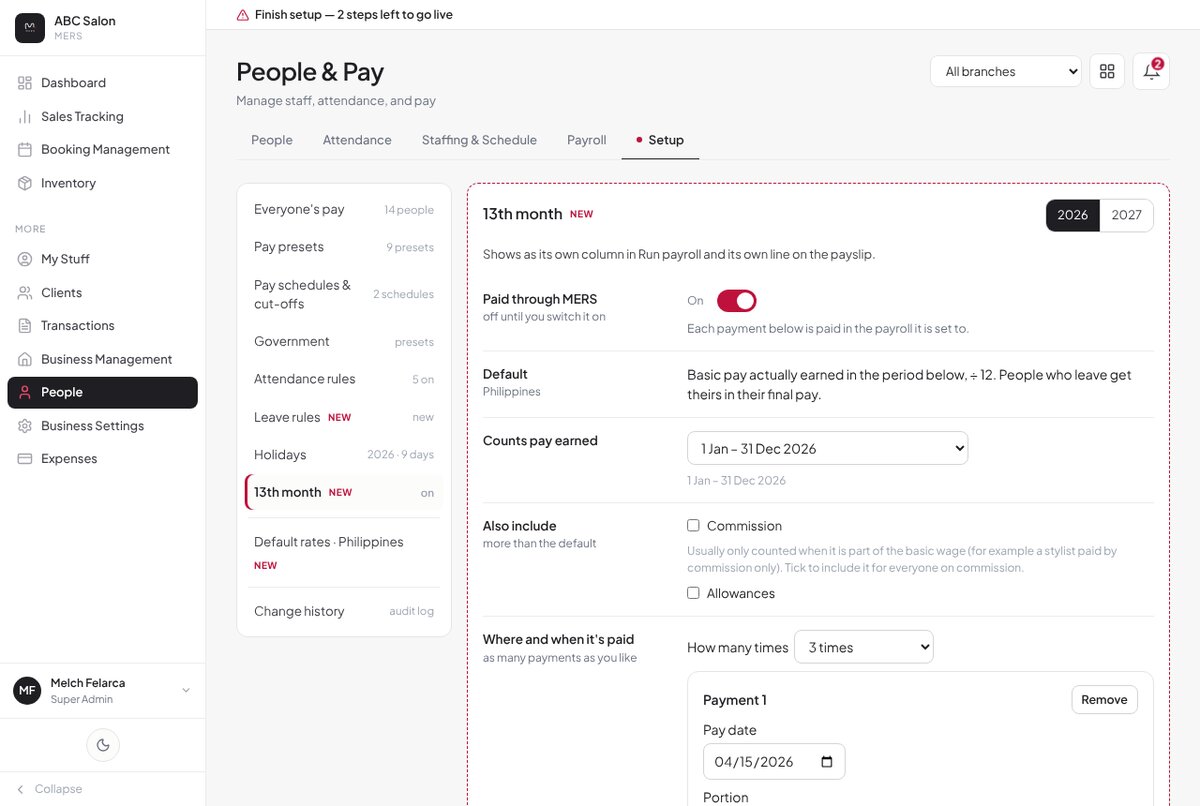
13th month is based on the days each person actually worked, and you pick the pay date. Set leave rules once, including turning unused leave into cash. Holiday rates start from the Philippine defaults and you can change them.
Loans and cash advances
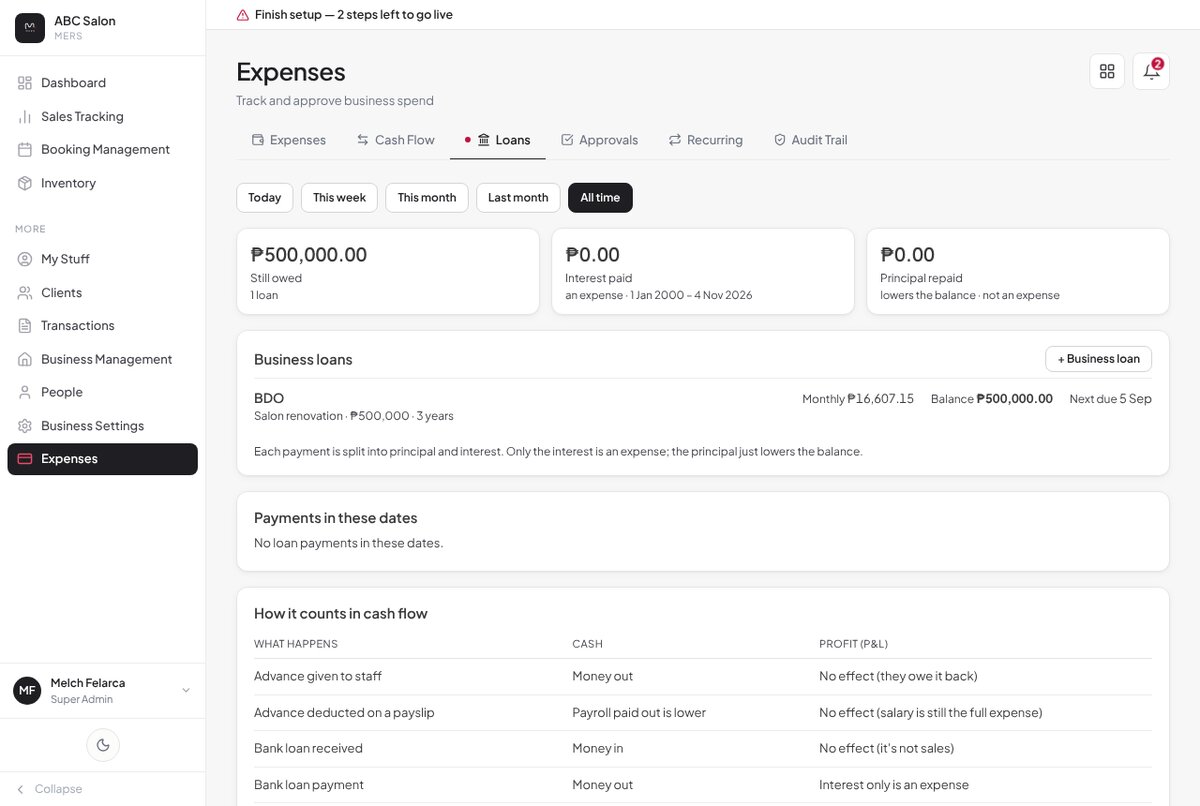
Record a staff loan or cash advance and MERS deducts it on each payday until it’s paid off. Your business’s own loans live in Expenses → Loans, with the monthly payment, balance and next due date.
MERS warns, it never blocks
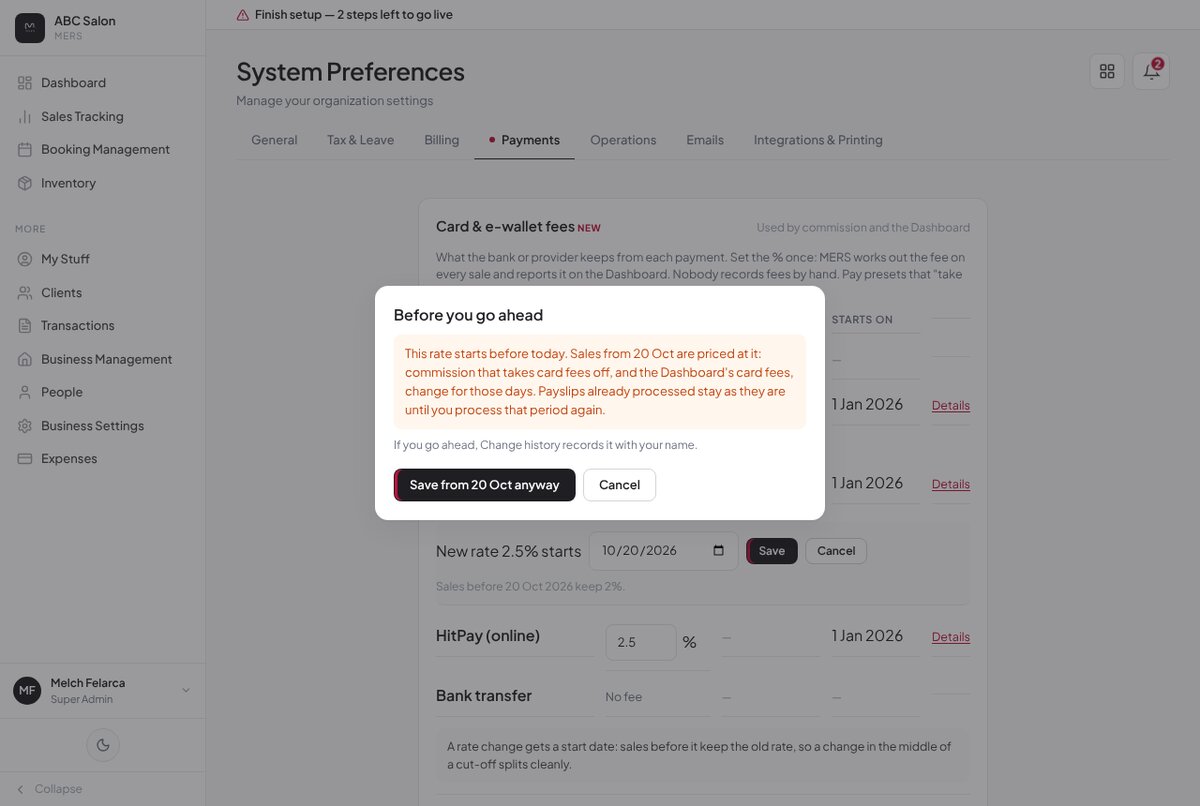
If something looks unusual, like paying a period out of order, you’ll see a note explaining it. You can still go ahead, and it’s recorded in Change history with your name.
End of Day, smarter
Sales rung up when no shift was open don’t get lost any more.
Move a sale into the open shift
The till shows a quiet line when no shift is open. Move those sales into the open shift in one tap. The sale’s time never changes, and every move is in the Audit trail.
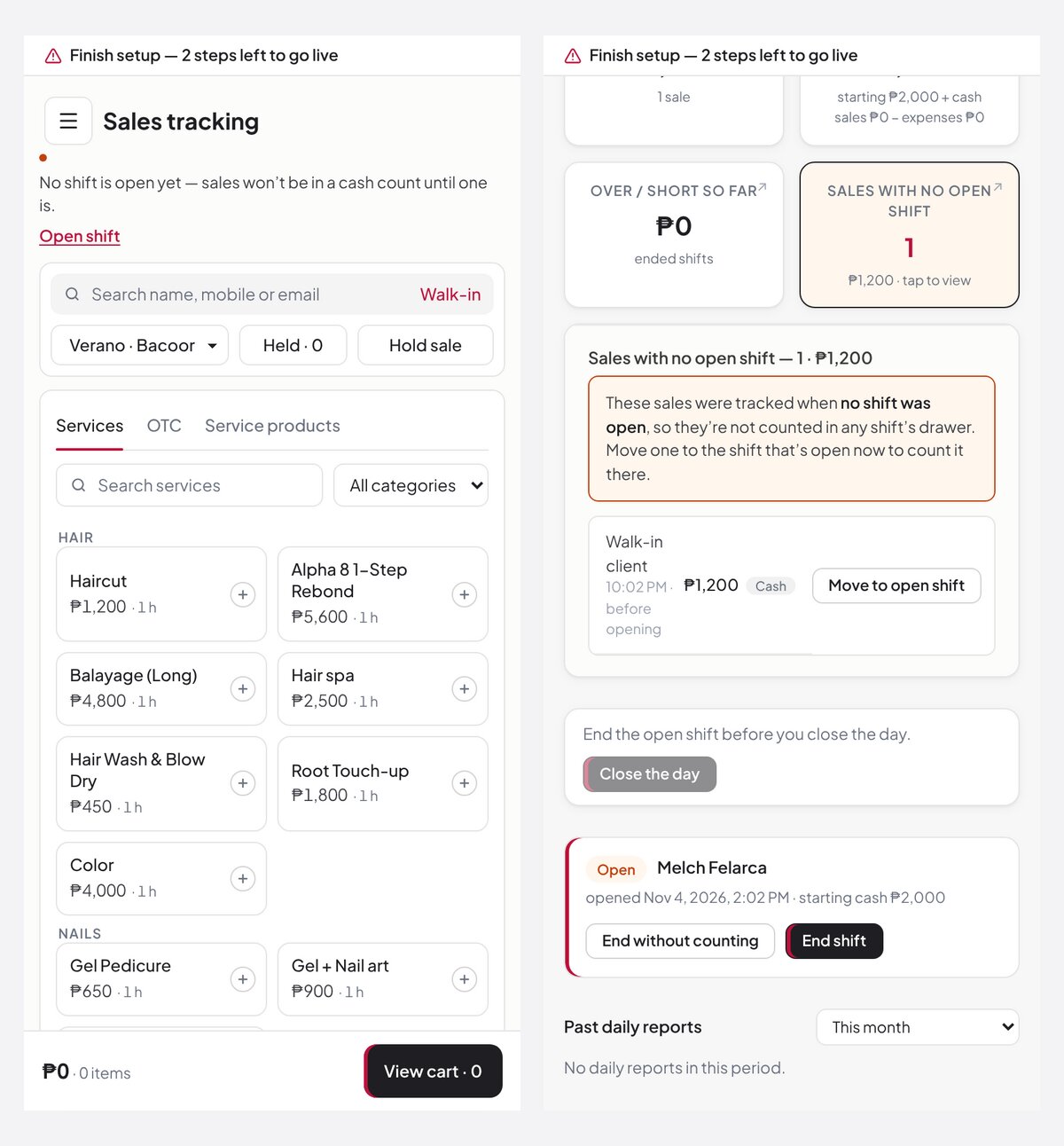
Close a shift left open from an earlier day
If a shift was left open from a past day, MERS offers to close it, and each shift only counts its own day’s sales.
Also new
Five new hair services: Straightening, Perm, Rebond, Protein treatment and Keratin treatment. Late / Absent tiles and calendar markers now match payroll exactly.
Fixed this round
- One product used on two services now shows as two lines, each with its own amount, stock and Staff 1 credit.
- Staff with MERS Login off can still clock in by kiosk QR when their kiosk PIN is set.
- “End without counting” on an old shift no longer counts later sales twice.
Last month
October 31, 2026A new way to take bookings
Booking Setup is rebuilt from the ground up, and your booking page is cleaner for clients. Everything is in Booking Management → Setup, one branch at a time.
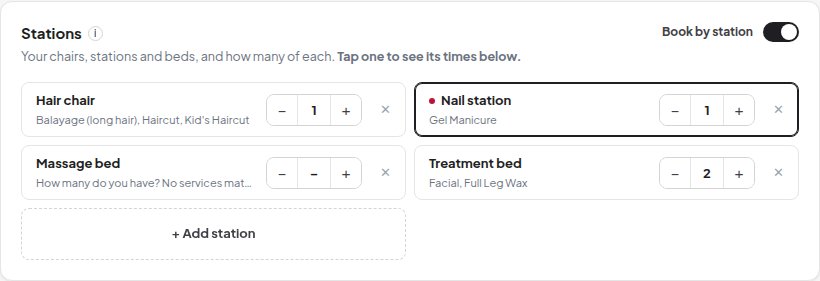
Book by station
Tell MERS your chairs, stations and beds, and how many of each: hair chairs, nail stations, treatment beds. MERS matches each service to its station from the service type, so a nail booking never takes a hair chair.
Adaptive booking: the earliest time first
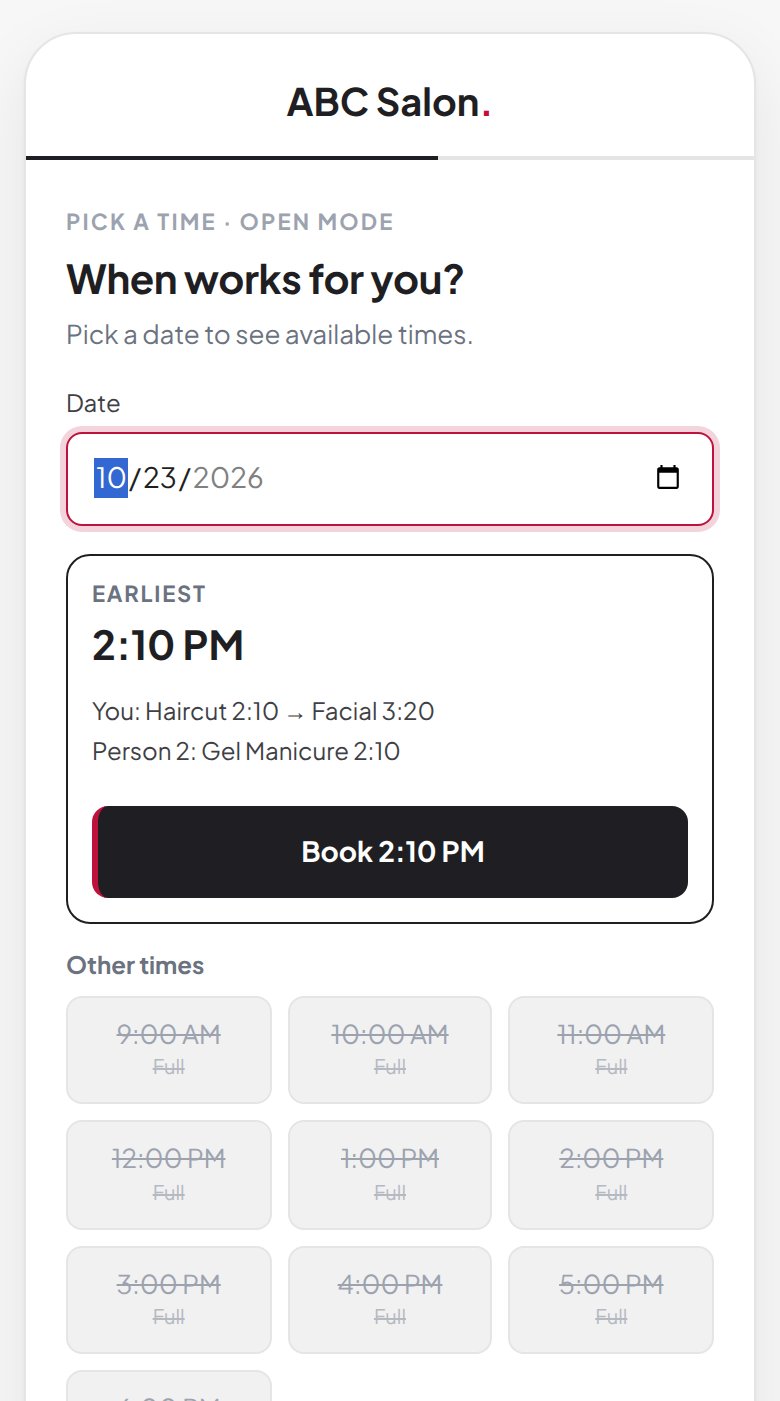
Turn on Adaptive and MERS works out open times for you from your opening hours, stations, staff schedules and how long each service takes. Clients see the earliest time their visit fits, then other start times you choose. Set a buffer between clients, allow group bookings of up to 10 people, and choose whether every service must finish by closing time (handy in malls).
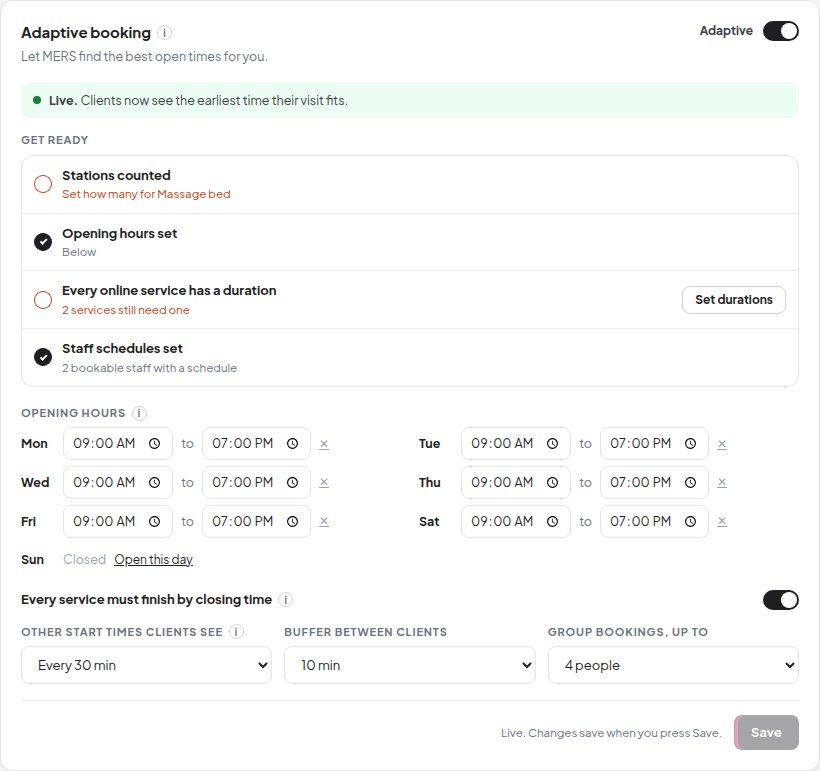
Missing durations? Fill them in once
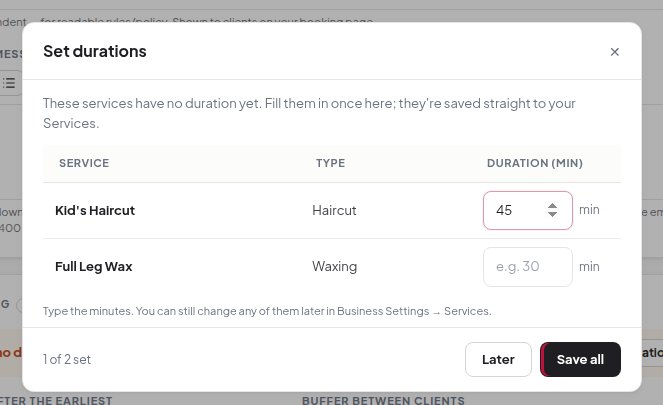
Adaptive needs a duration on every online service. MERS lists the ones that are missing in one pop-up, and they save straight to your Services.
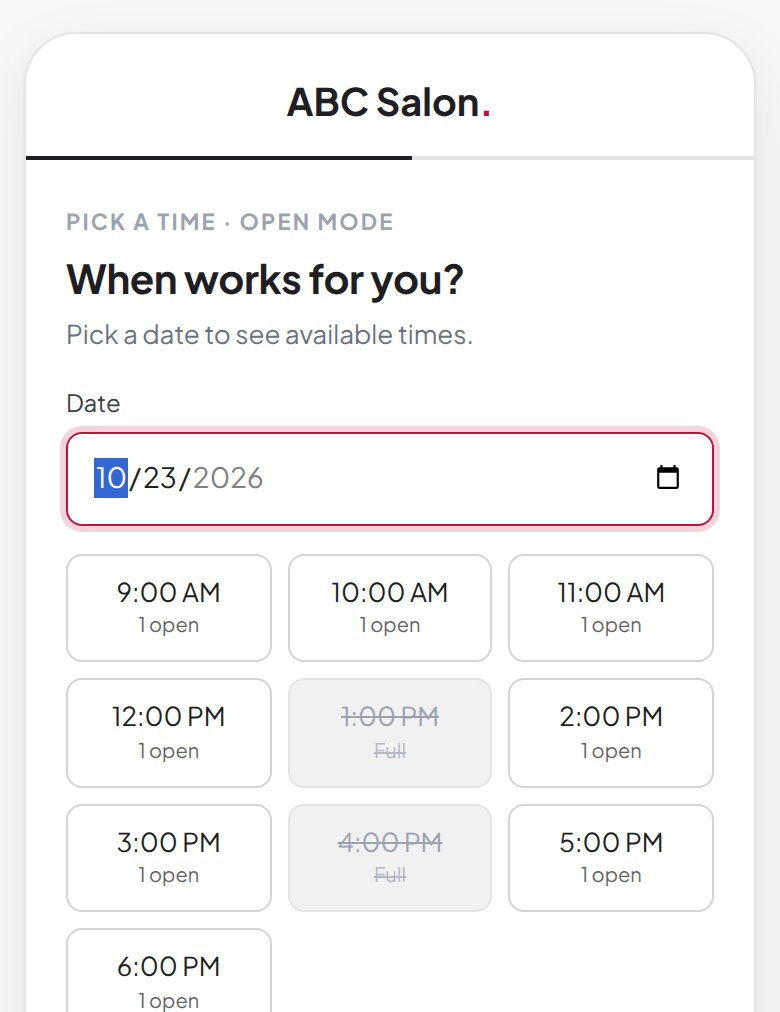
Show how many spots are left, if you want to
Choose whether clients see how many spots are left at each time.
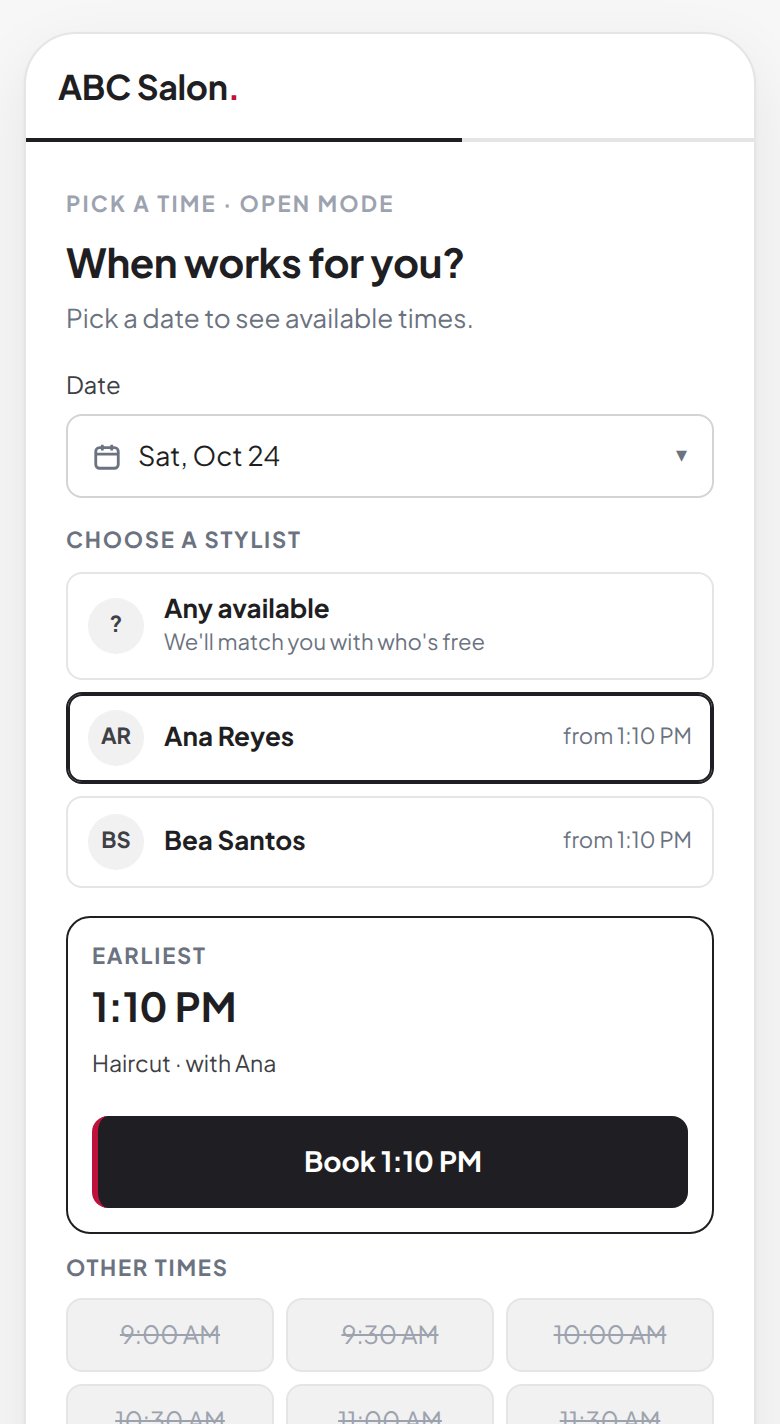
Clients can pick their stylist
Clients can pick a stylist, or Any available, and see the earliest time each one is free.
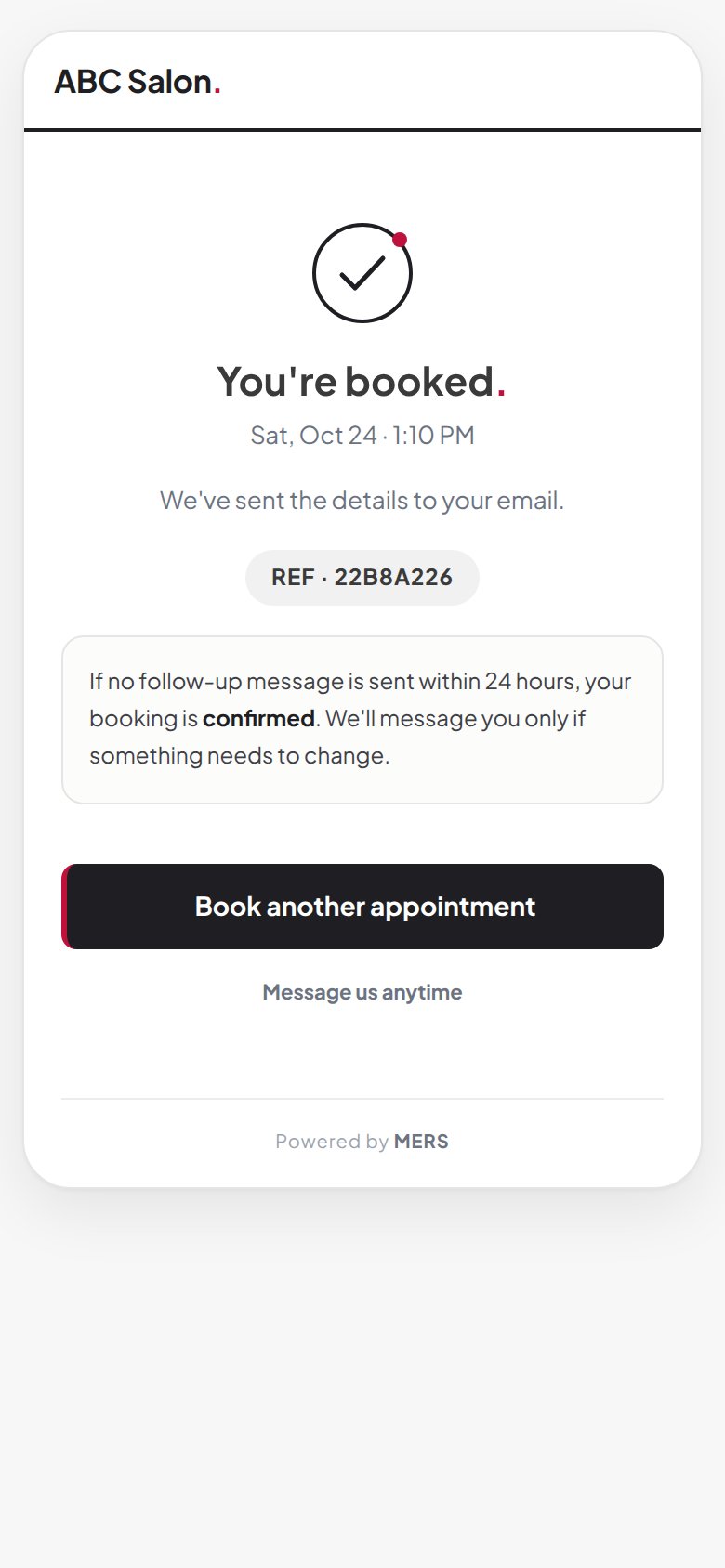
A cleaner booking page
Your logo and business name sit together at the top, dates are picked from a calendar, your booking policy shows in its own box, and clients finish on a clear You’re booked screen. A visit with several services is one booking with one confirmation.
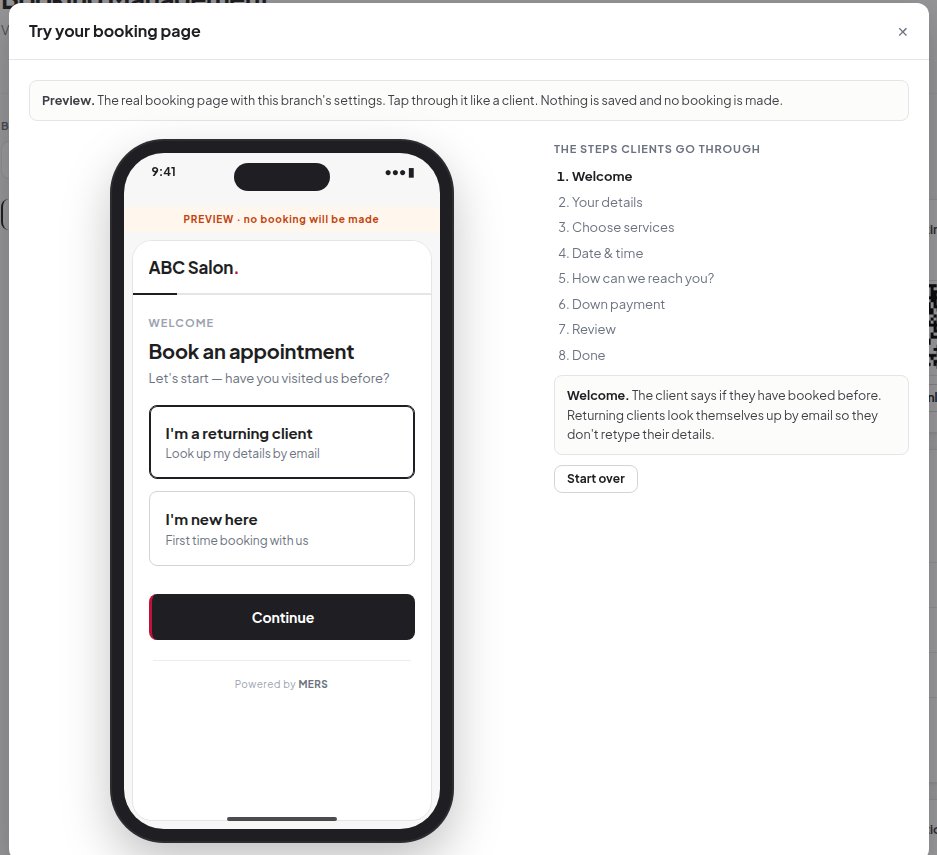
Try your booking page
Tap through your booking page exactly as a client would, right inside Setup. Nothing is saved and no booking is made.
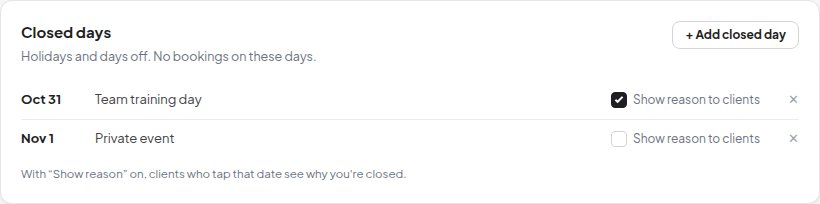
Closed days can say why
Add holidays and days off, and tick Show reason to clients so someone who picks that date knows why you’re closed.
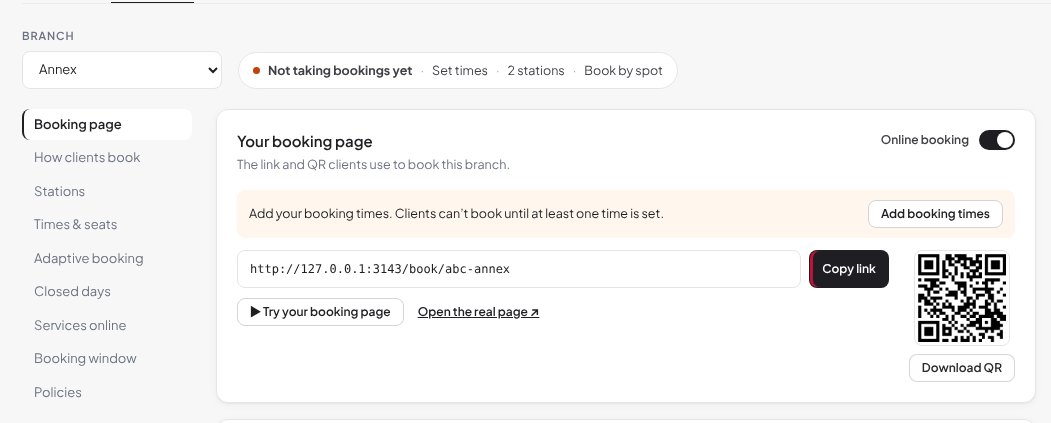
A warning when booking is on but can’t work
If online booking is on but a branch has no booking times yet, MERS says Not taking bookings yet and shows what to add, so clients never land on an empty page.
Packages, done properly
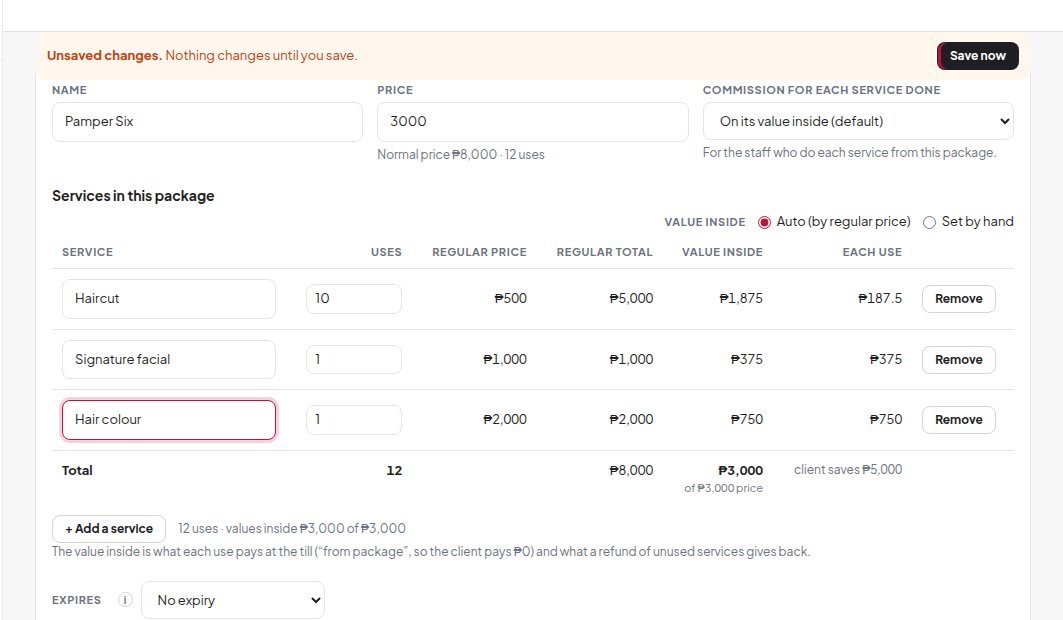
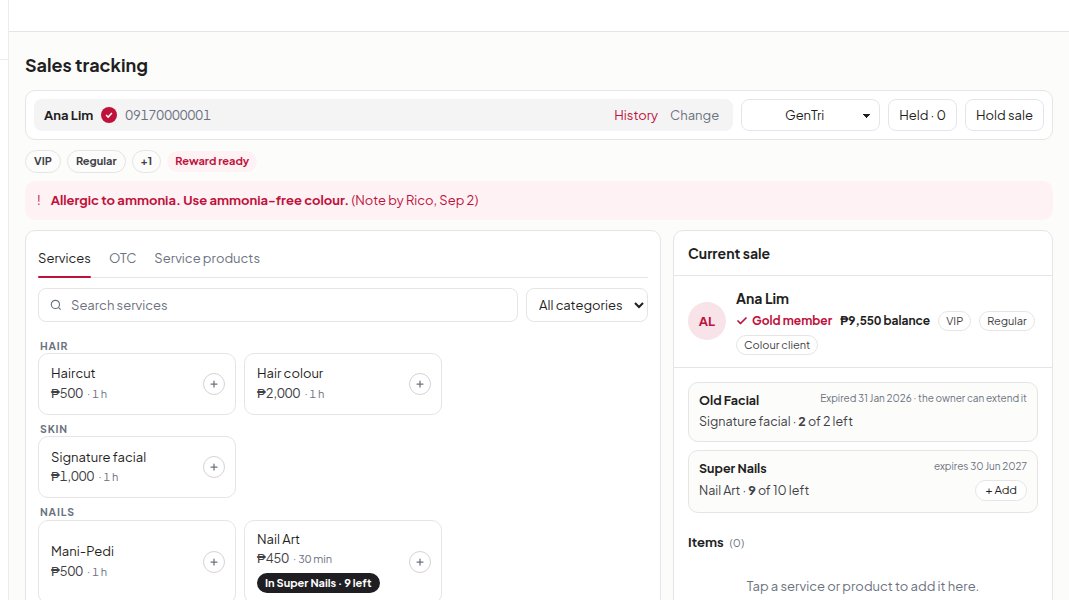
Packages can now hold several services, and they’re used for you at the till.
Packages with more than one service
Put several services in one package, each with its own number of uses. MERS shows the regular price, the value inside each use, and how much the client saves.
Used automatically at the till
Pick the client and their packages show straight away. Add a service that’s in a package and MERS uses the package, at ₱0, with the package’s commission rule. Want to charge normally instead? One tap.
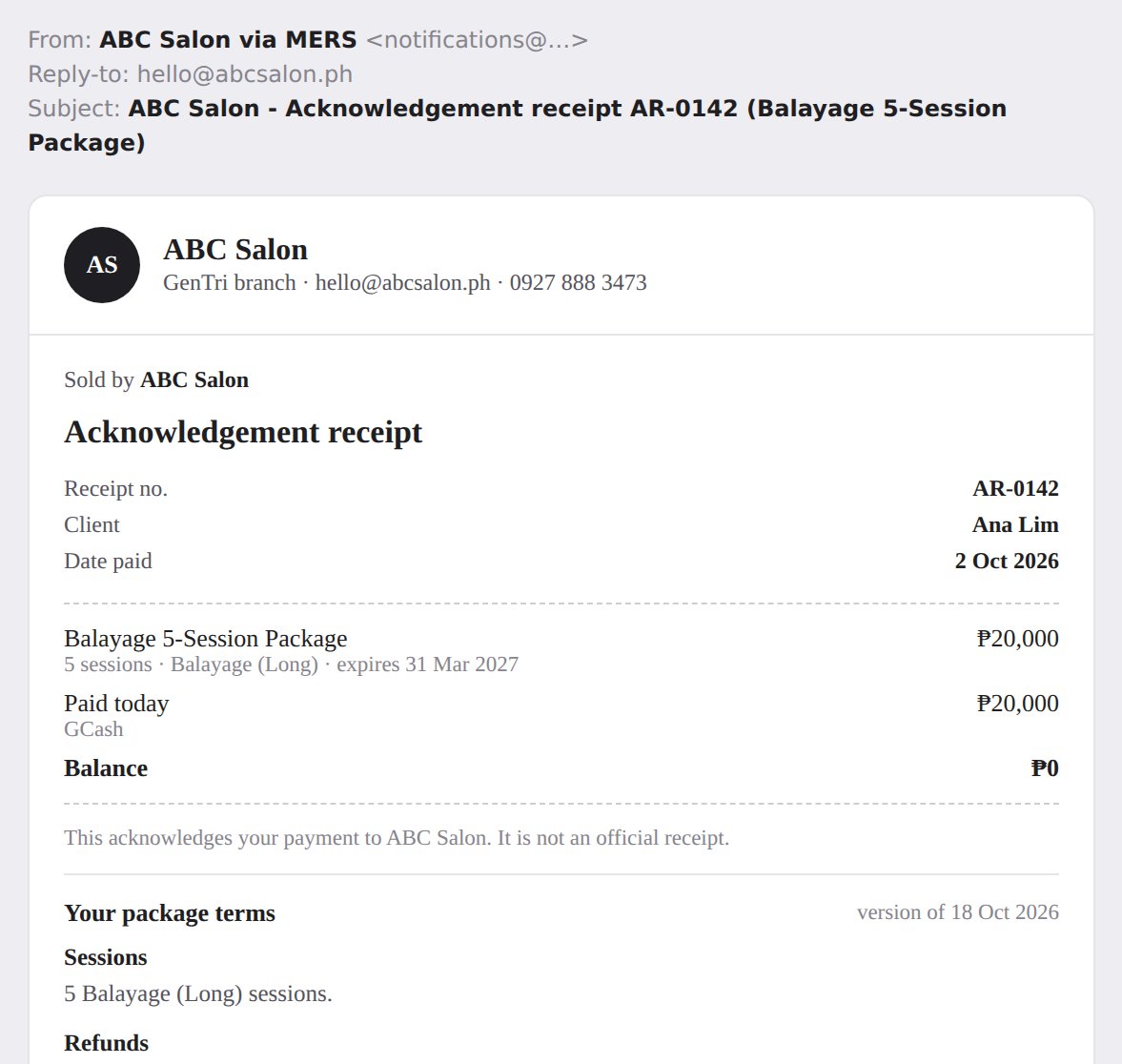
Expiry and package terms
Set when a package expires (a number of days or a date) when you build it. Your Package terms are kept with a version, and the client gets one email: an acknowledgement receipt with the terms inside.

Print slips on your receipt printer
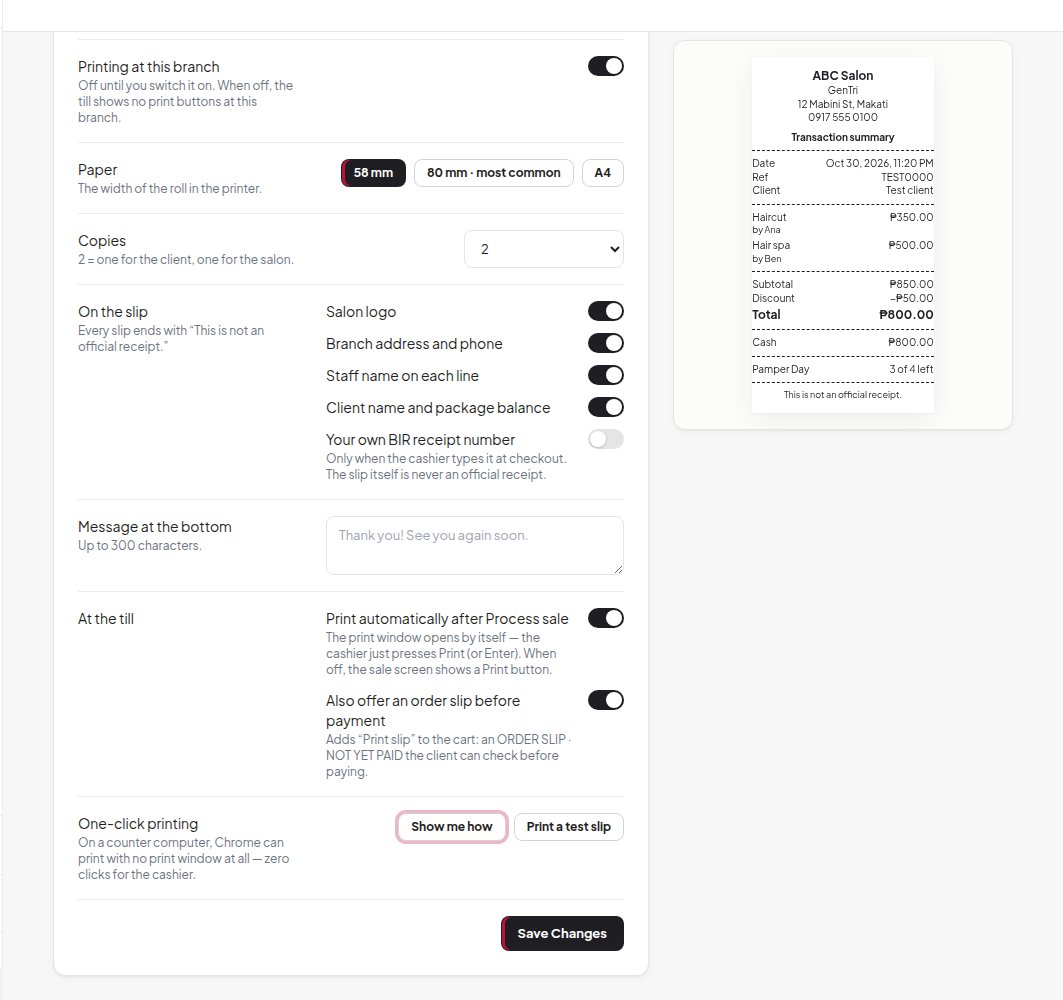
Print a transaction summary on any 58 mm or 80 mm receipt printer, or on A4. Set it per branch in System Preferences → Integrations & Printing. It stays off until you switch it on.
Choose what’s on the slip
Logo, branch address and phone, staff on each line, the client’s package balance, and a message at the bottom. Print automatically after Process sale, and offer an order slip before payment. Every slip says it is not an official receipt.
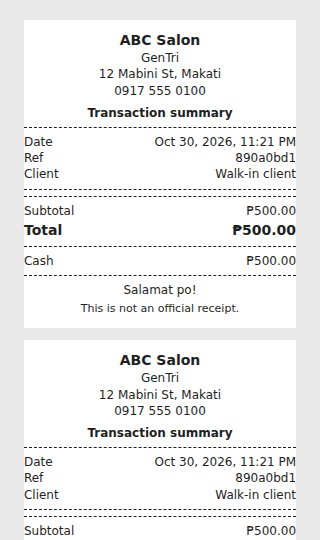
Print again from Transactions
Reprint any sale’s slip from Transactions. On a counter computer, One-click printing prints without the print window at all.
Choose which emails MERS sends
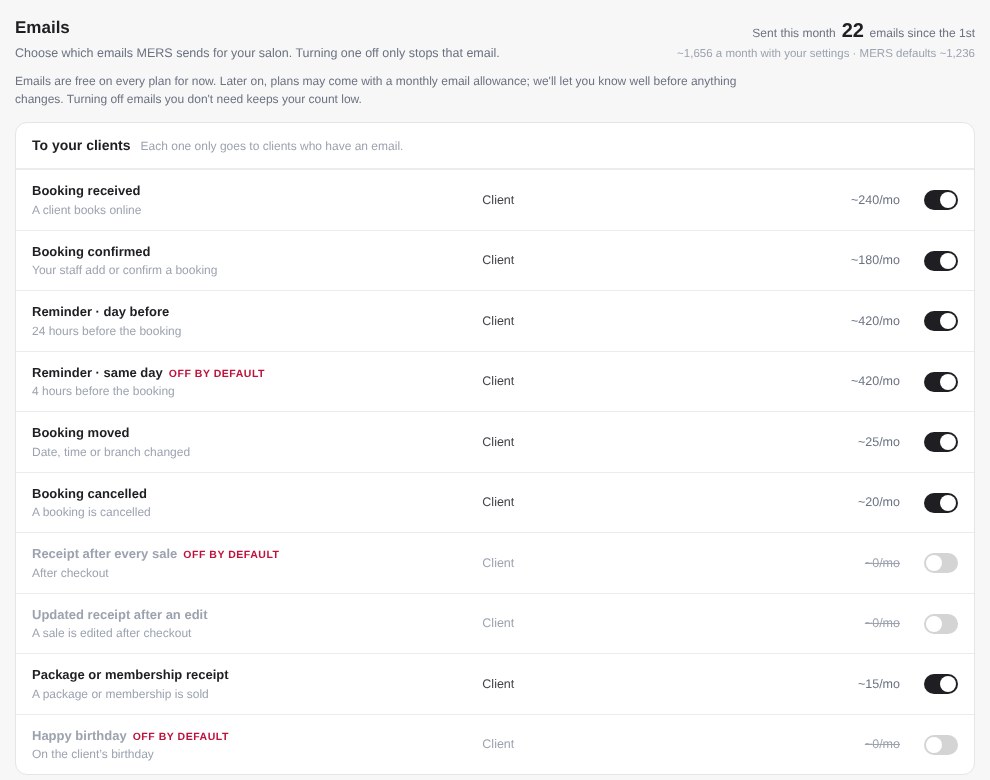
A new Emails tab in System Preferences lists every email MERS sends for your salon, who gets it, and about how many go out a month. Each one has its own switch.
One switch per email
Turn any email off and only that email stops. Billing and setup emails always go, so you never miss a payment warning. Payslips only go when you press Send in Payroll.
Add up to 3 extra people
Send the daily report, the all-branches report and new online booking notices to up to 3 more emails (per branch where it applies), like your accountant. Use Send a test to check the list.
See how many you send
The top of the tab shows how many emails your salon has sent this month. Emails are free on every plan for now.
A faster, clearer till
Sales Tracking opens faster, and a few everyday things are easier.
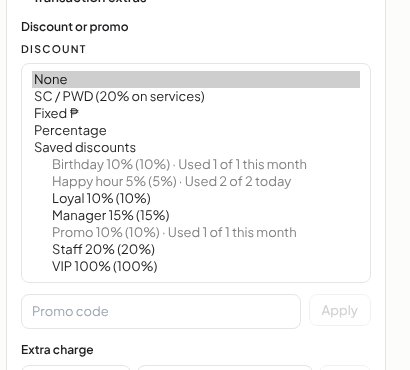
Saved discounts at the till
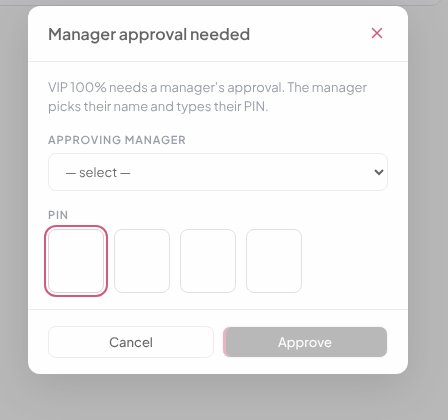
Your saved discounts show in the discount list, with how many times each has been used. Ones that are used up are greyed out, and a discount that needs approval opens the manager PIN pop-up.
Your payment methods, in your order
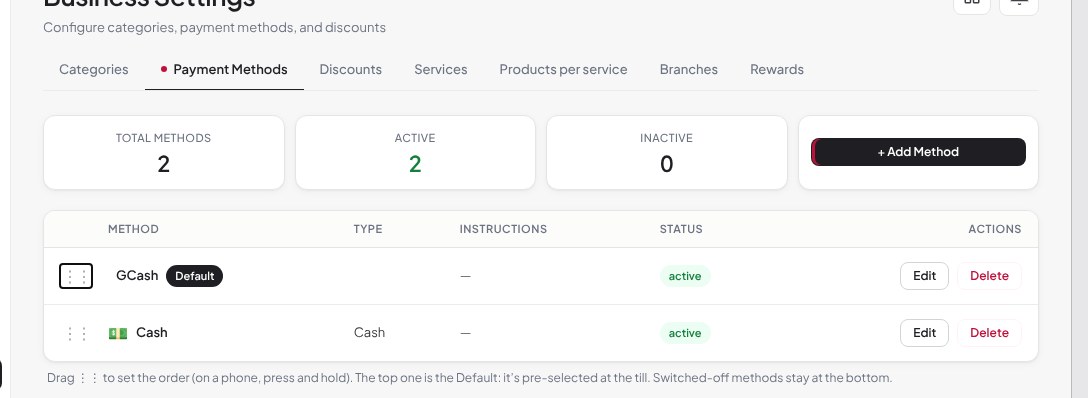
Drag payment methods in Business Settings → Payment Methods. The one on top is the default at the till.
Errors you can’t miss
When something stops a save, MERS now says so in a pop-up with exactly what to fix, instead of small red text at the bottom of a form.
Held sales as tiles
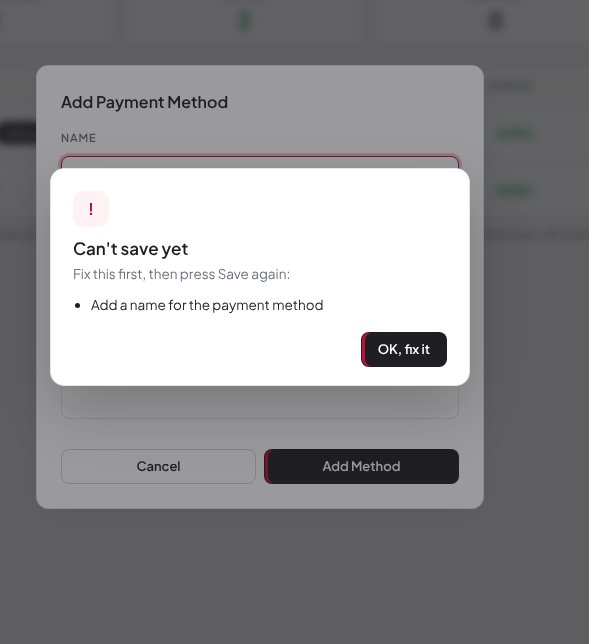
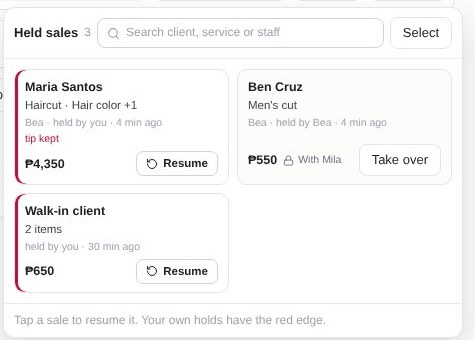
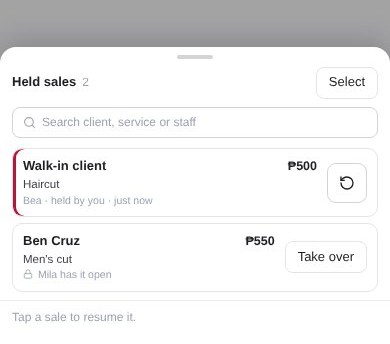
Held sales open as tiles with the client, services and staff on each one. On a phone they slide up from the bottom. Tap Select to delete several at once. Choose who can pick up anyone’s held sale with the new Access switch Pick up anyone’s held sales: People → Employees → open the person → Access → Sales Tracking. Branch managers have it on and staff have it off until you change it.
Find a client by phone, any way it’s typed
Search 0917…, 63917…, +63 917…, 917… or just part of the number.
Pick the branch first
Process sale and Hold stay greyed until a branch is picked, so no sale lands in the wrong branch.
People, pay and settings
Smaller changes that save time every week.
Import your staff from Excel
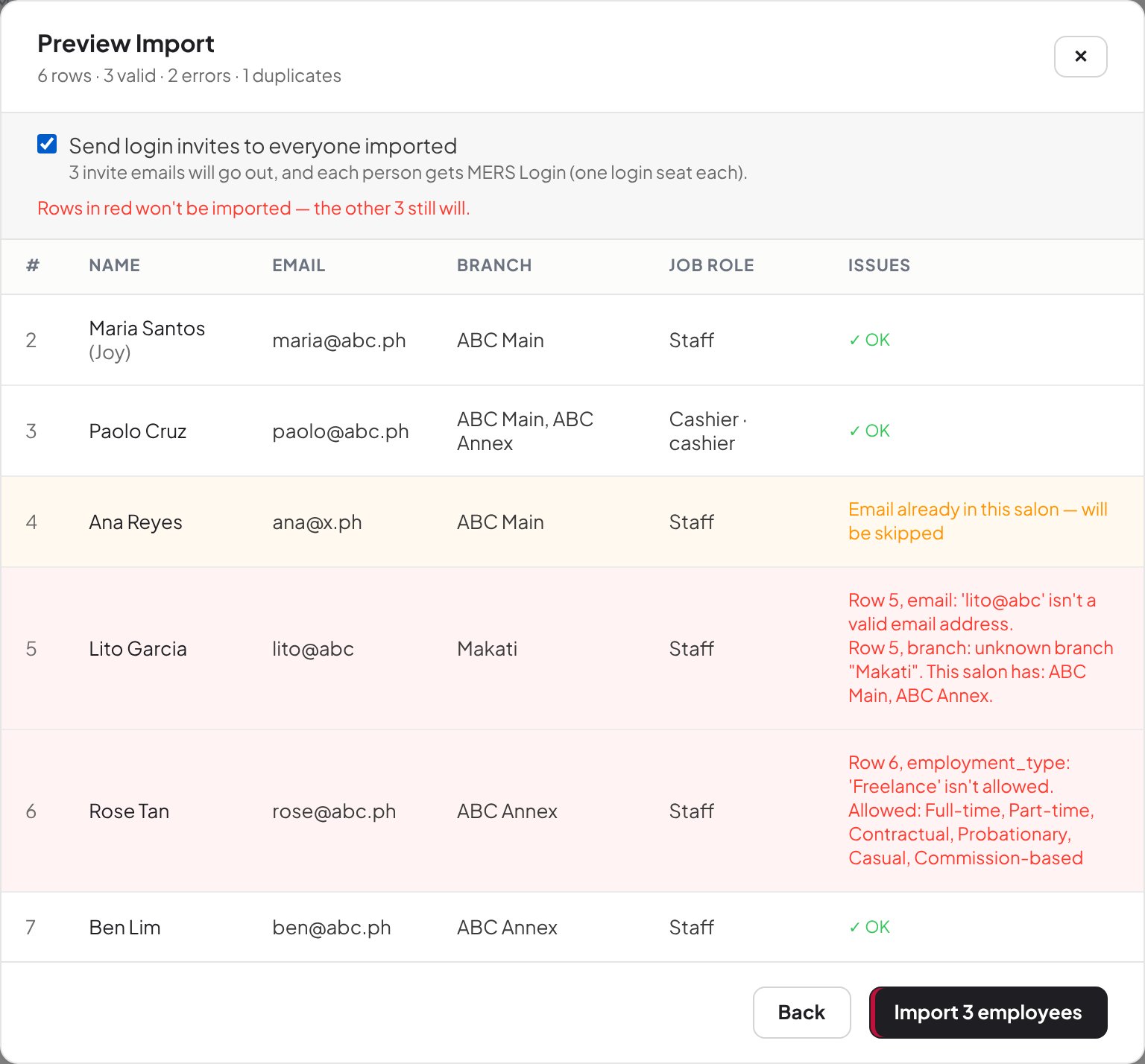
People → Employees → Import from Excel: upload a spreadsheet of names, emails and branches, see every problem before anything is saved, and send login invites in one go. Pay is set later in Payroll.
System Preferences in 6 tabs
General · Tax & Leave · Billing · Operations · Notifications · Integrations & Printing. Old links still open the right section.

Reopen a payroll run
Marking a run Paid no longer locks it. Reopen a run to fix something, with warnings instead of blocks.
Swap a day across two branches
When someone works shifts at two branches on the same day, choose which shifts move when you swap the day.
Fairer late and overtime
Late, early-out and overtime are measured against each weekday’s own hours. Past unpaid days can also get Different hours or a Day off.
Delegated Admins and their own schedule
Owners decide whether a Delegated Admin can change their own schedule and leave: System Preferences → Operations → Access.
Also new
Commission follows the most specific rule: a service’s own fixed ₱ or % is never replaced by the staff % or a quota. Semi Permanent Make Up types (Brows, Lip pigmentation, Eyeliner) in Services. The Transactions export now has Sales and Products used sheets.
Fixed this round
- Cancelling or undoing a one-day schedule change no longer fails with “id required”.
- “Spread over the month” now takes one monthly share of SSS, PhilHealth and Pag-IBIG a month.
- Reopening a payroll run also un-marks the commission that was marked paid for it, with history kept.
- The SC / PWD discount shows as 20% (set by law) in System Preferences.
- Time in chair is saved, and a product used is saved under the service it was picked for.
- Refunds now show in the Transactions export.
- Slips name prepaid payments (balance or package) and never print a whole blank page.
- The ☰ menu is back in Sales Tracking on phones.
- The “unsaved changes” bar no longer covers drawers and pop-ups.
- A wrong kiosk PIN shakes and resets again, instead of opening a pop-up.
- MERS stays up when the database is slow, instead of the whole app going down.
- Owners who have already made a sale aren’t asked to do the guided first sale again.
Last month
October 18, 2026Rewards, Memberships and Packages
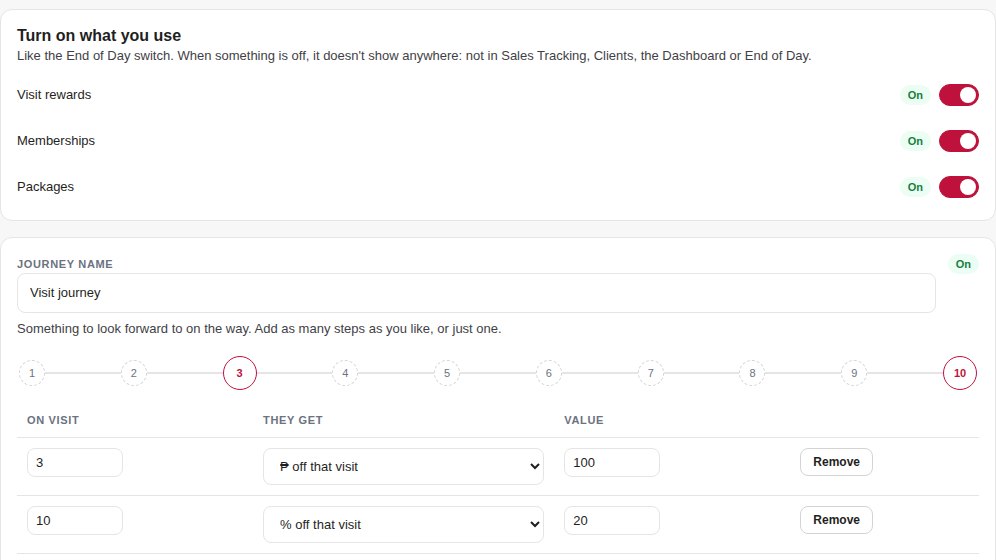
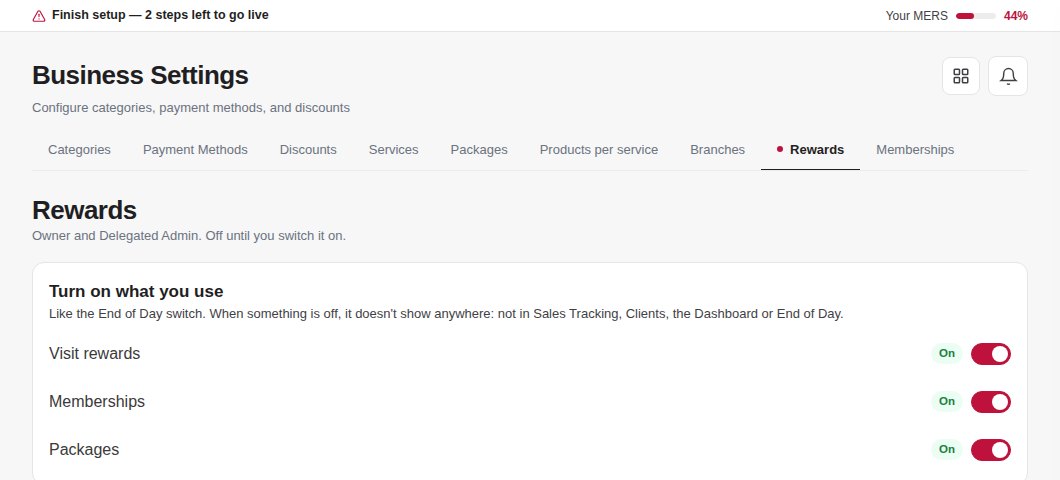
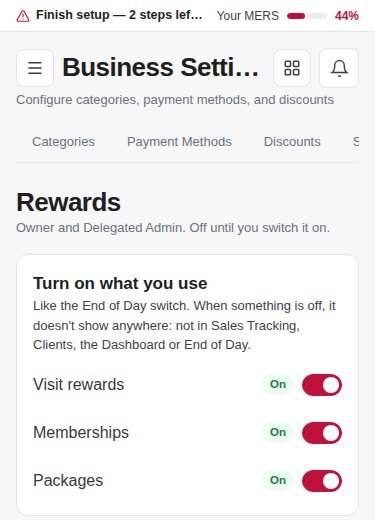
Bring clients back and get paid ahead. Each one has its own on/off switch in Business Settings → Rewards, so you only see what you use.
Visit rewards
Set a visit journey, for example 5th visit 20% off or 10th visit a free service. MERS counts visits for you and shows when a reward is ready.
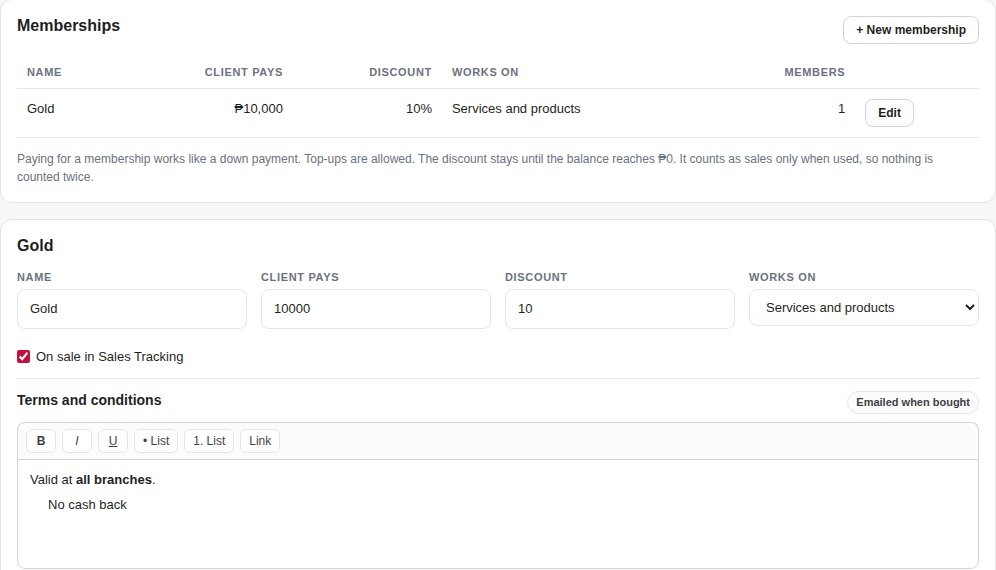
Memberships
The client pays ahead and gets a member discount until the balance is used up. They can top up any time.
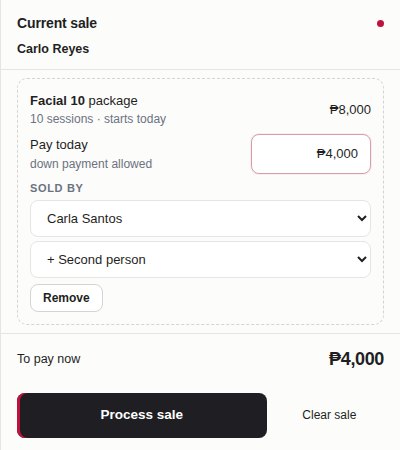
Packages
Sell sessions paid up front, like 10 facials. A down payment is allowed, and sessions open up as it’s paid.
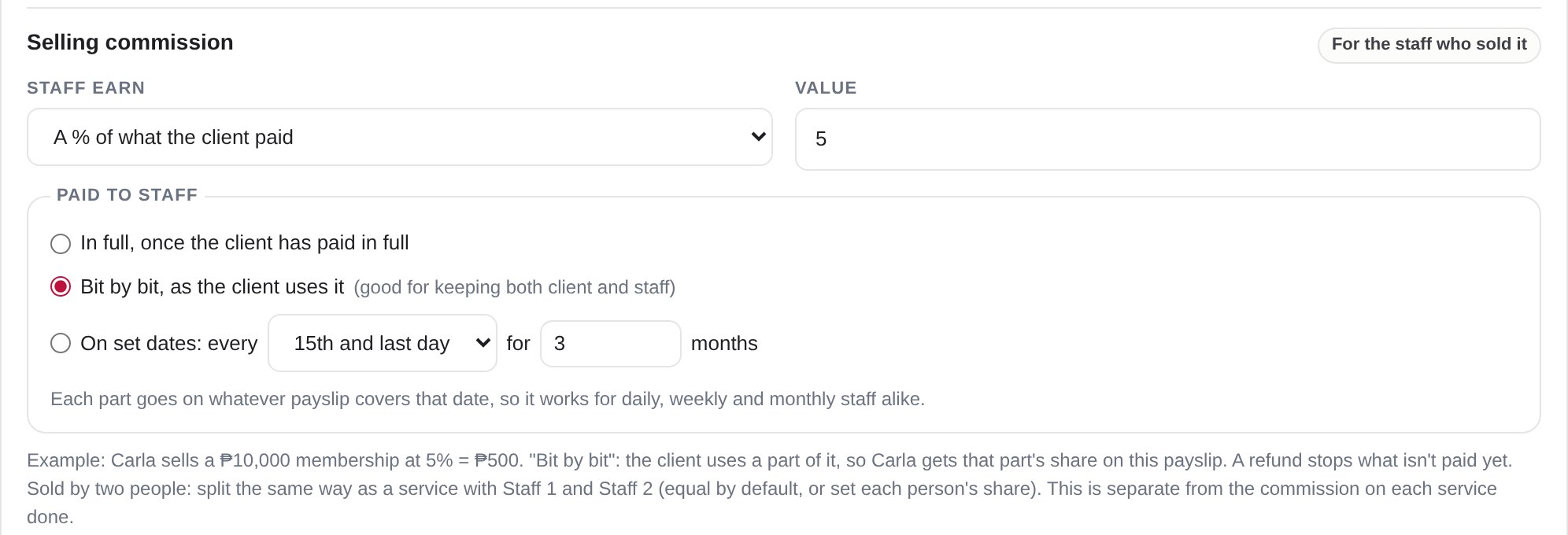
Selling commission for whoever sold it
Reward the staff who sold the membership or package: a % or a fixed amount, split between two sellers, and paid in full, bit by bit as it’s used, or on dates you choose.
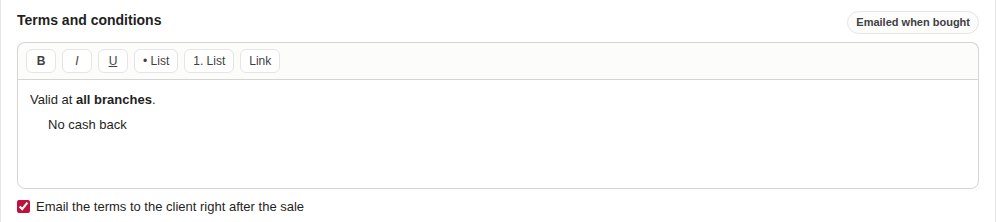
Terms emailed after the sale
Write your terms once. MERS emails them to the client right after the sale, together with an acknowledgement receipt for what they paid.
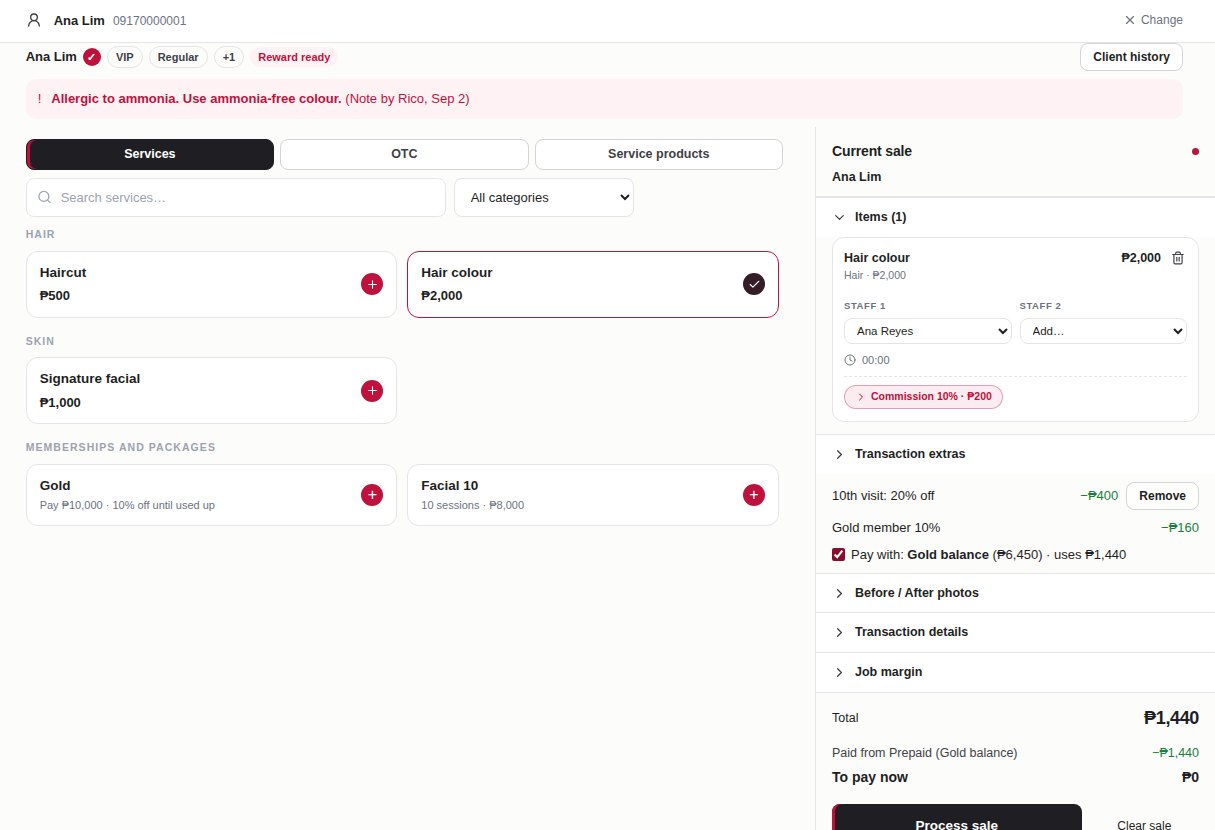
At the till
Pay with the client’s balance, use a reward that’s ready, and see the member mark next to their name.
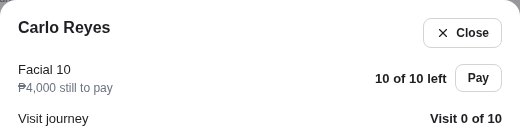
Client history and important notes
Open Client history from Sales Tracking to see their packages and visit journey. Important client notes show in red, so nobody misses them.

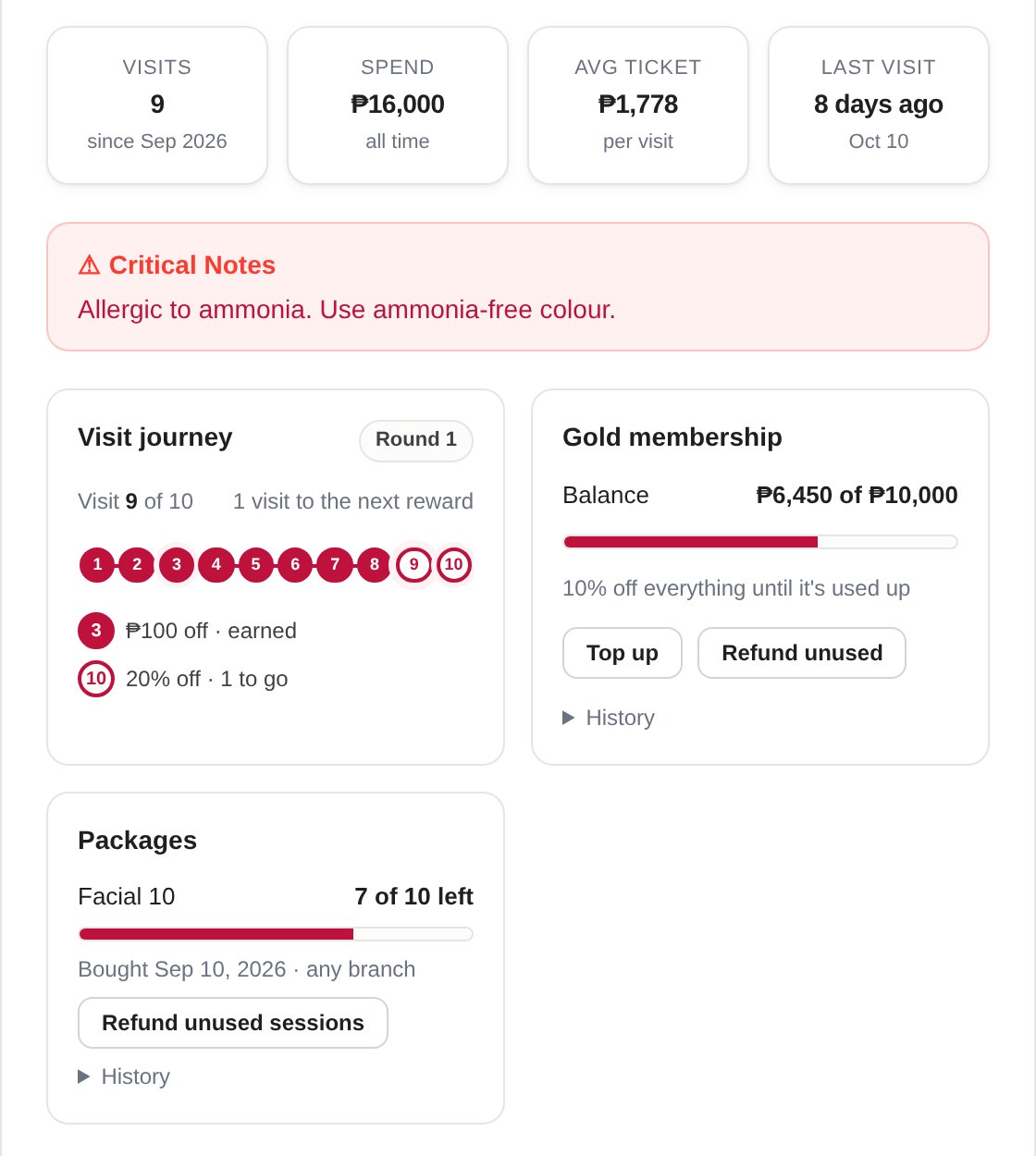
Client profile
Each client’s profile shows their visit journey, balance and packages, and you can refund what’s left unused.
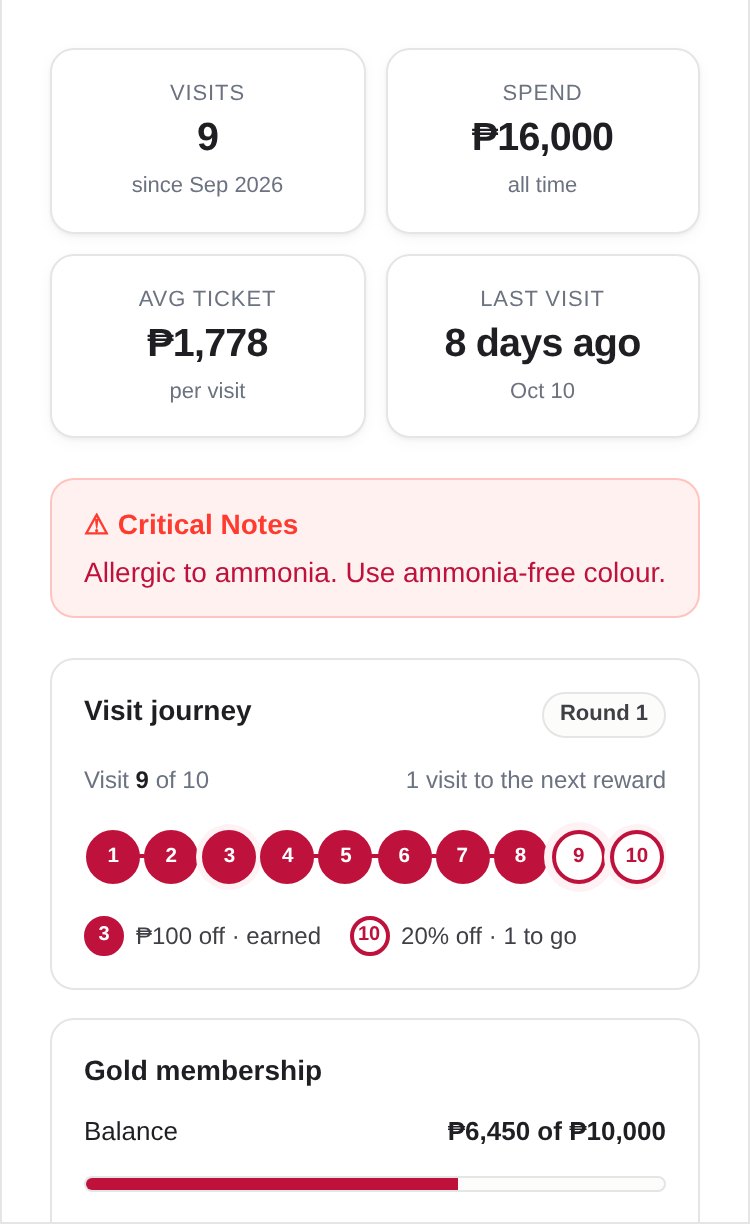
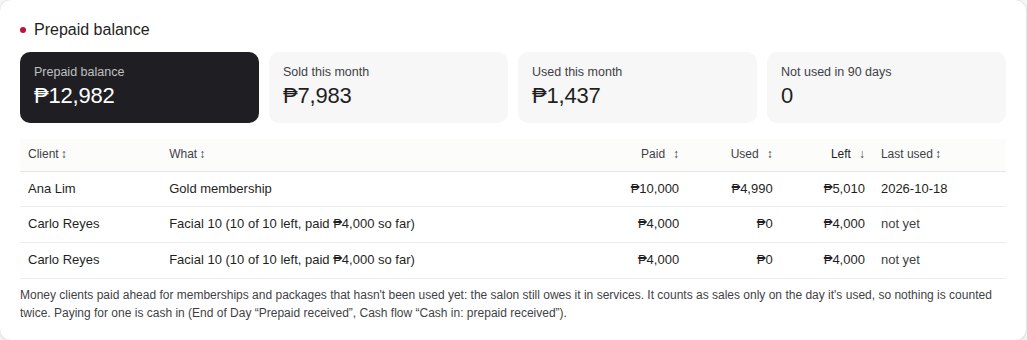
Money stays clear
Prepaid money is never counted twice. End of Day shows Prepaid received and Prepaid refunded; the Dashboard shows it in Cash flow and keeps a Prepaid balance of what’s still owed in services.

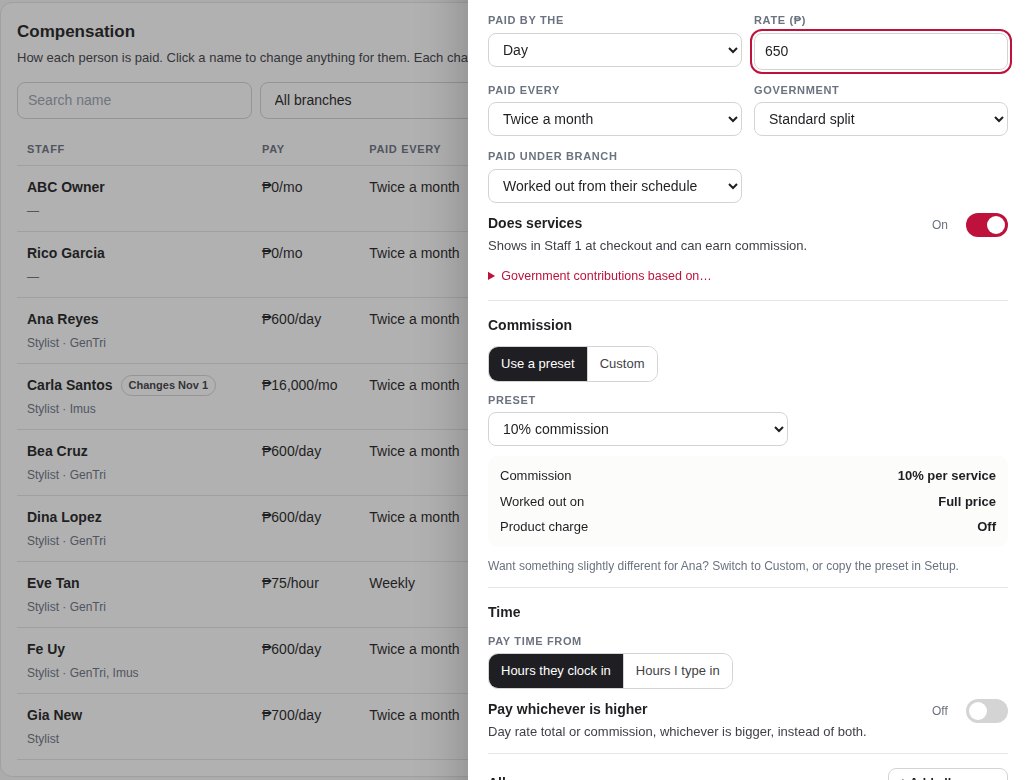
Pay & Compensation
Everything about a staff member’s pay, in one place — and every change kept.
Everything about pay in one place
A new Compensation tab in People shows each staff member’s pay, allowances, quota and commission together. Click a name to change anything for them.
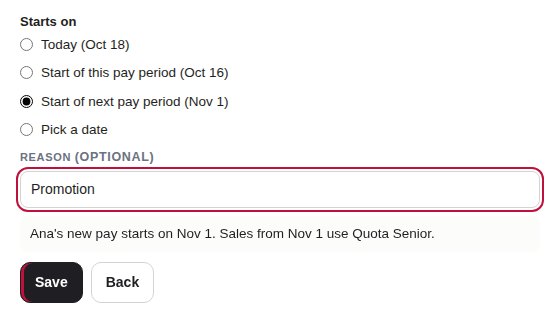
You choose when a pay change starts
Every time you save a pay change, pick when it starts: today, the start of this pay period, the next pay period, or a date you choose. Add a reason if you like.
Every pay change is kept
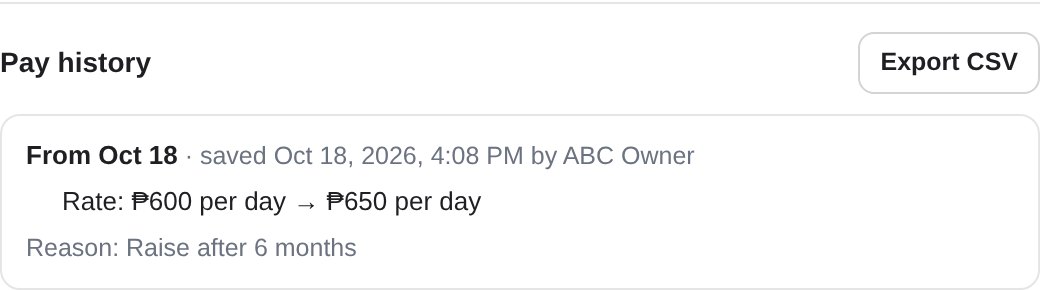
Each saved change goes into Pay history: what changed, from when, who saved it and why. Download it as a CSV any time.
A change in the middle of a period is split correctly
When pay changes partway through a period, the days before the change are paid the old way and the days after it the new way. MERS shows both, with the date they switch.

Commission is the same everywhere
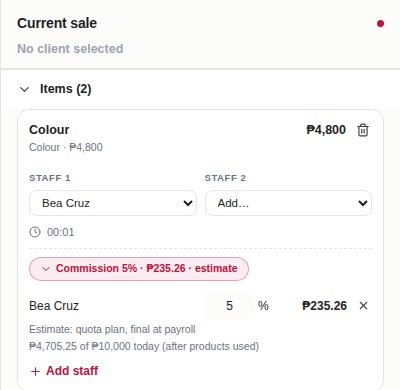
The commission you see at the till is the same on the saved sale, in reports and on the payslip. Staff on a quota see their estimate right in Sales Tracking.
Updated withholding tax tables
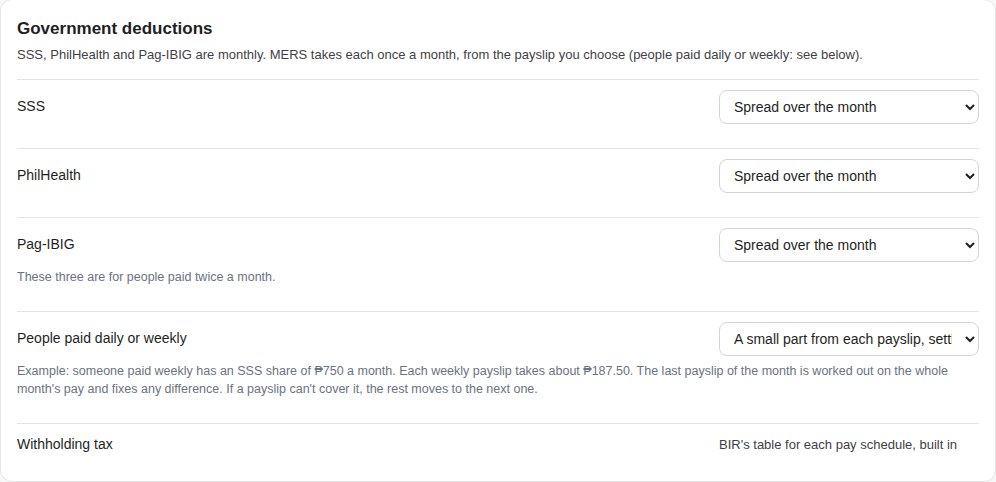
Tax tables are built in for each pay schedule, and SSS, PhilHealth and Pag-IBIG can be spread over the month the way you choose.
A warning before you lose your changes
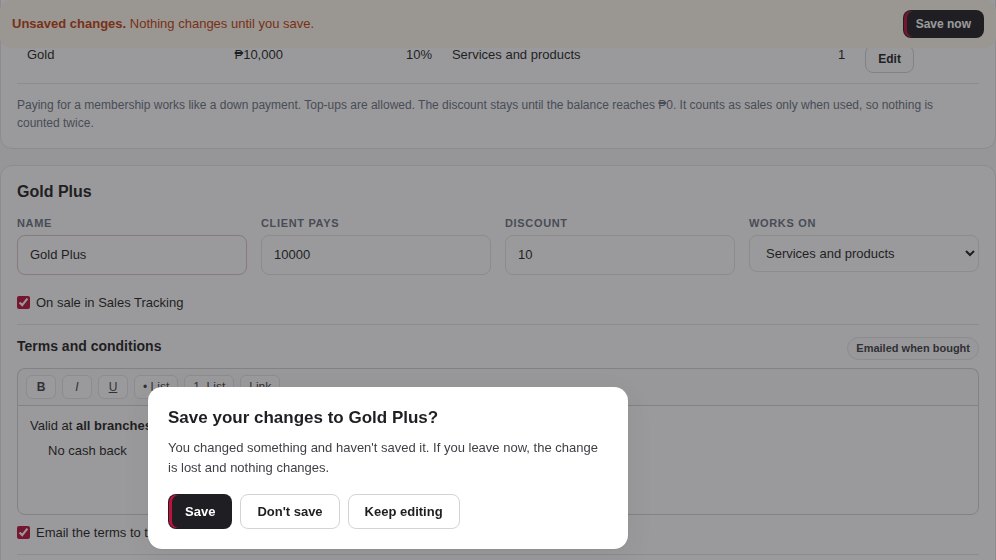
Leave a page with something unsaved and MERS asks first: Save, Don’t save or Keep editing.
Download payslips as PDF
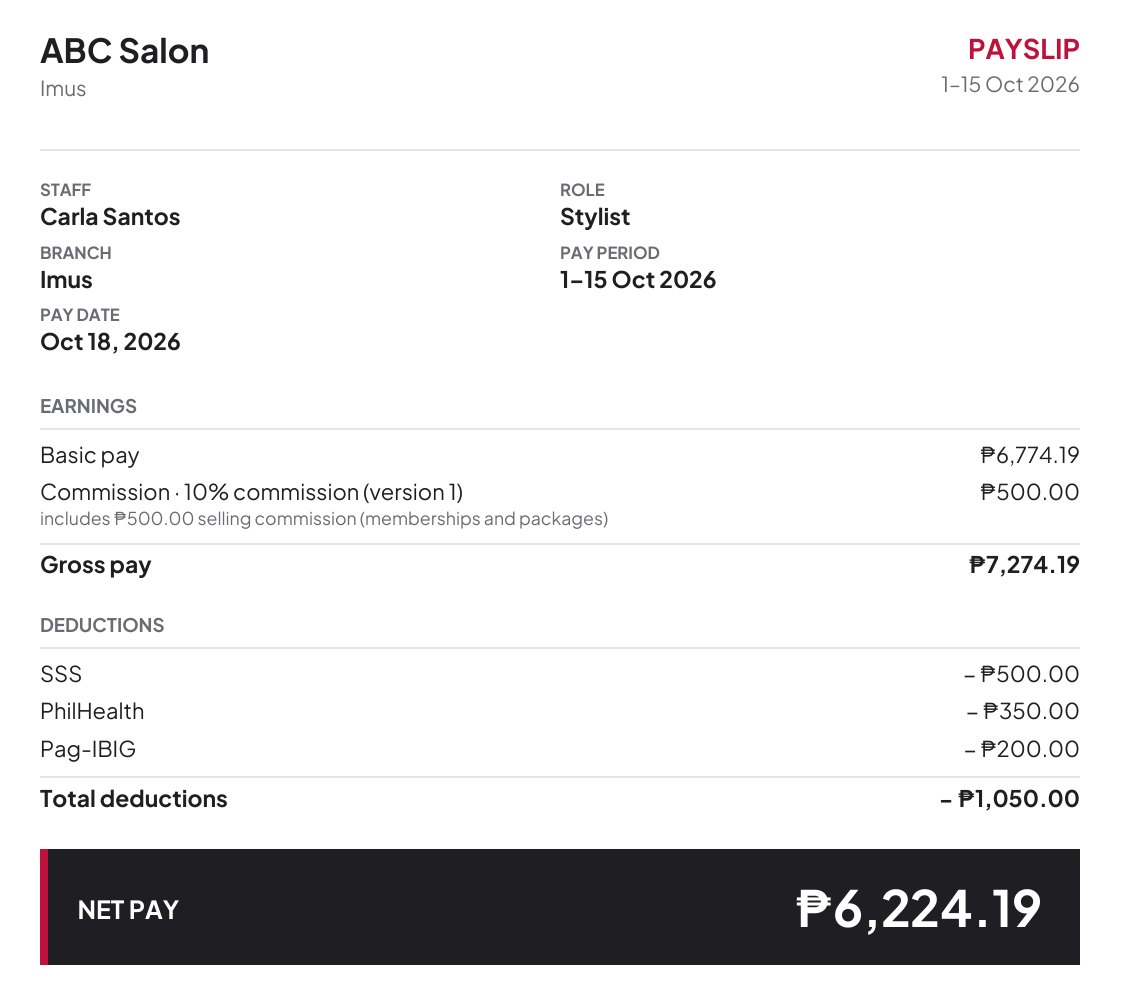
A clean, one-page payslip for each staff member, ready to save or send. Owners: People → Payroll → Download all for the whole run, or the PDF button on one person. Staff: My Stuff → Payslip → Download PDF for their own.
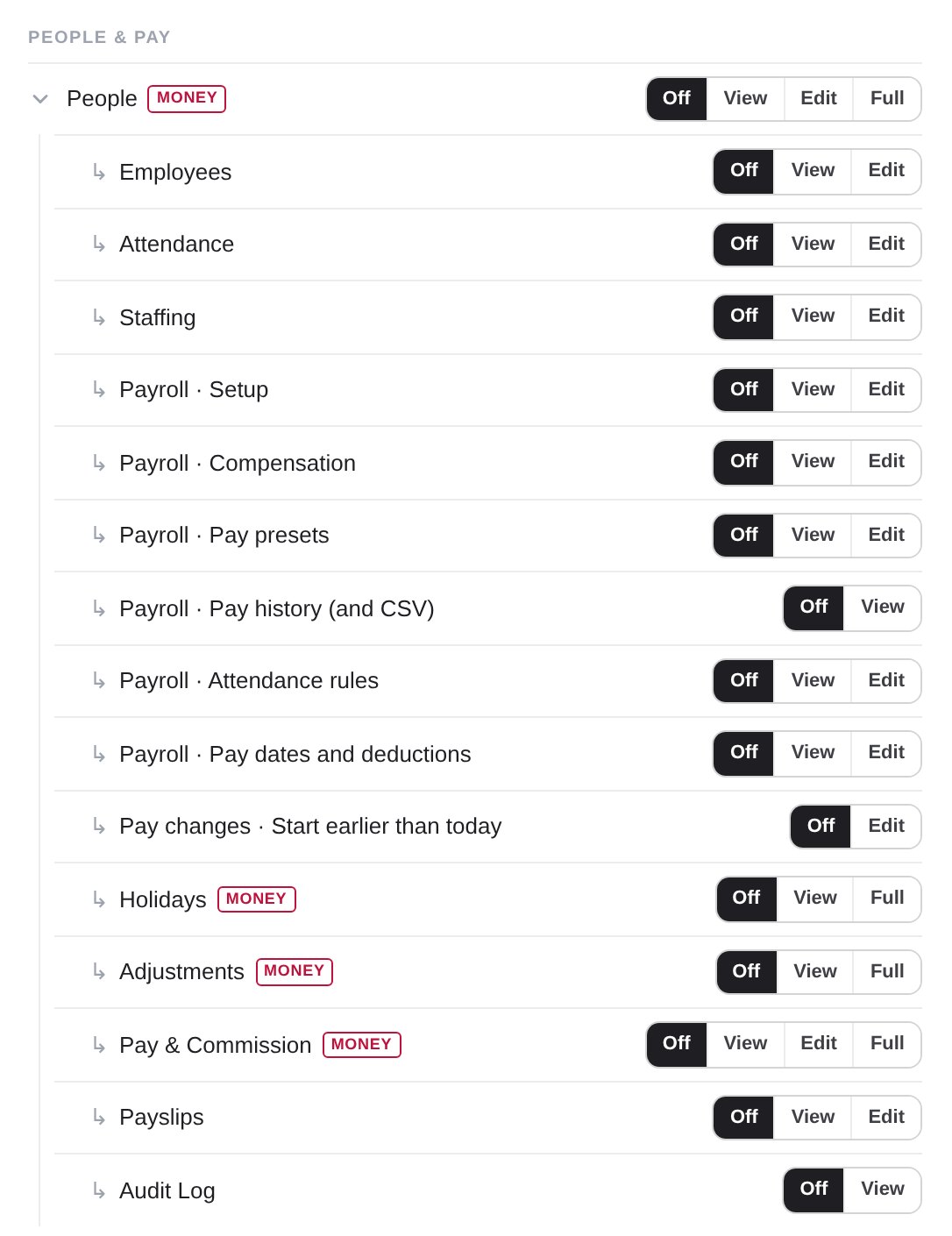
New Access switches for payroll
Choose exactly who can see or change Compensation, Pay presets, Pay history, Payroll Setup and more, person by person.
Easier to use
Small things that make every day smoother.
The setup bar moved to the top
The setup bar now sits in a thin strip across the top and never covers buttons or switches. Don’t need it? Stop it for good in System Preferences → General → Getting started.
Cleaner number tiles
The number tiles on the client profile are cleaner and easier to read at a glance.

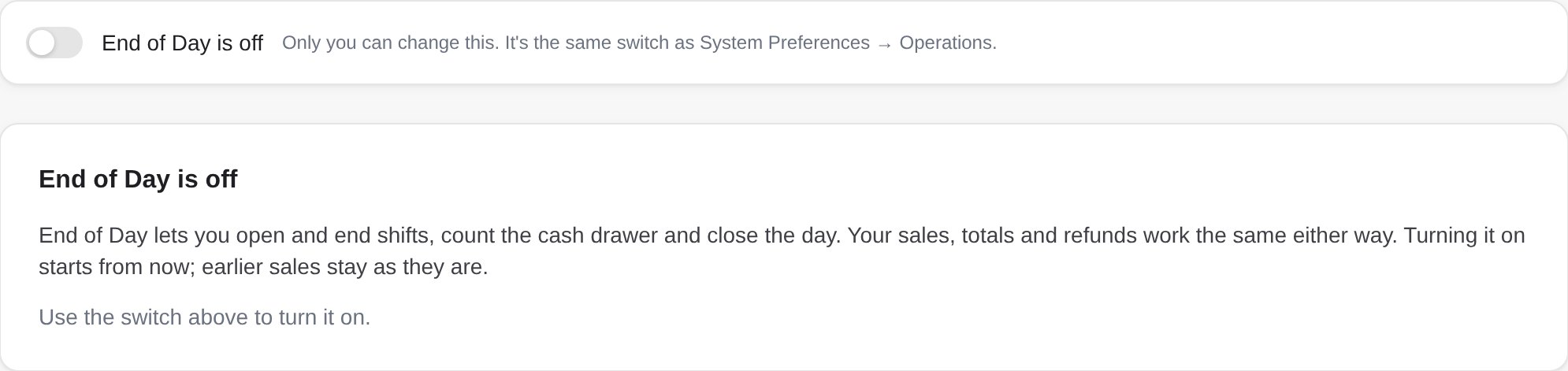
End of Day is now optional
Turn End of Day on or off in System Preferences, or right at the top of the End of Day tab. New salons start with it off.
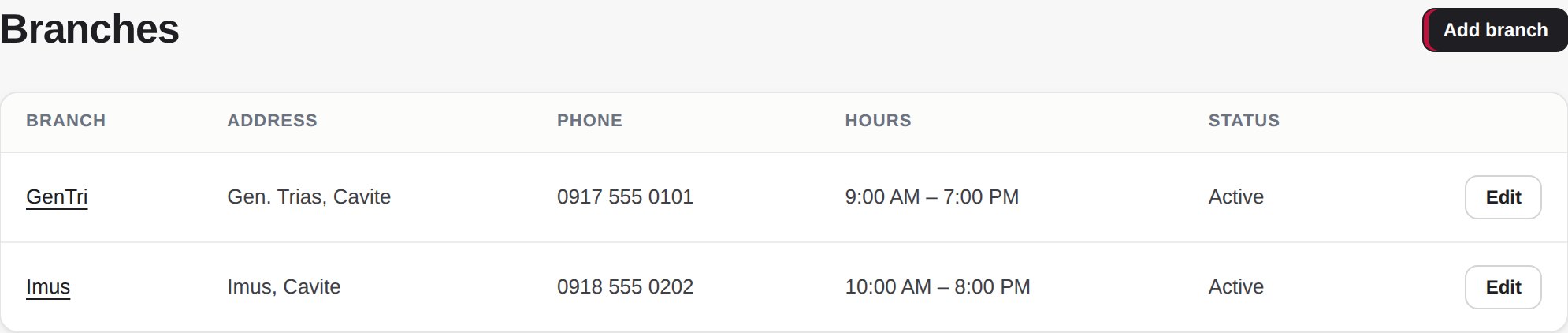
Phone and opening hours on Branches
Business Settings → Branches now shows each branch’s phone and opening hours, with an Edit button.
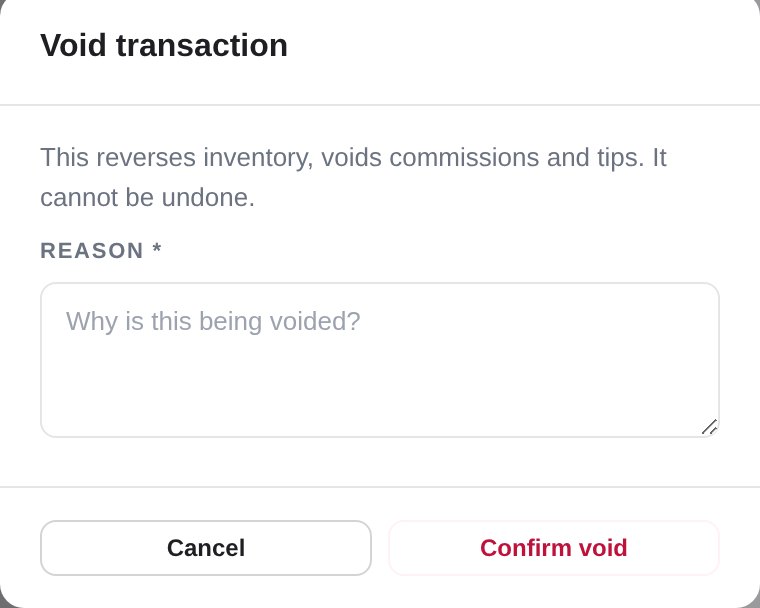
No approval PIN for owners
Owners are never asked for an approval PIN for their own changes. Managers still are.
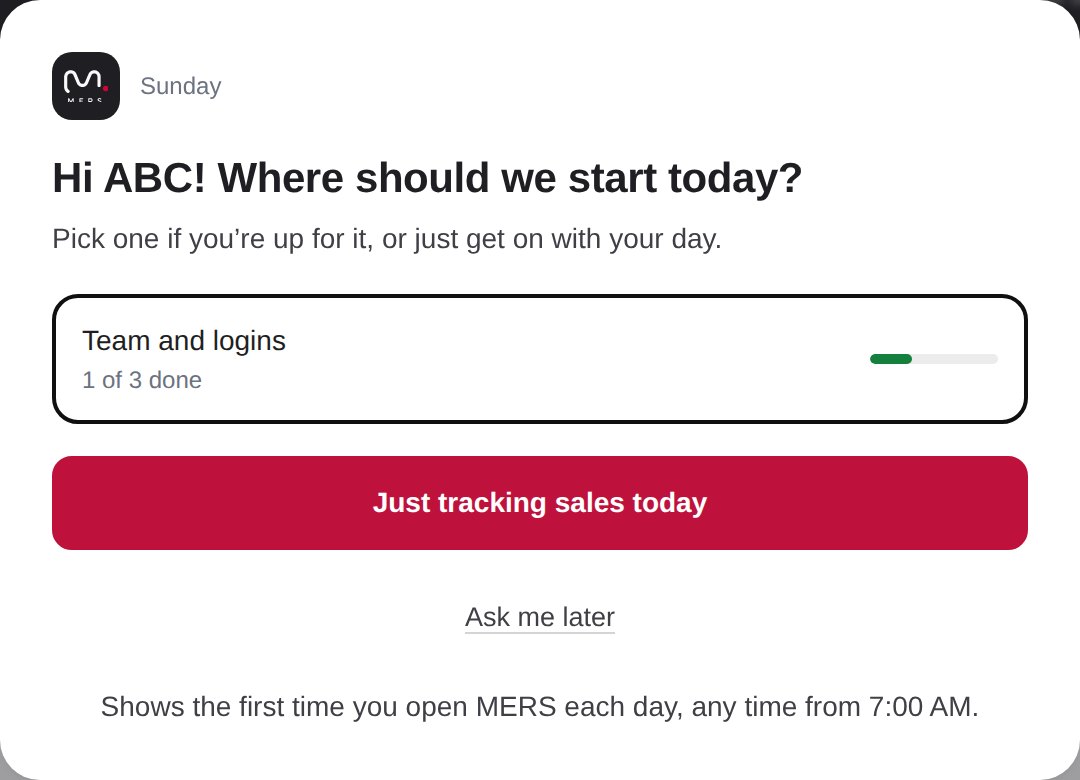
A new guided setup
“Where should we start today?” lets you pick what to set up first, with Skip and Turn off on every step.
Clock-in location
Pin your salon on the map, so staff clock in only when they’re really there.
Pin your branch on the map
Set your branch location by dragging a pin or tapping Use my location, and see the clock-in circle: 200 m by default, adjustable from 50 to 1,000 m.
A quick check against your address
MERS shows how far the pin is from the address you typed, so a pin in the wrong place is easy to spot.
Plus codes work
Plus codes copied from Google Maps now work, short or full.
A reminder for branches without a location
Branches without a location get a reminder on Branches and Attendance.
Last month
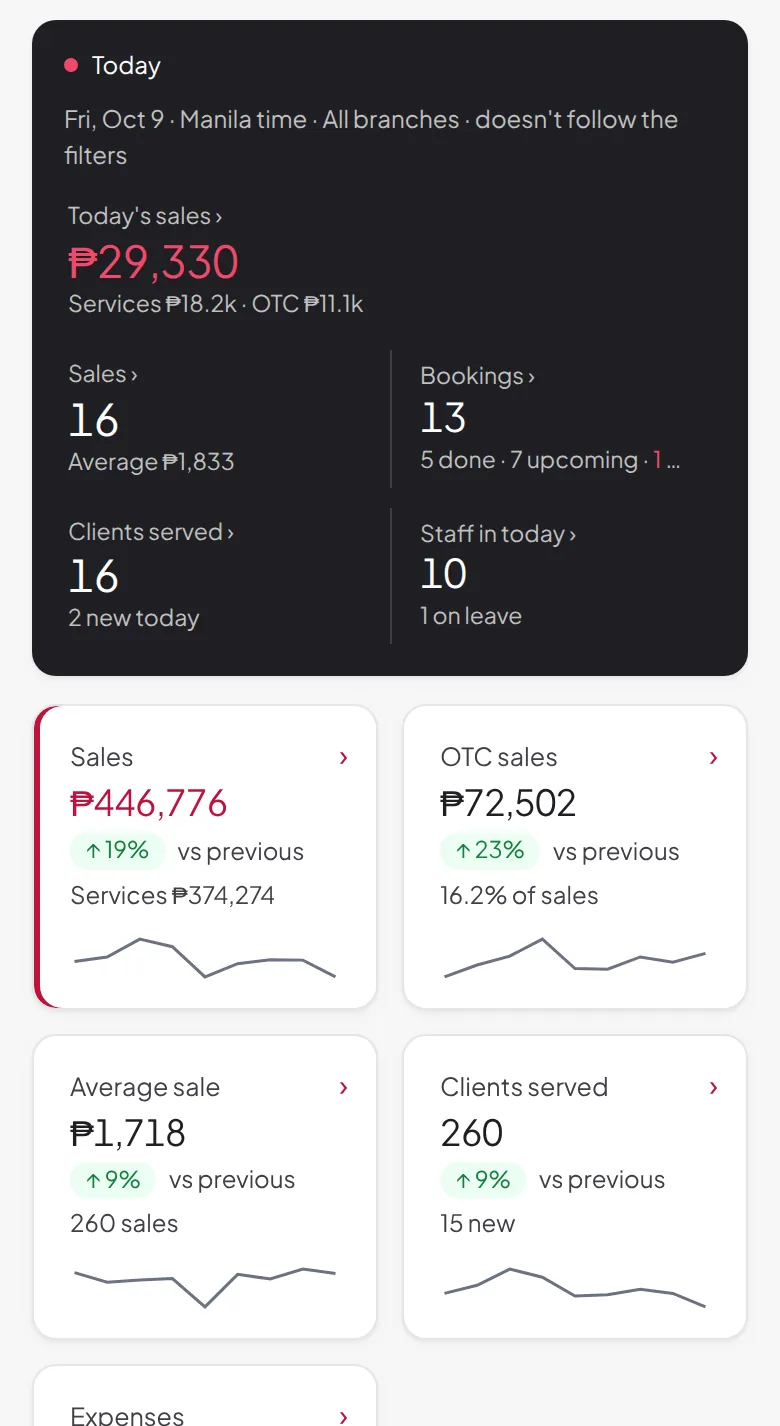
October 9, 2026Your new Dashboard
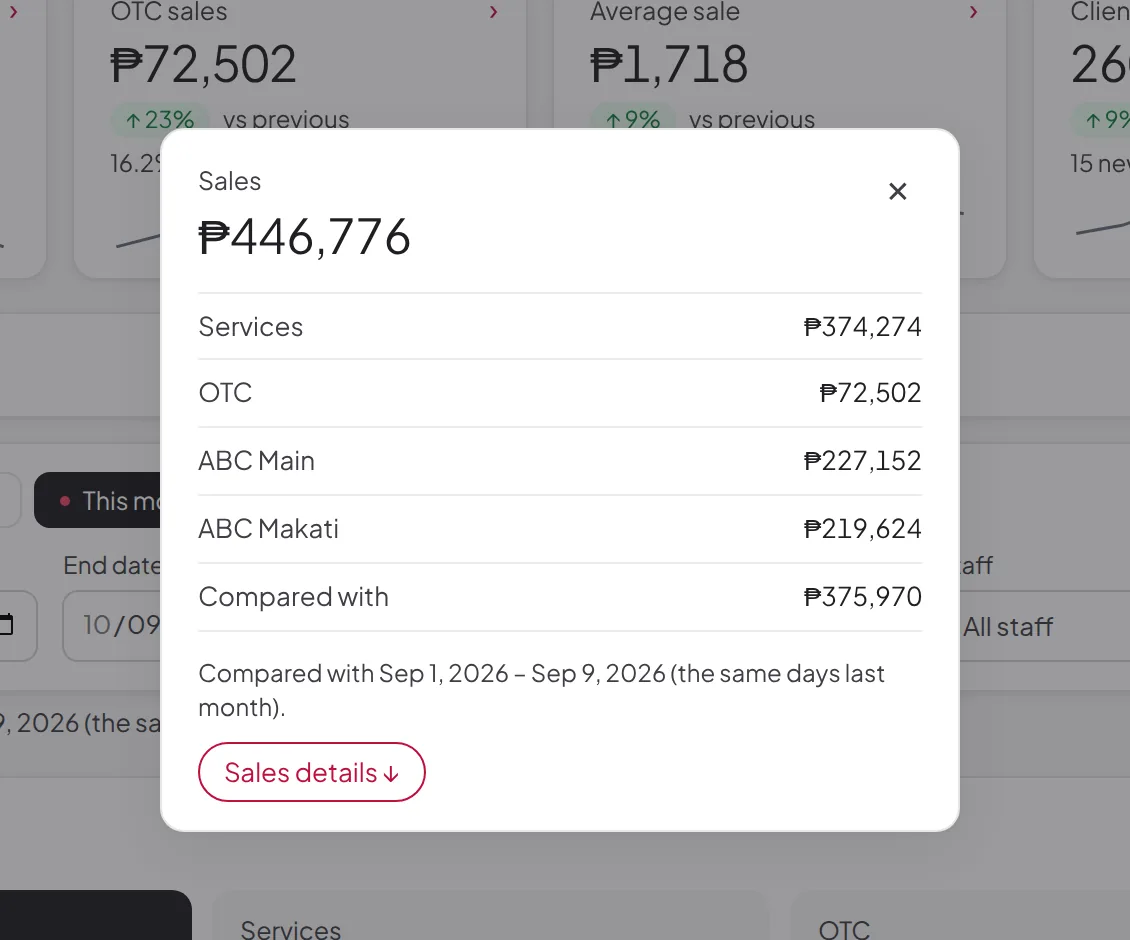
Open MERS to a Today snapshot — sales, bookings, clients served and who's in. Every tile is clickable for the breakdown behind it, and your scorecard compares you with the same days last period, so the 9th of the month is never measured against a whole month.
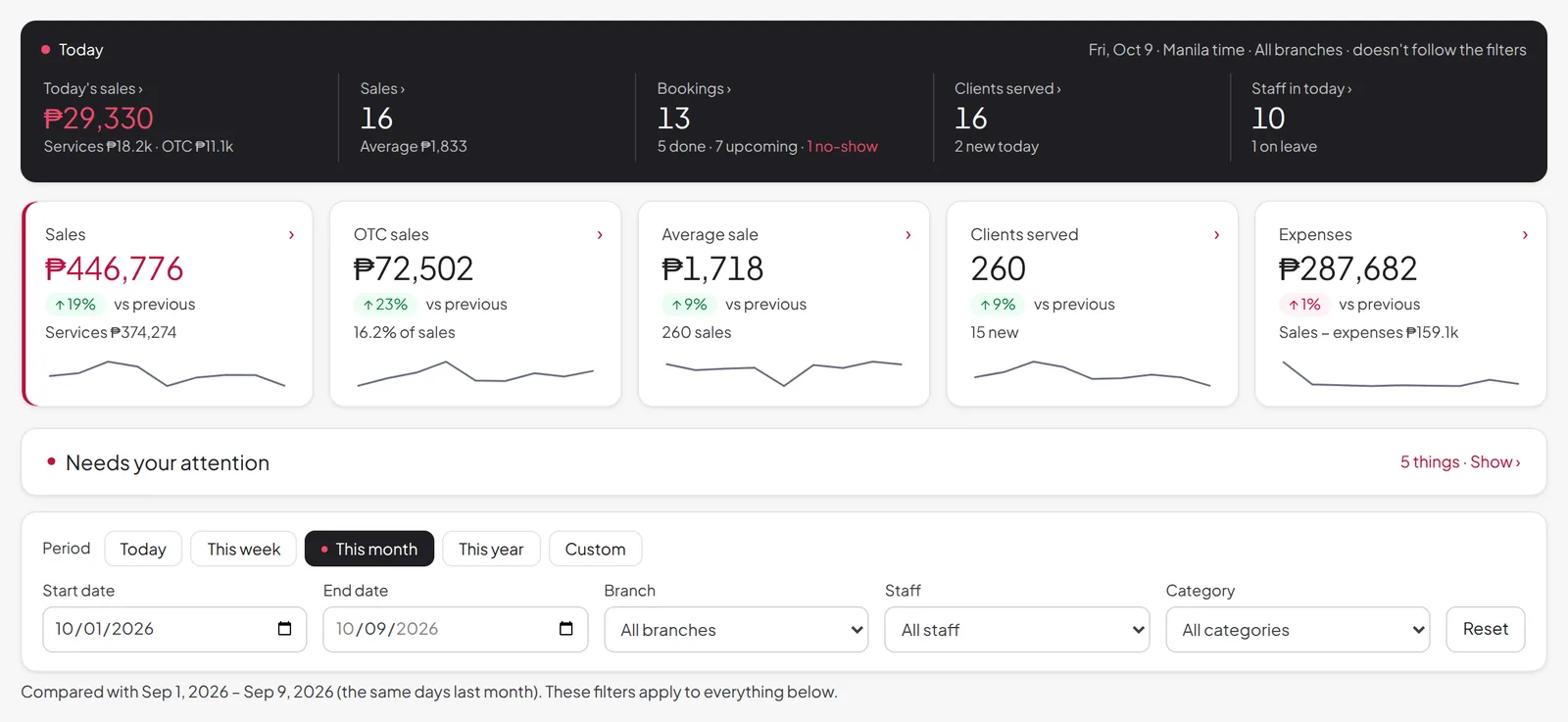
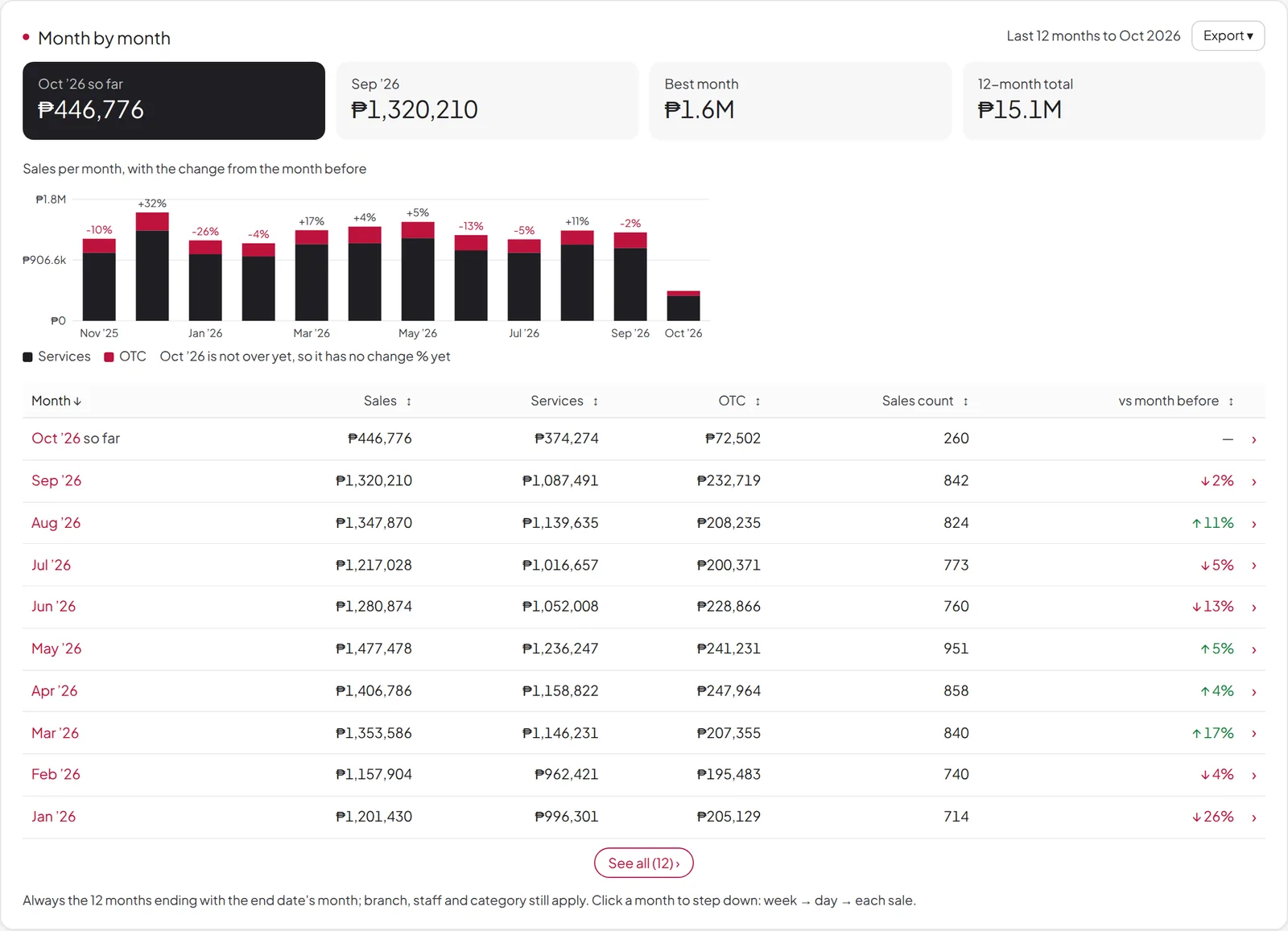
Pick Today, This week, This month or This year — or your own dates — and everything below follows: Services vs OTC, how customers paid, each branch, and month by month.
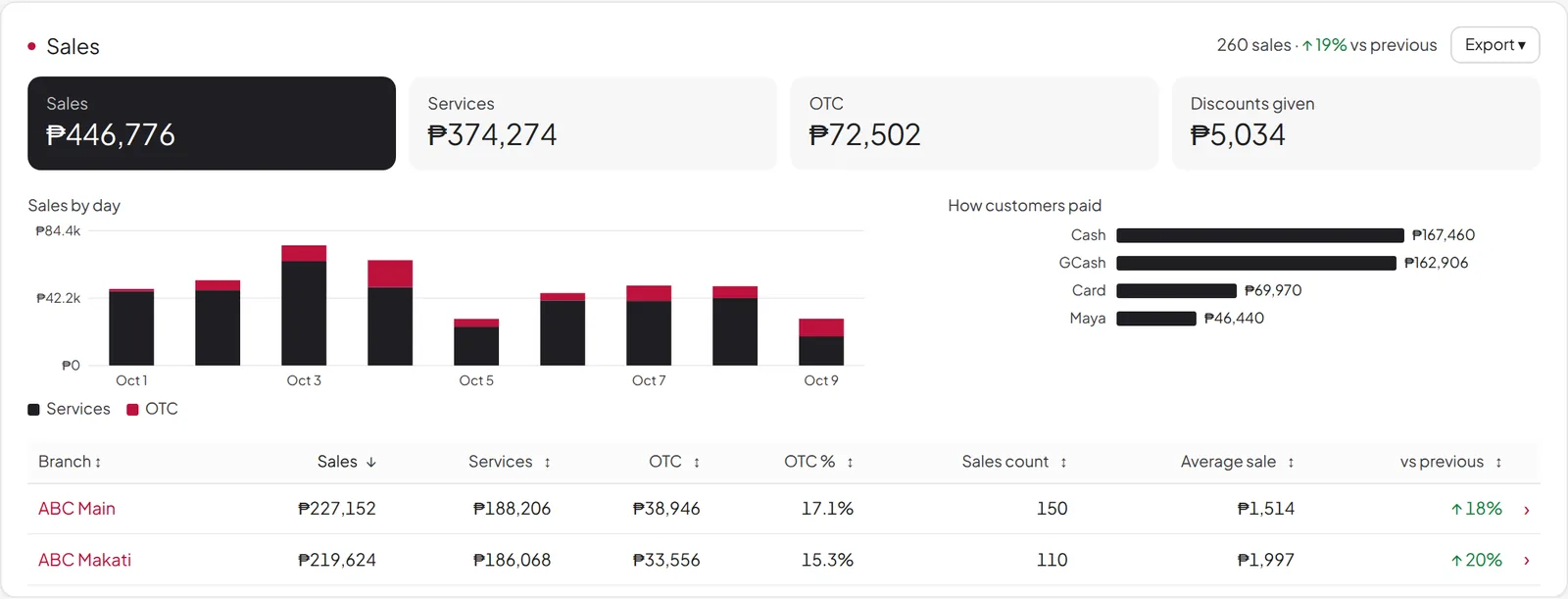
Your money, in one place
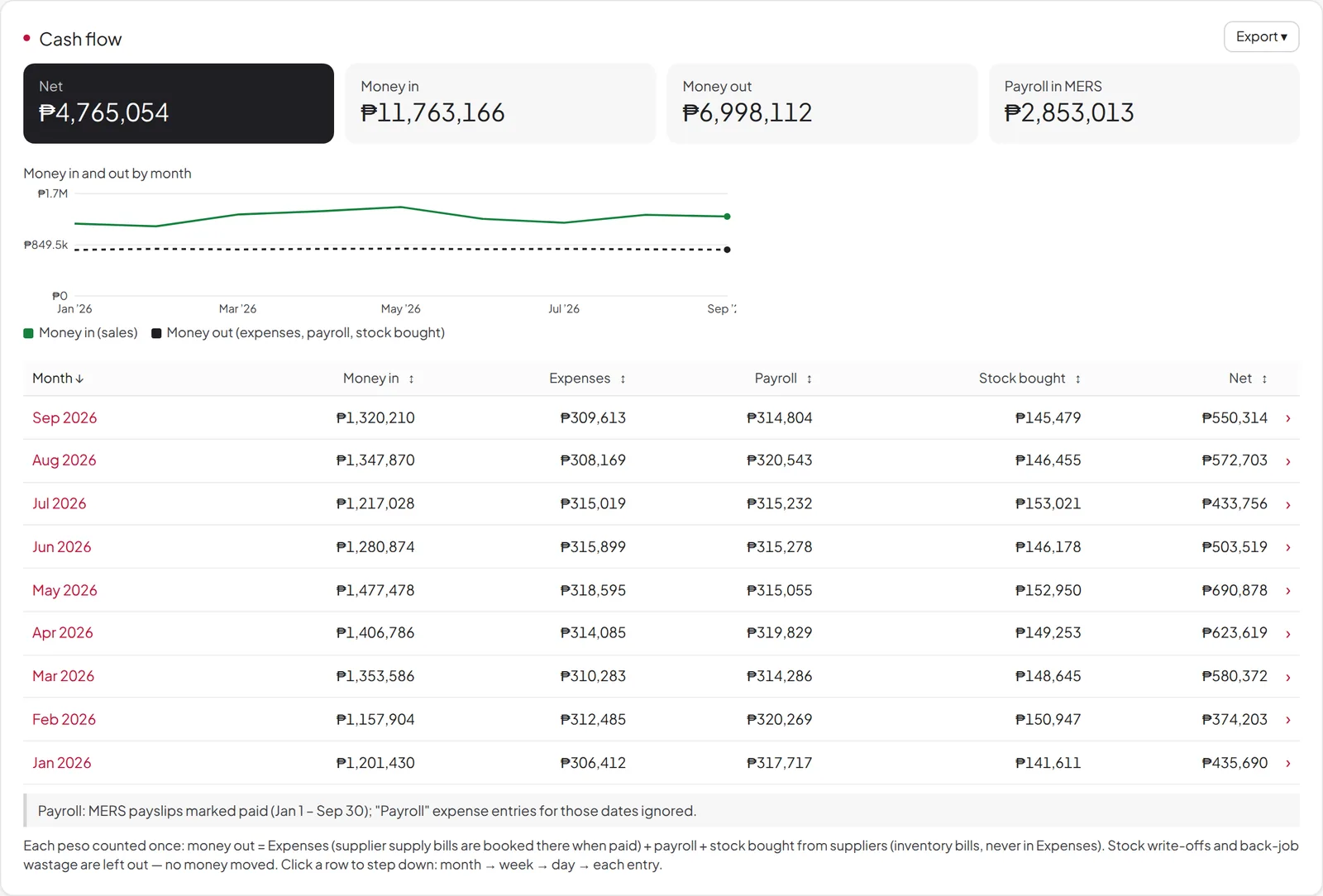
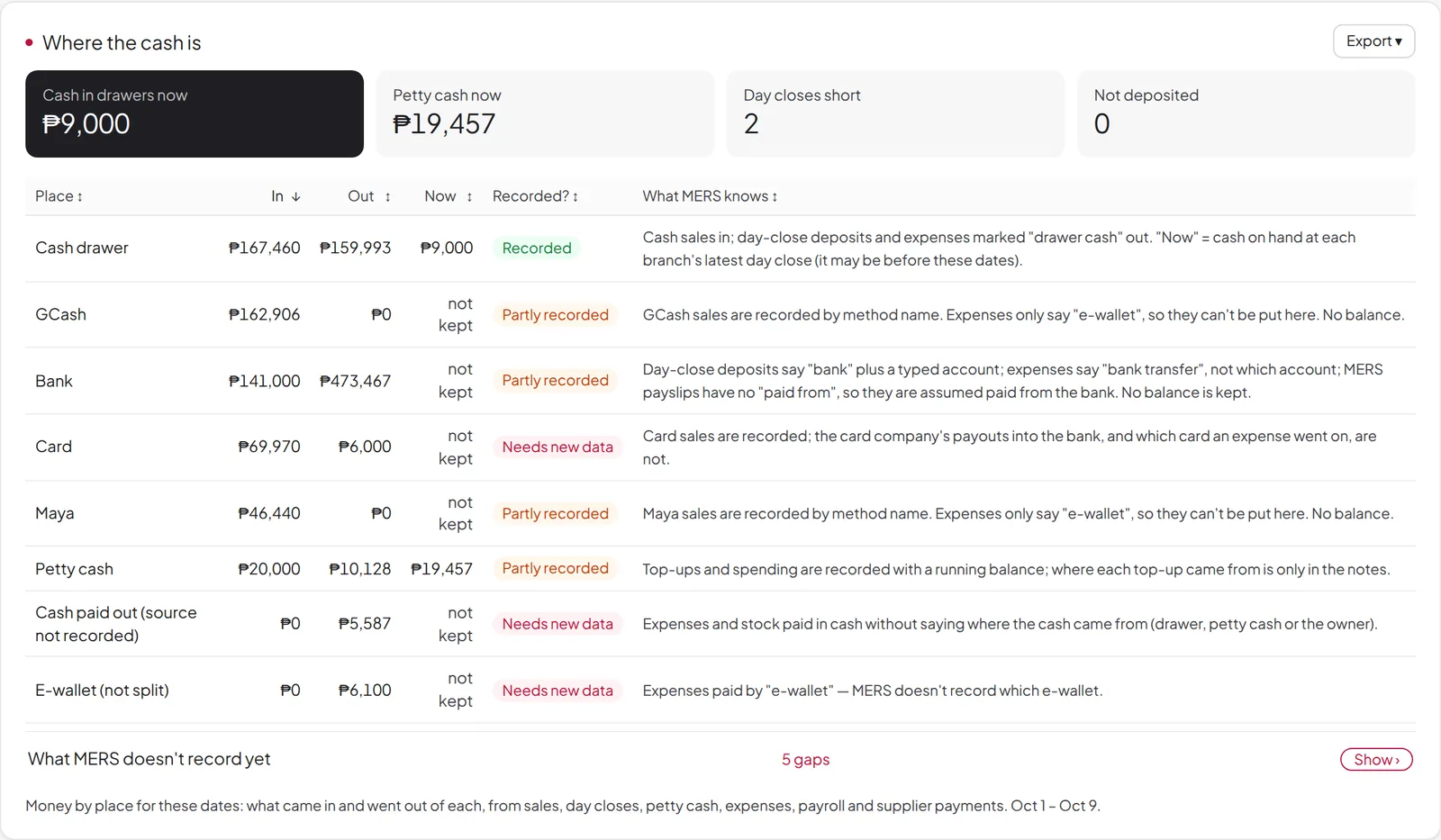
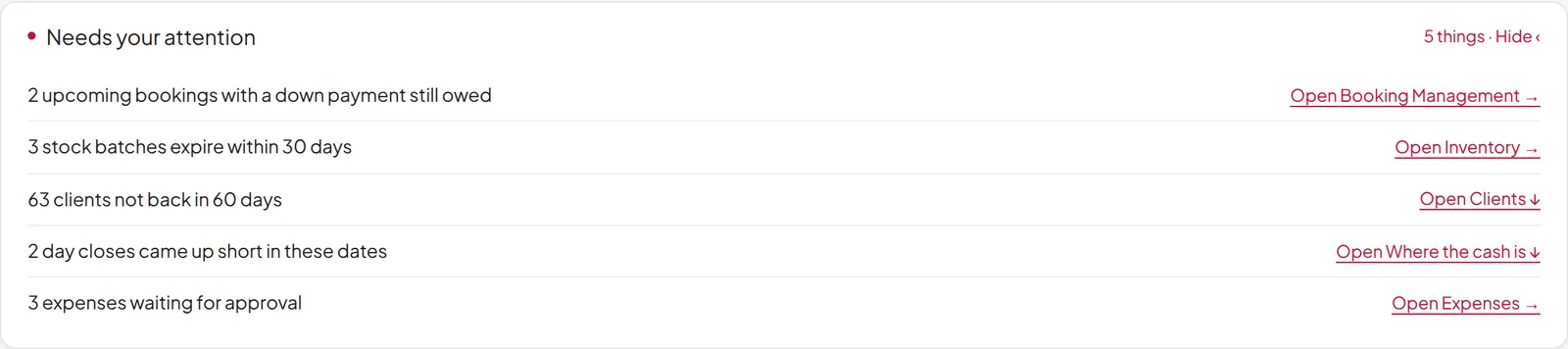
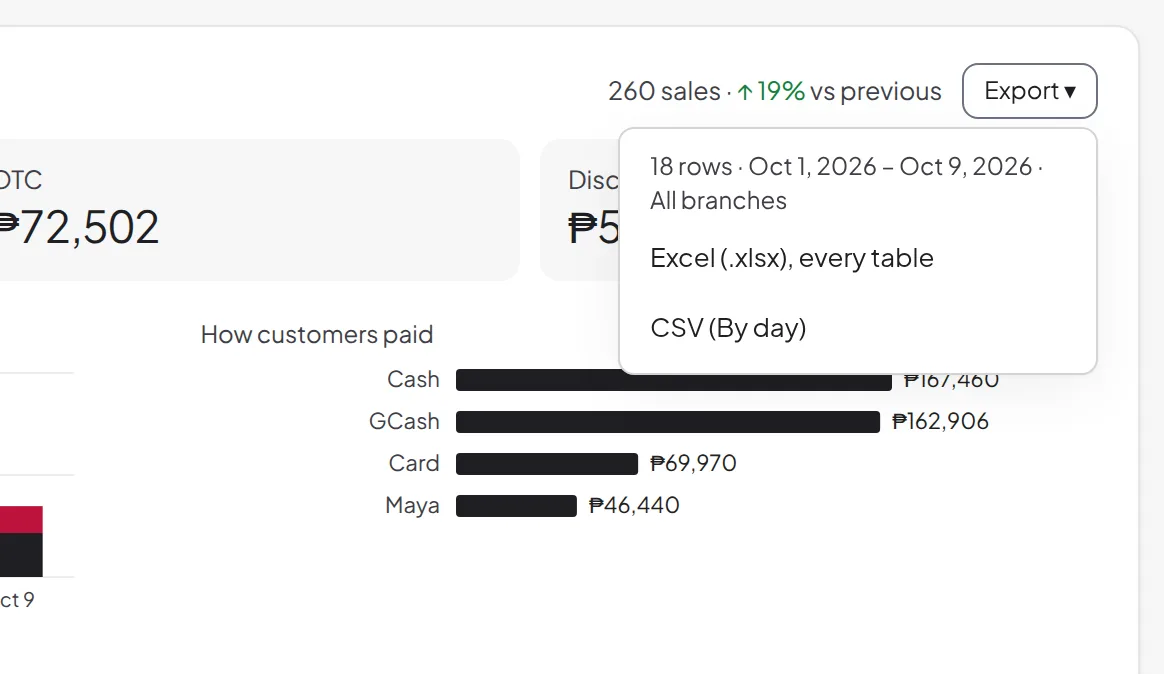
Needs your attention lists what needs you today — down payments still owed, stock expiring soon, clients not back in 60 days. Any section downloads to Excel or CSV. Money sections show only for the owner and people with Expenses access.
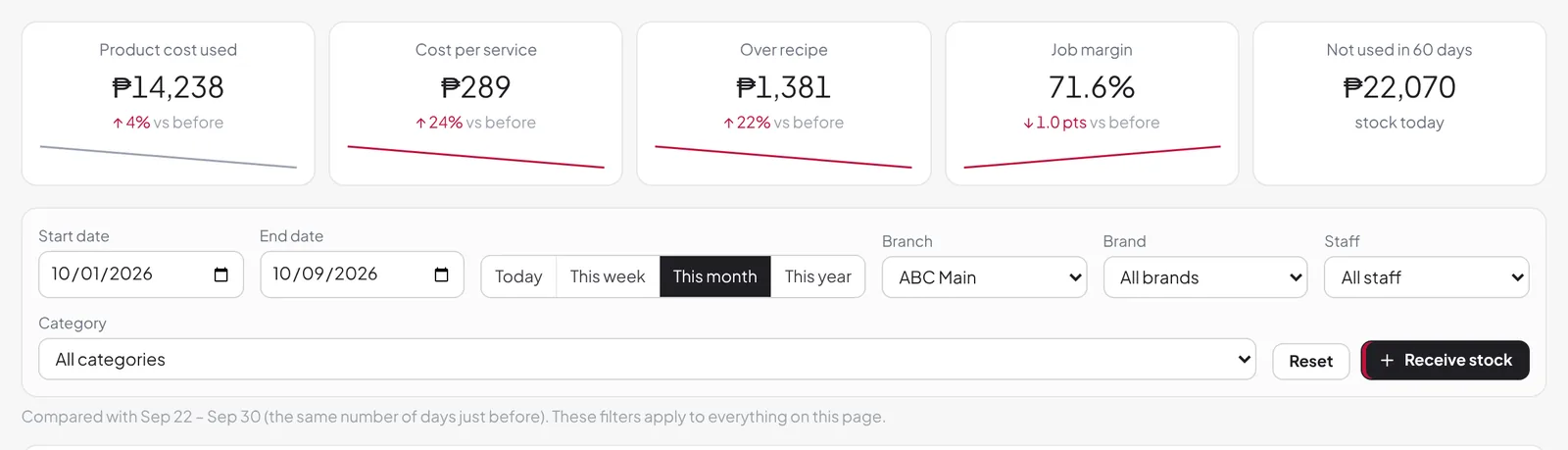
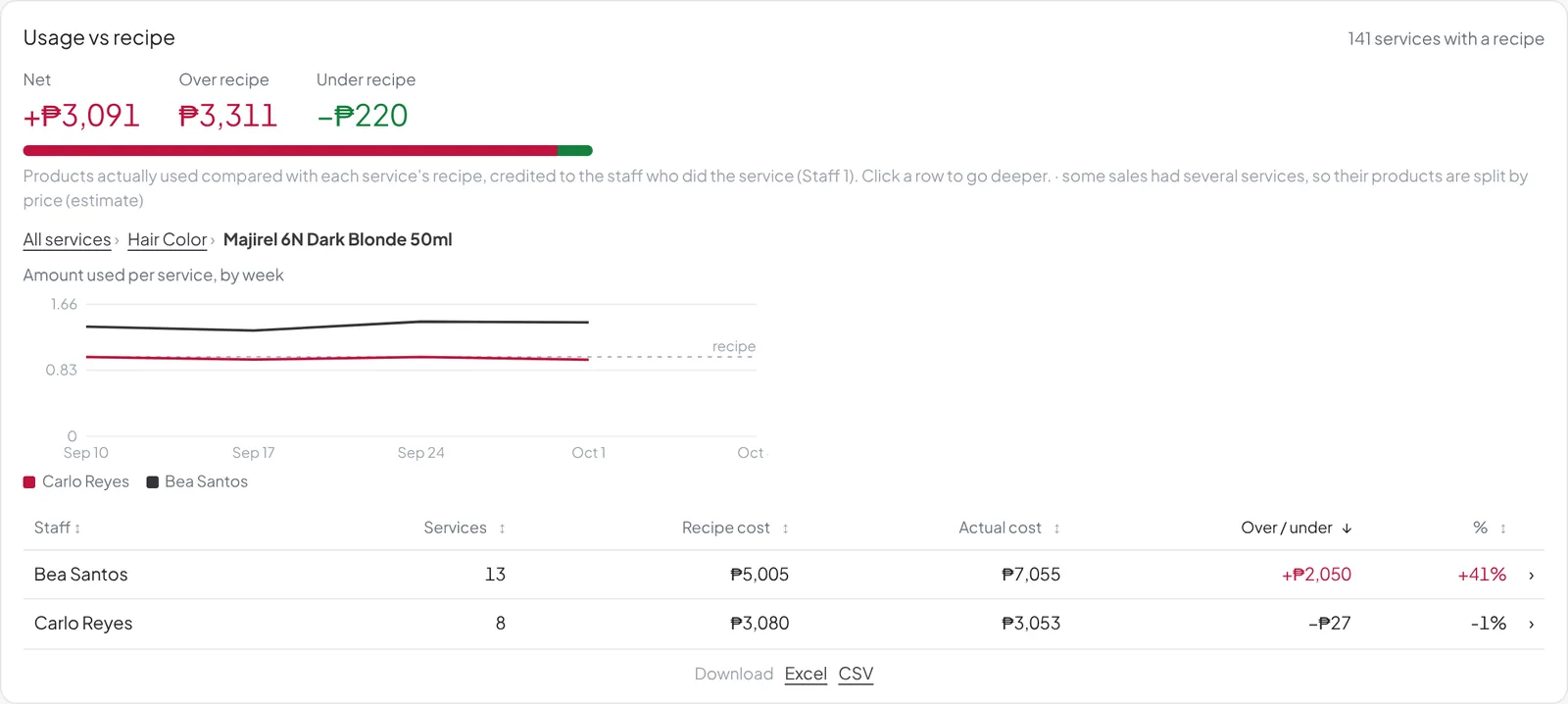
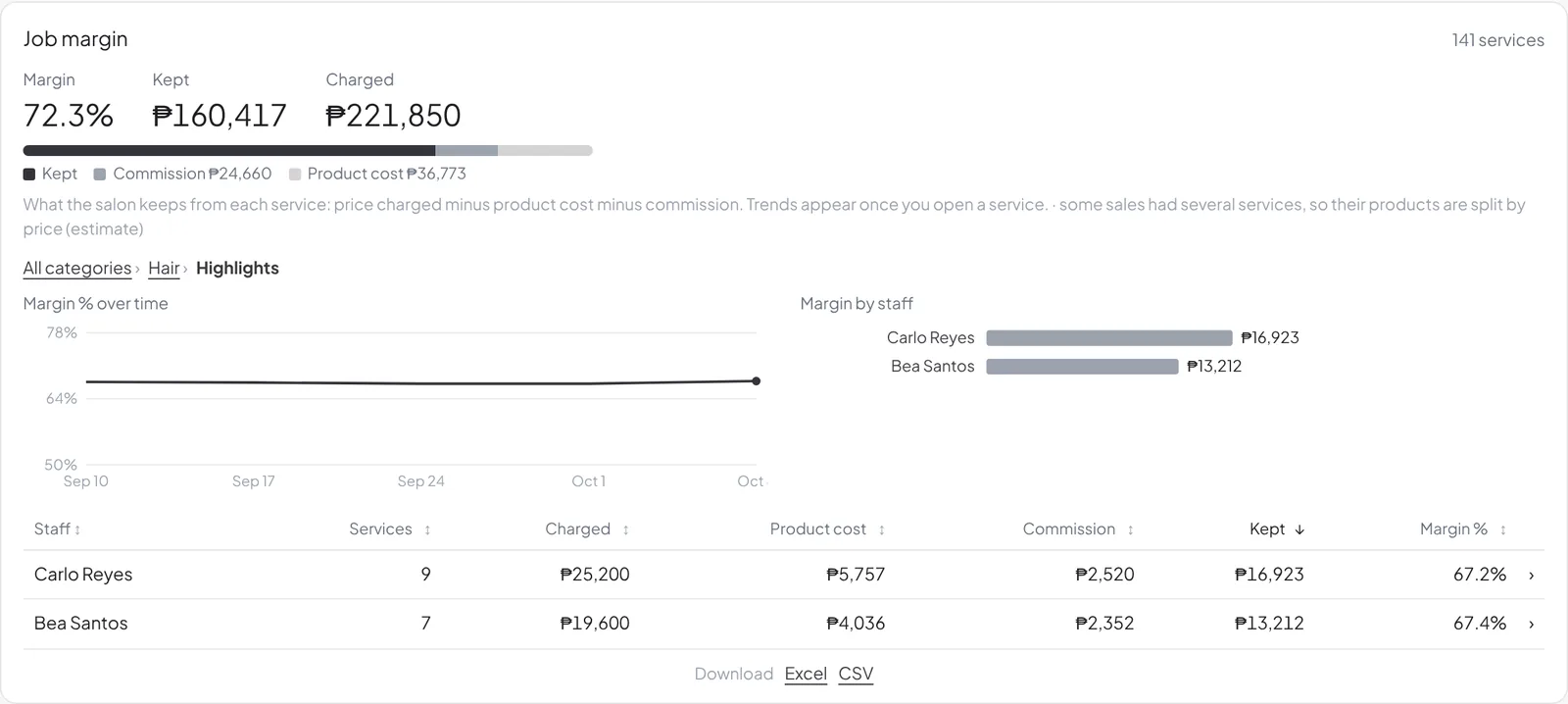
Usage Tracking, redesigned
One scorecard and one filter bar for the whole page. See your product cost, what went over the recipe, and what you really keep from every service — then reorder what's running low in a couple of taps.
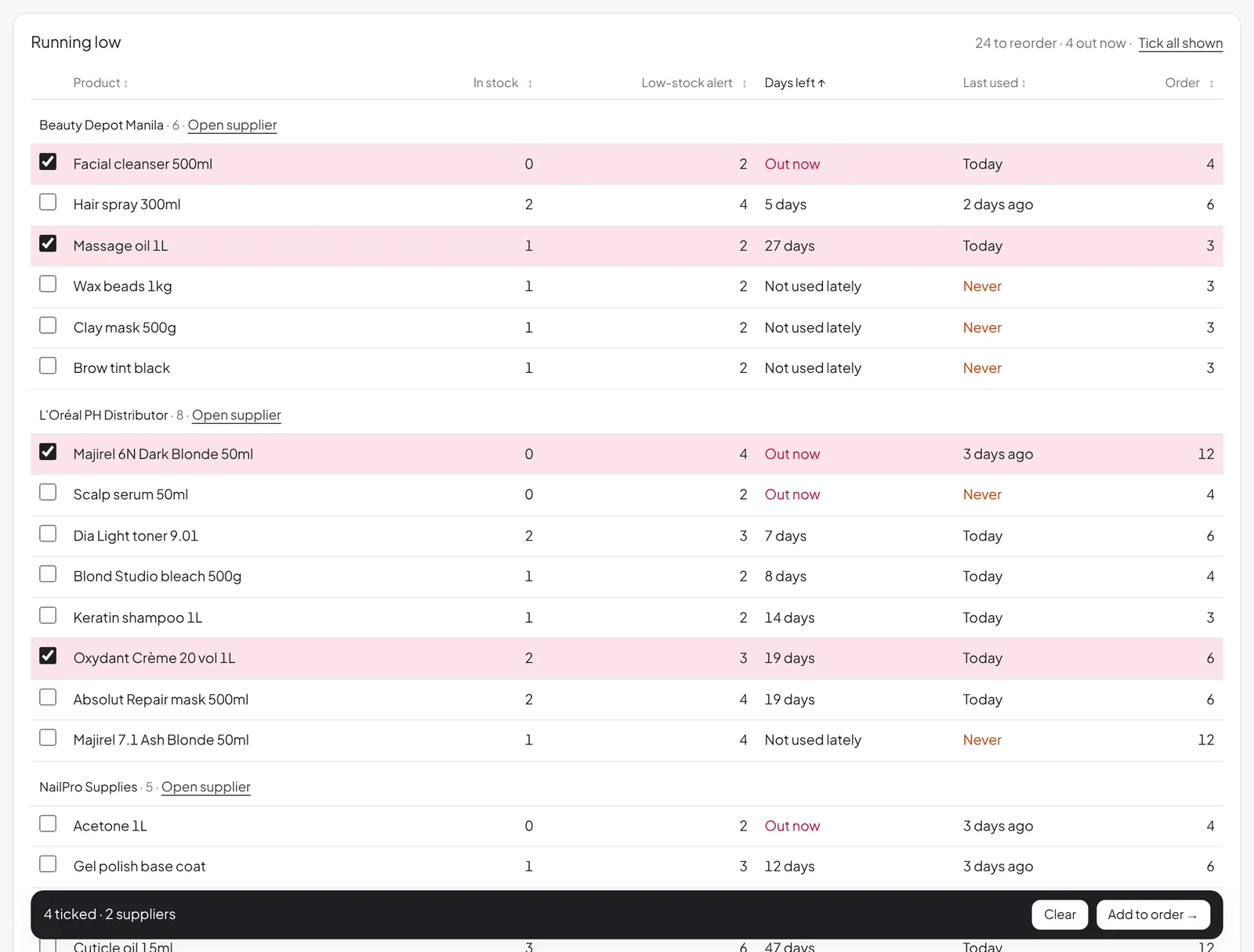
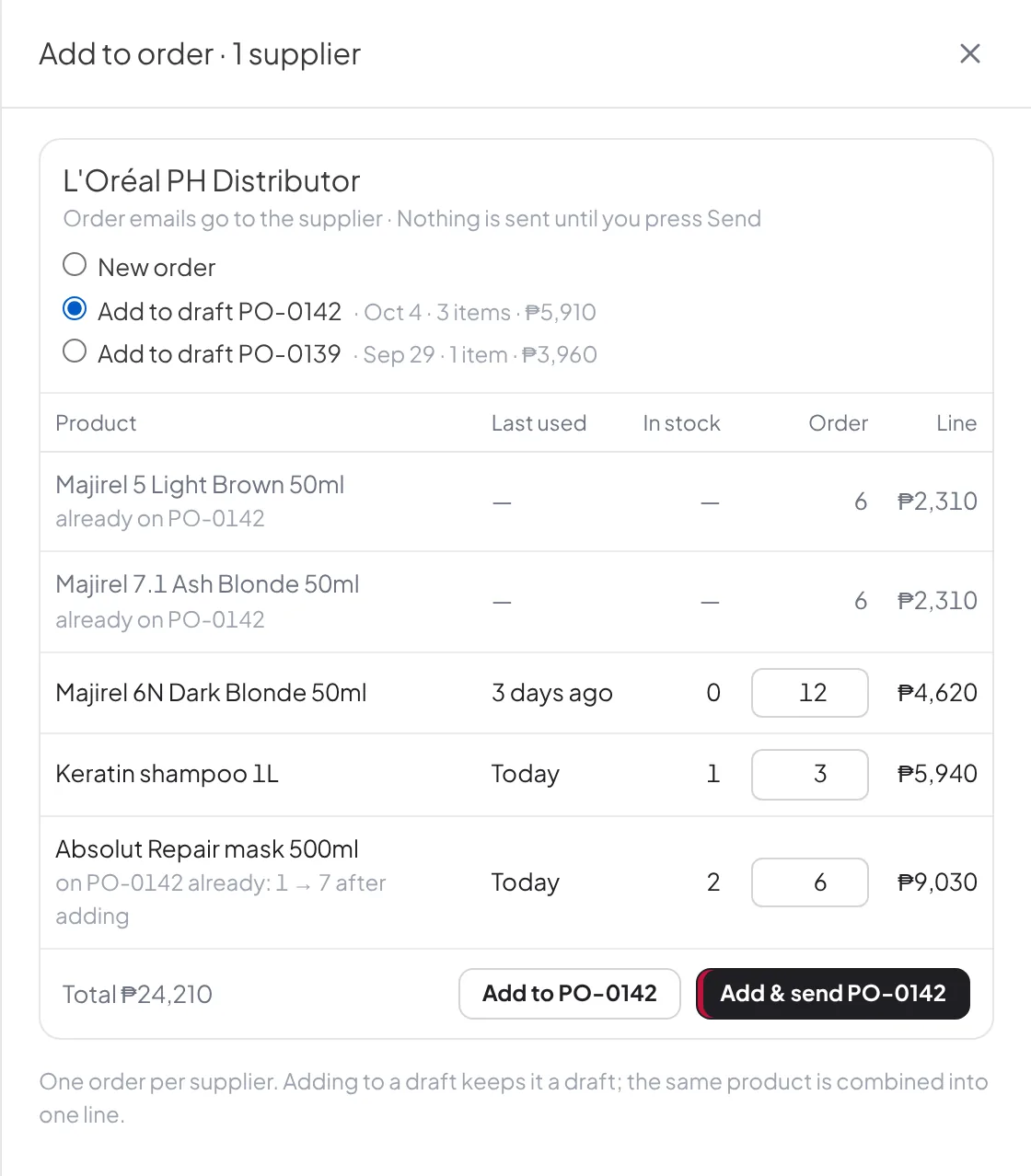
Running low is grouped by supplier, with when each item was last used — so nobody reorders something the salon stopped using. Tick what you need and Add to order: a new order, or one of that supplier's draft orders.
Adding products to an order, faster
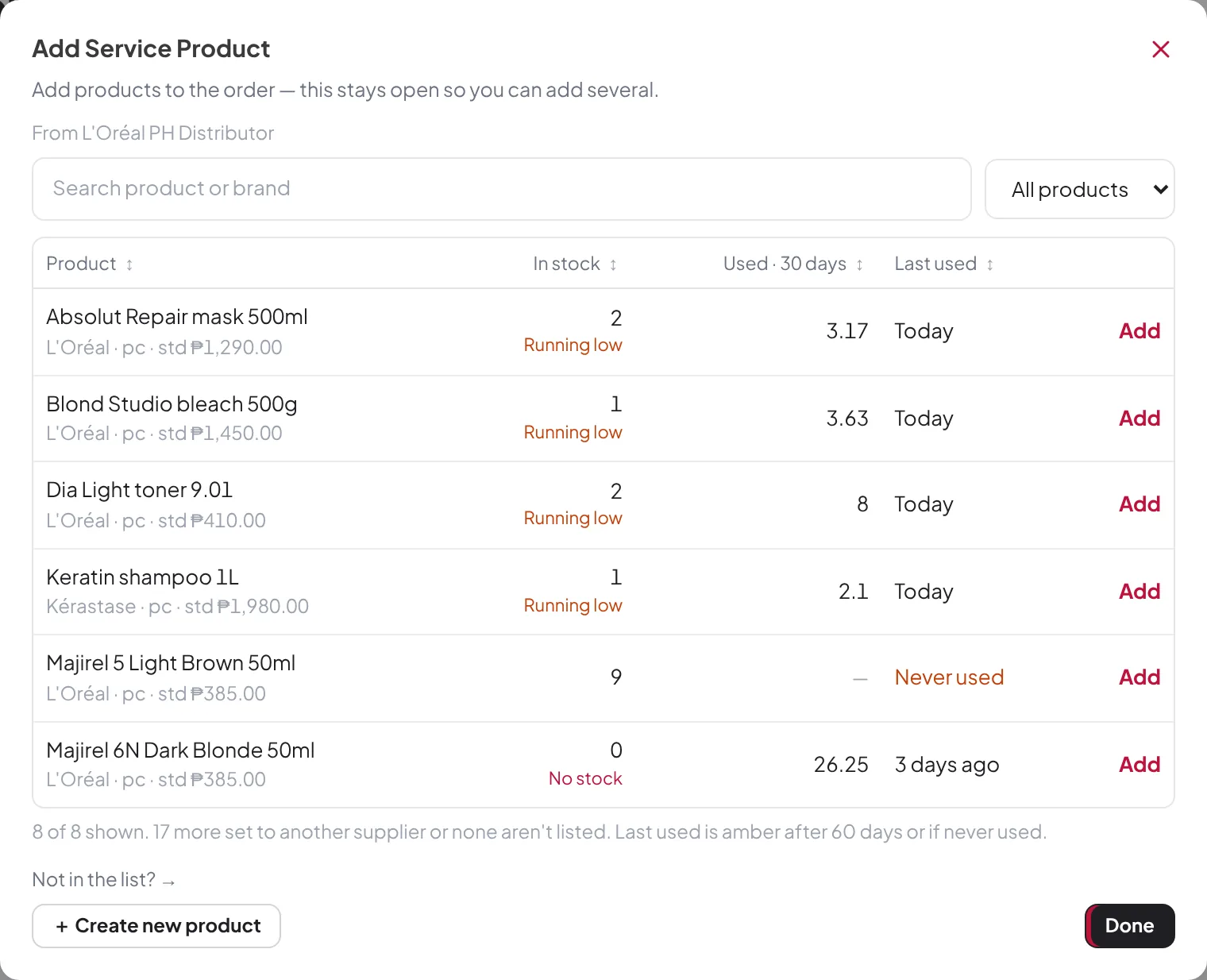
When you build an order, Add product now lists that supplier's products with stock and Last used beside each one (amber after 60 days, or if never used). Narrow it with Show — Most used, Never used, Running low, In stock or No stock. Haven't picked a supplier yet? MERS says “Pick a supplier first” and points you to it.

Learn MERS step by step
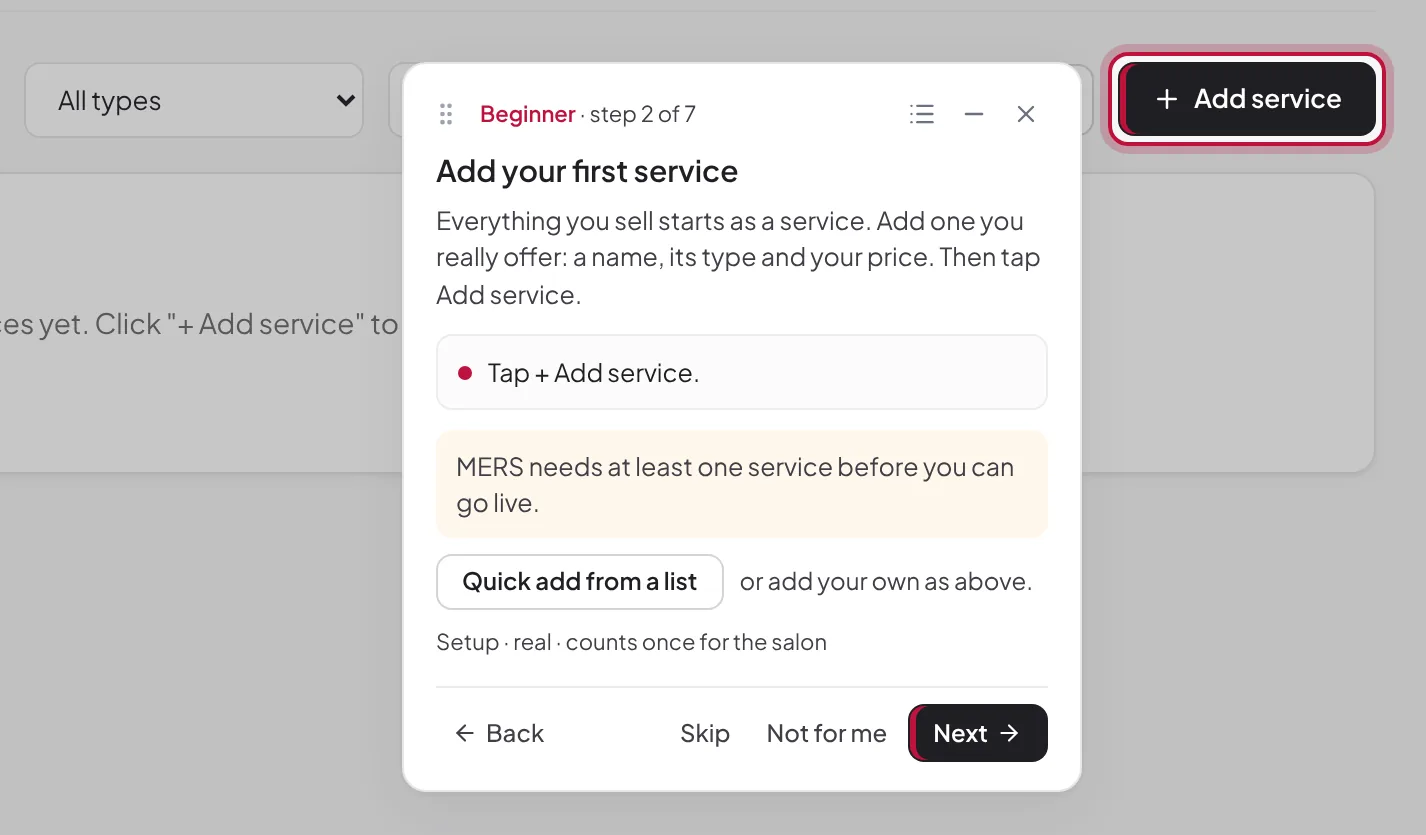
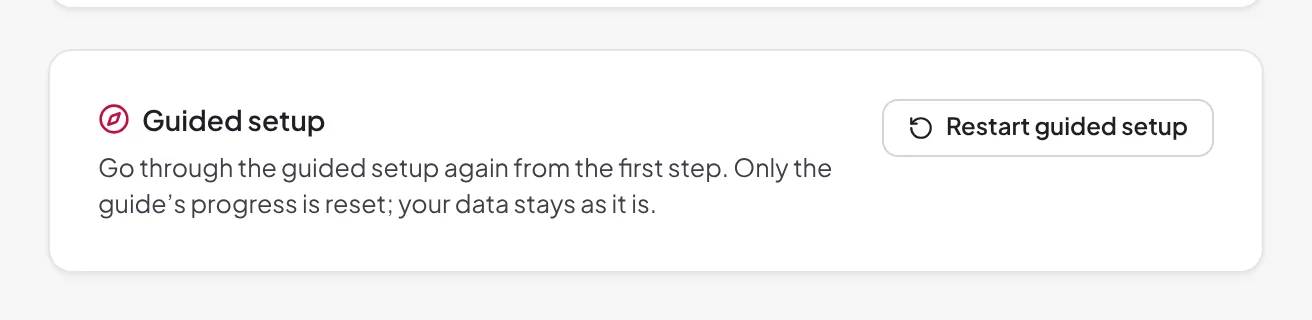
A guided setup now walks you through MERS one step at a time — add a branch, your first service and a team member, then track a sale and find it in Transactions. New salons start it automatically; if you're already set up, MERS offers it once. Tap Open walkthrough at the top of the screen to pick up where you left off, or start over anytime in System Preferences → Guided setup.
Plan your team's week with Schedule
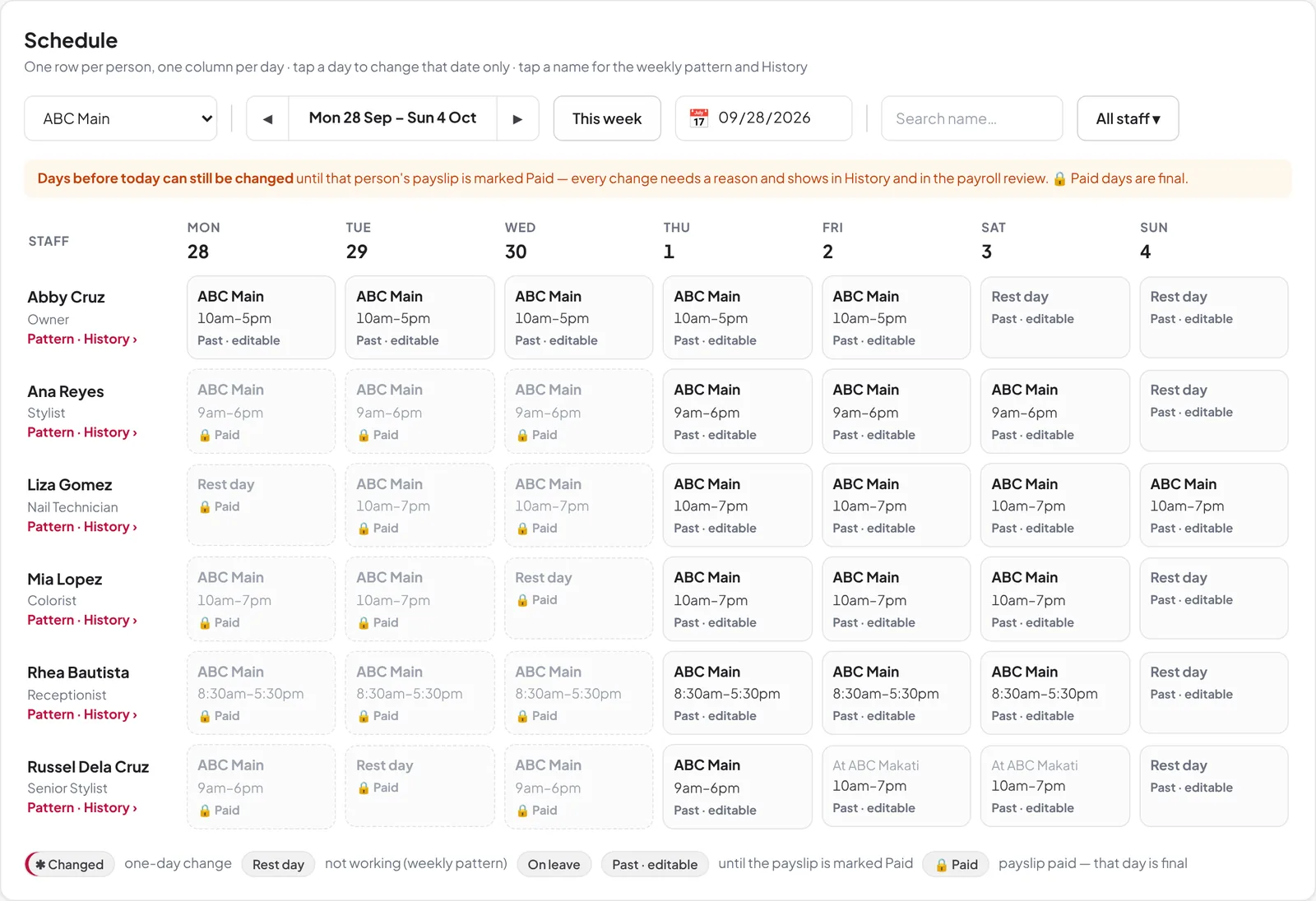
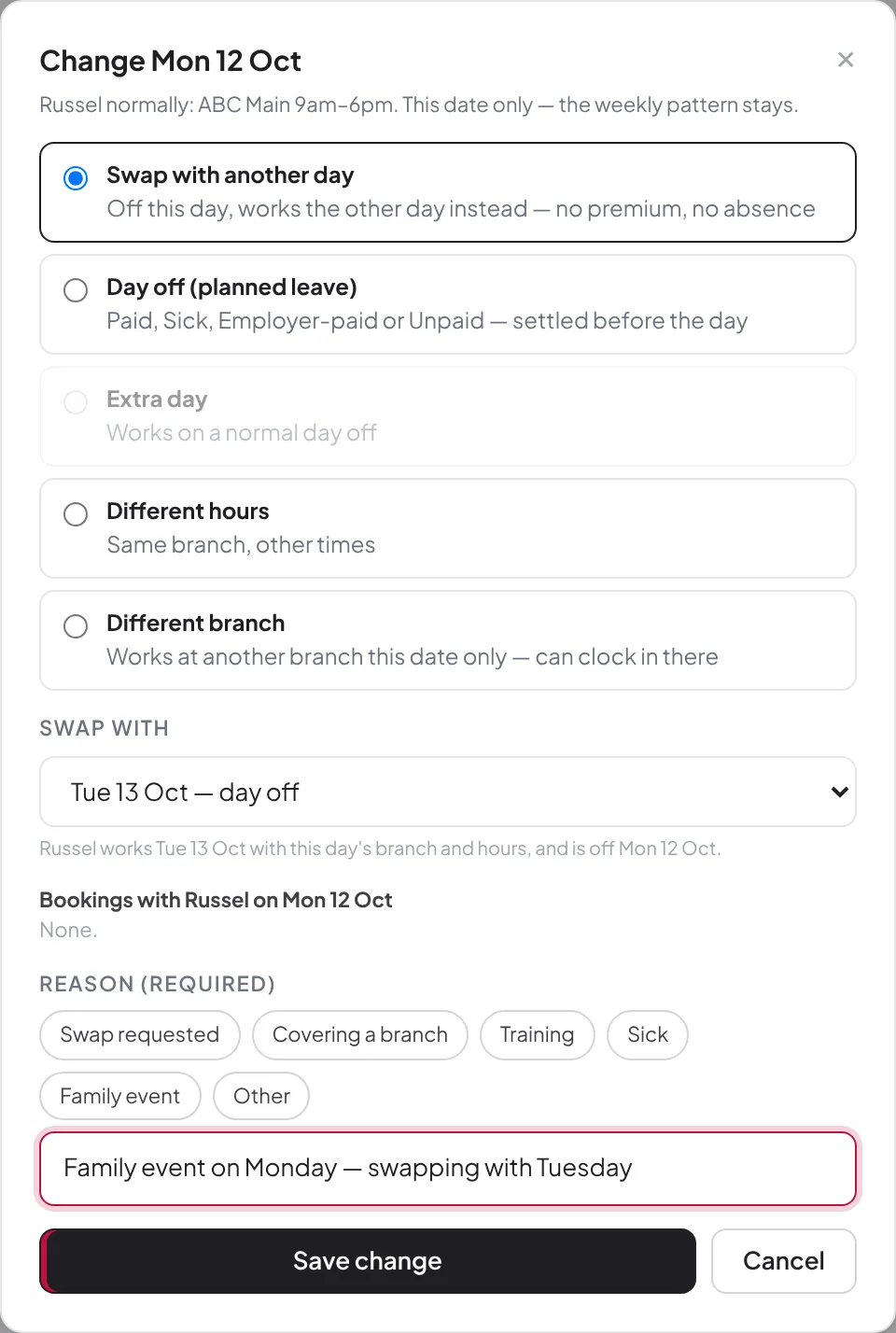
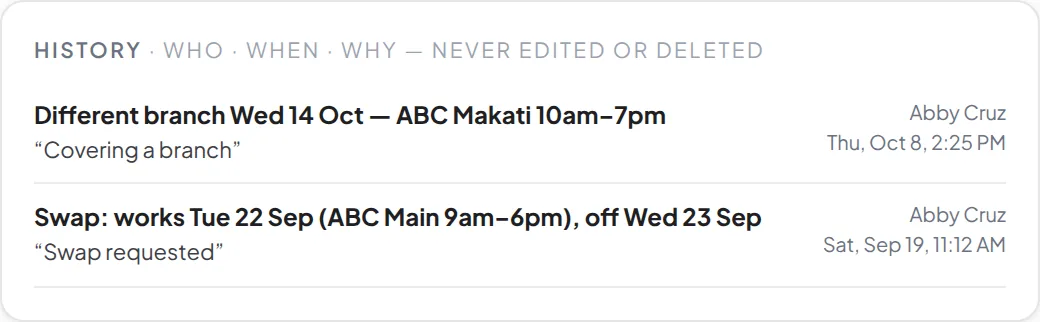
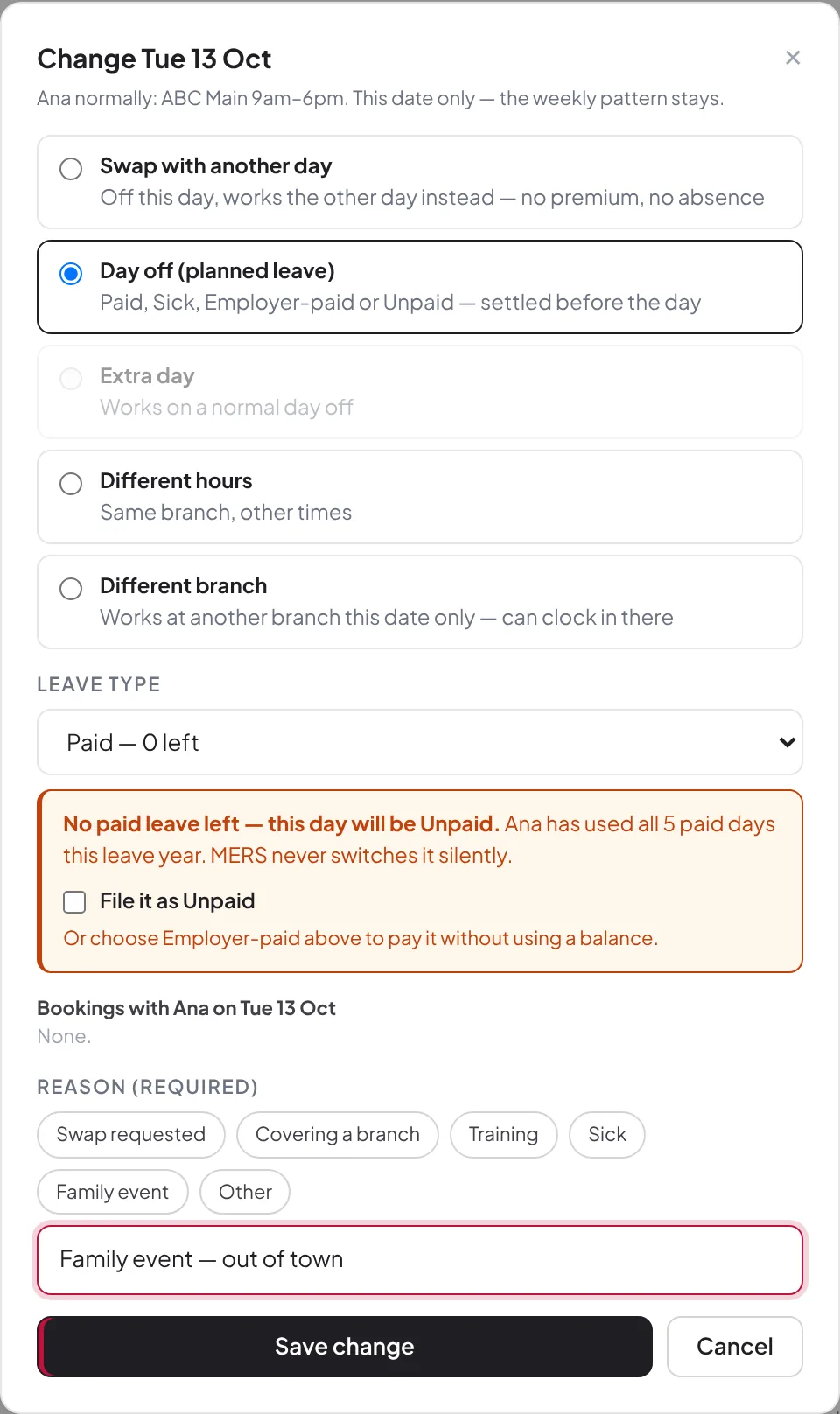
A new Schedule tab in People shows everyone's week. Tap a day to swap with another day, give a day off, add an extra day, set different hours, or send someone to a different branch — before it happens, not fixed in payroll afterwards. A reason is always asked and kept in History, and once a day's payslip is Paid, that day is locked.
Clearer leave
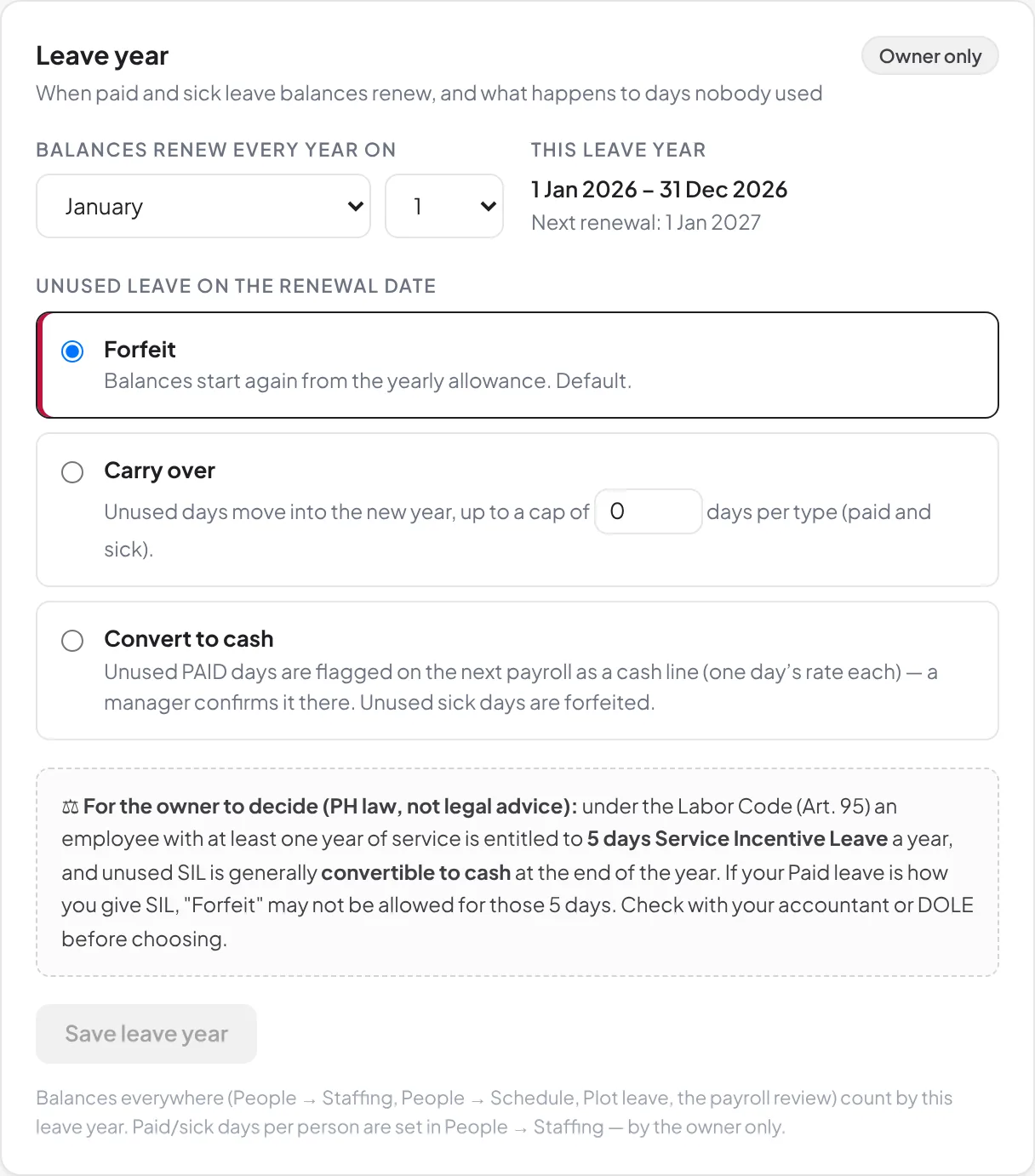
Leave is now Paid, Sick, Employer-paid (full pay, uses no balance) or Unpaid. When someone has no paid leave left, MERS warns you instead of quietly filing it as Unpaid. Set when balances renew in System Preferences → Leave.
Safer payroll, cleaner payslips
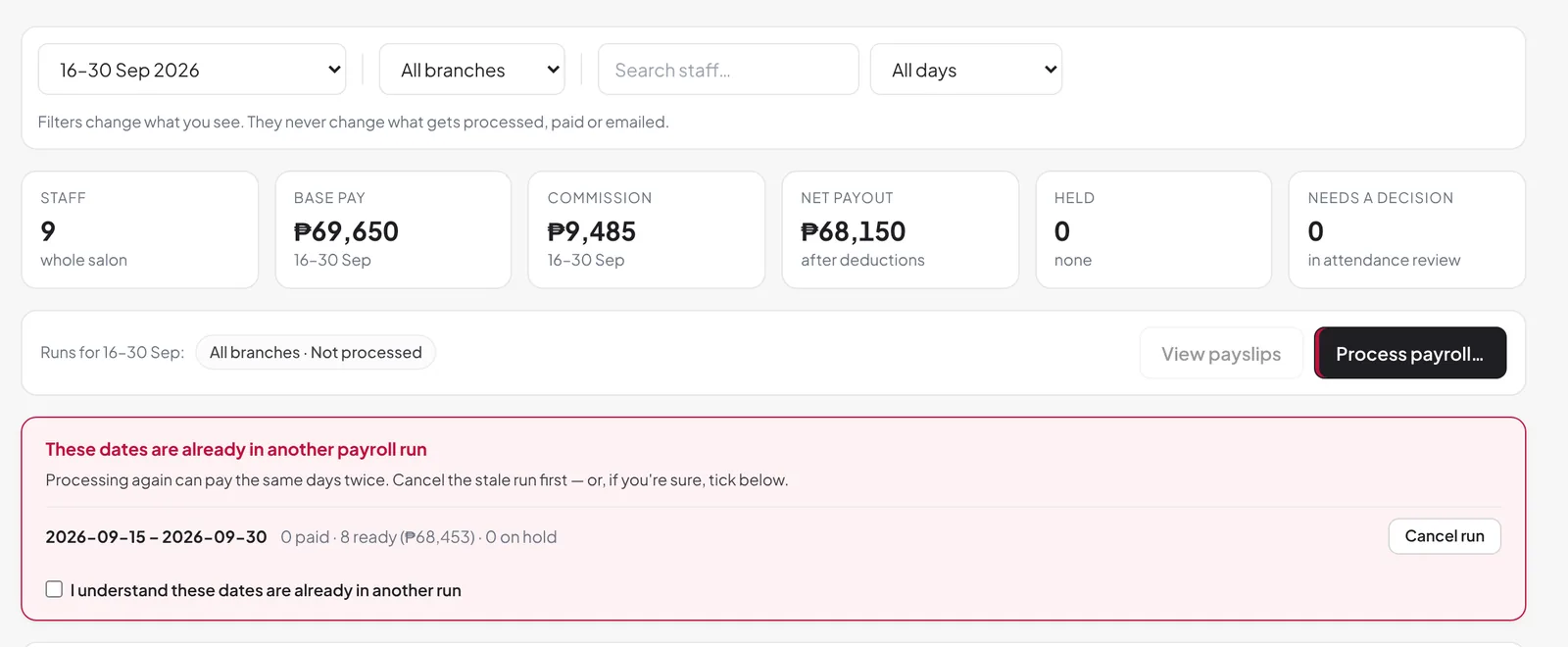
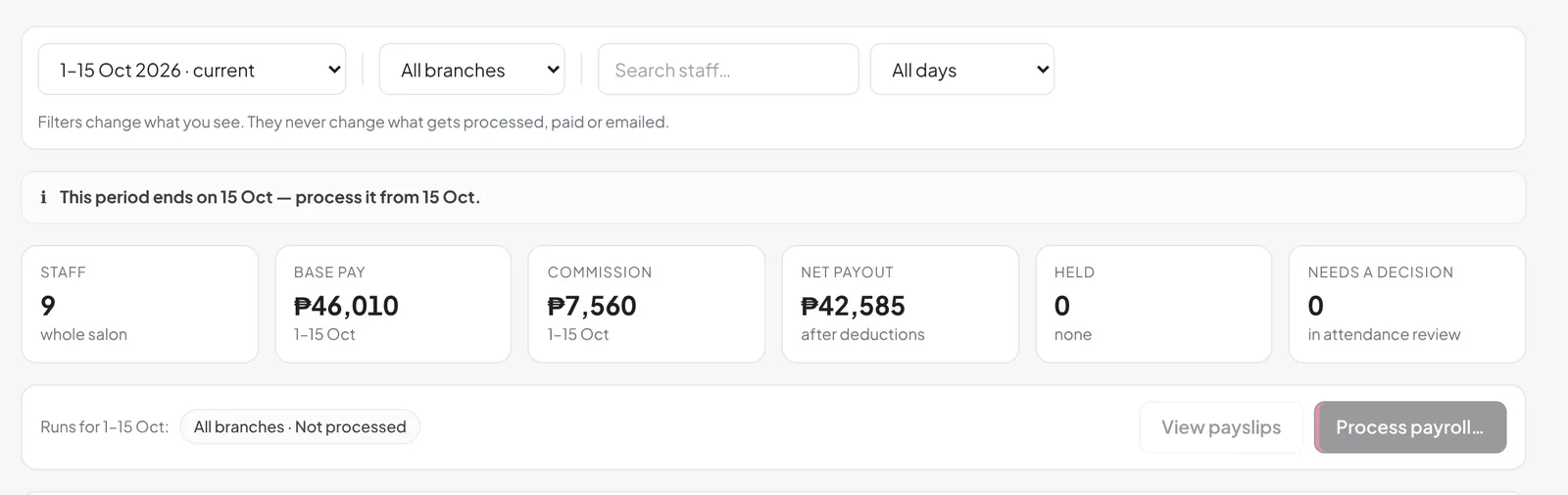
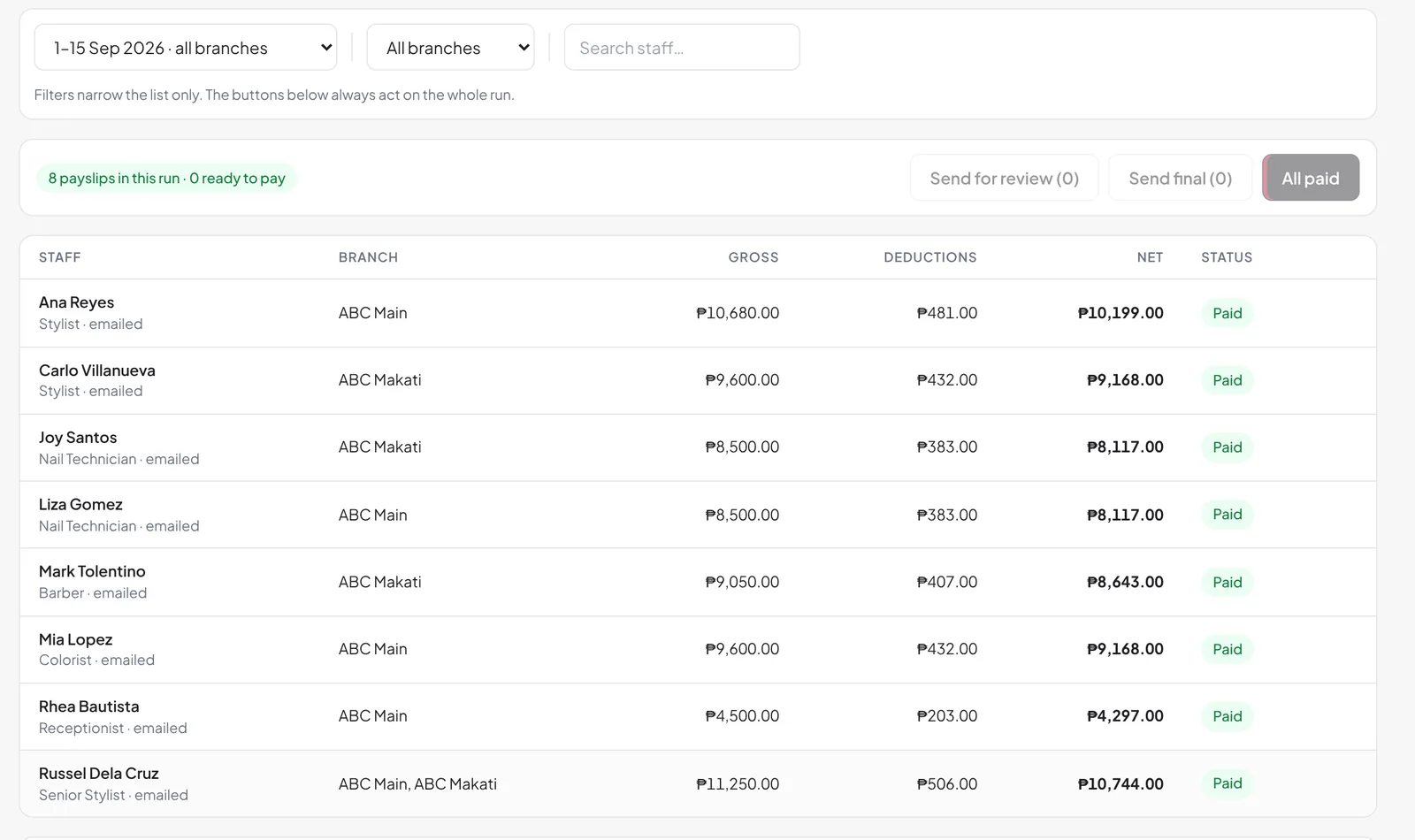
Pay & Commission and Payslips are redesigned, with new safety checks: a pay period can only be processed from its last day, MERS warns when dates are already in another run (with Cancel run to remove the duplicate), net pay never goes below zero, and commission is paid only through payroll.
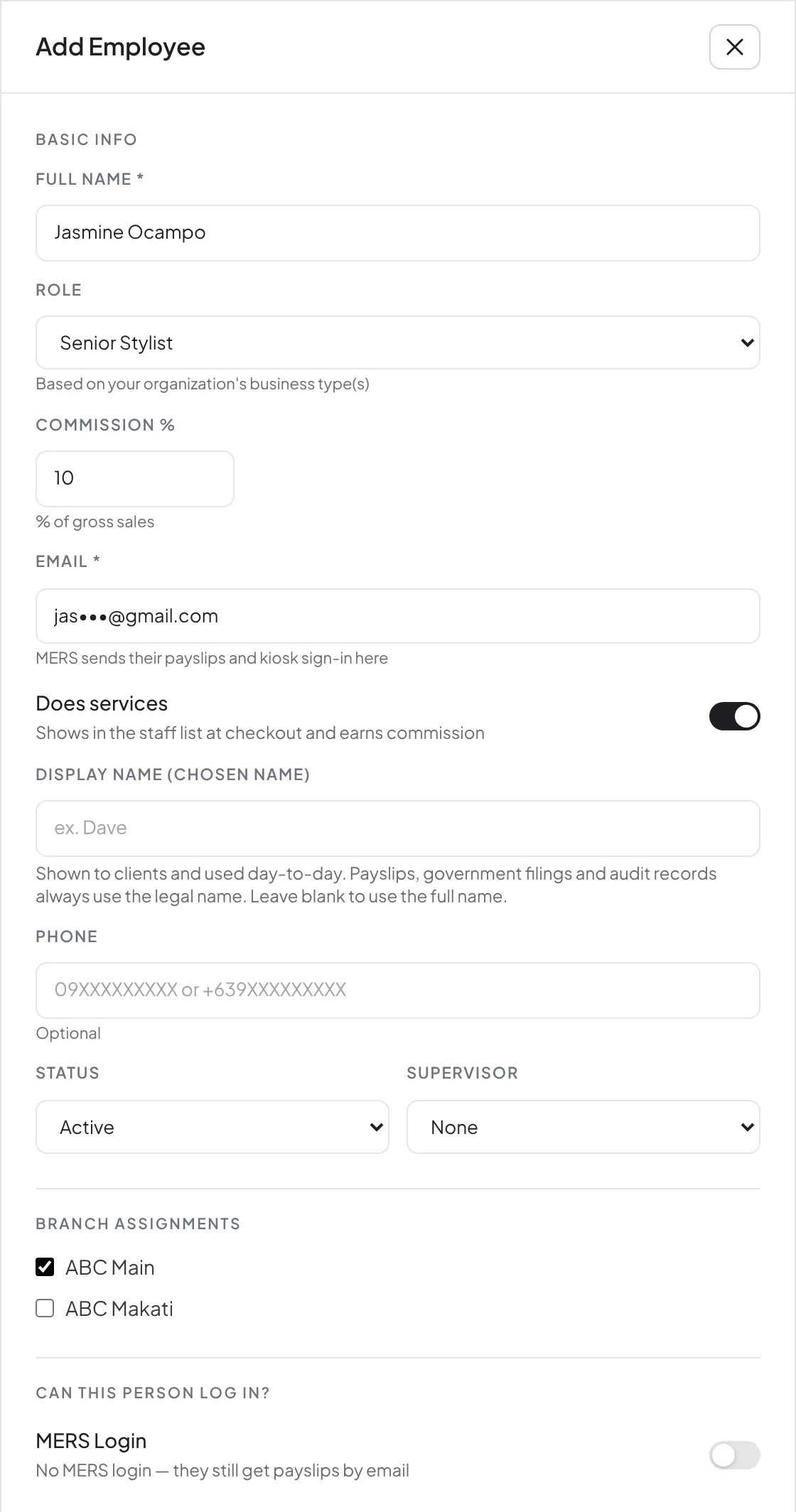
A simpler Add Employee form
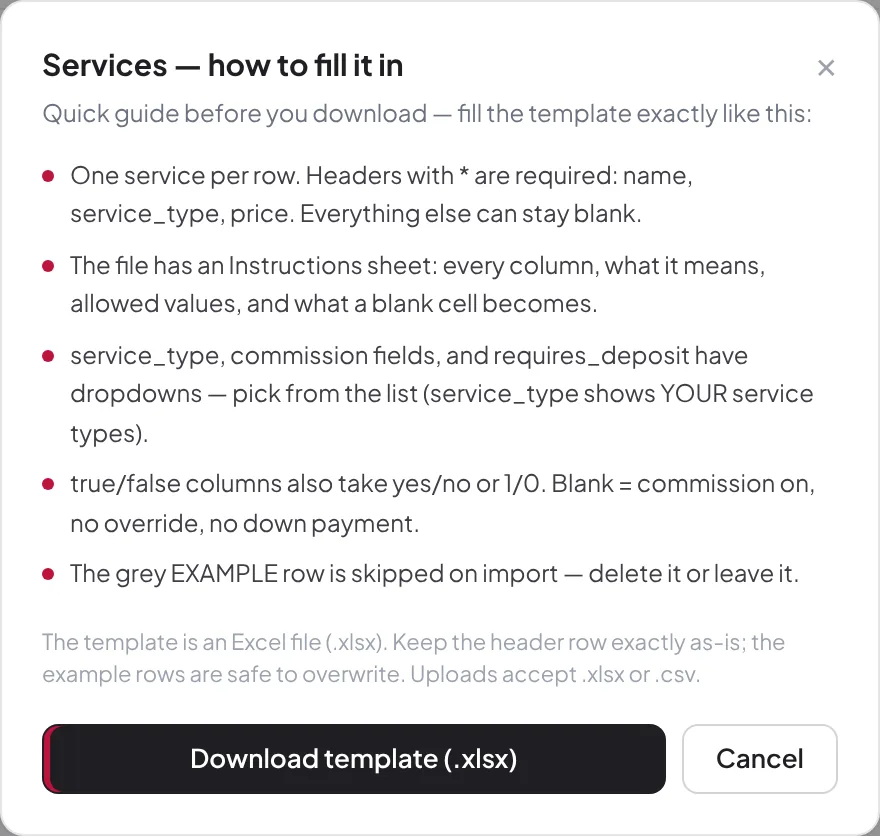
Every team member now has an email. Does services decides who can be picked as Staff 1 or Staff 2 on a sale, and Can this person log in? decides who gets into MERS. Salons with one branch never have to pick a branch, and the import templates now come with instructions.
Plus a round of polish
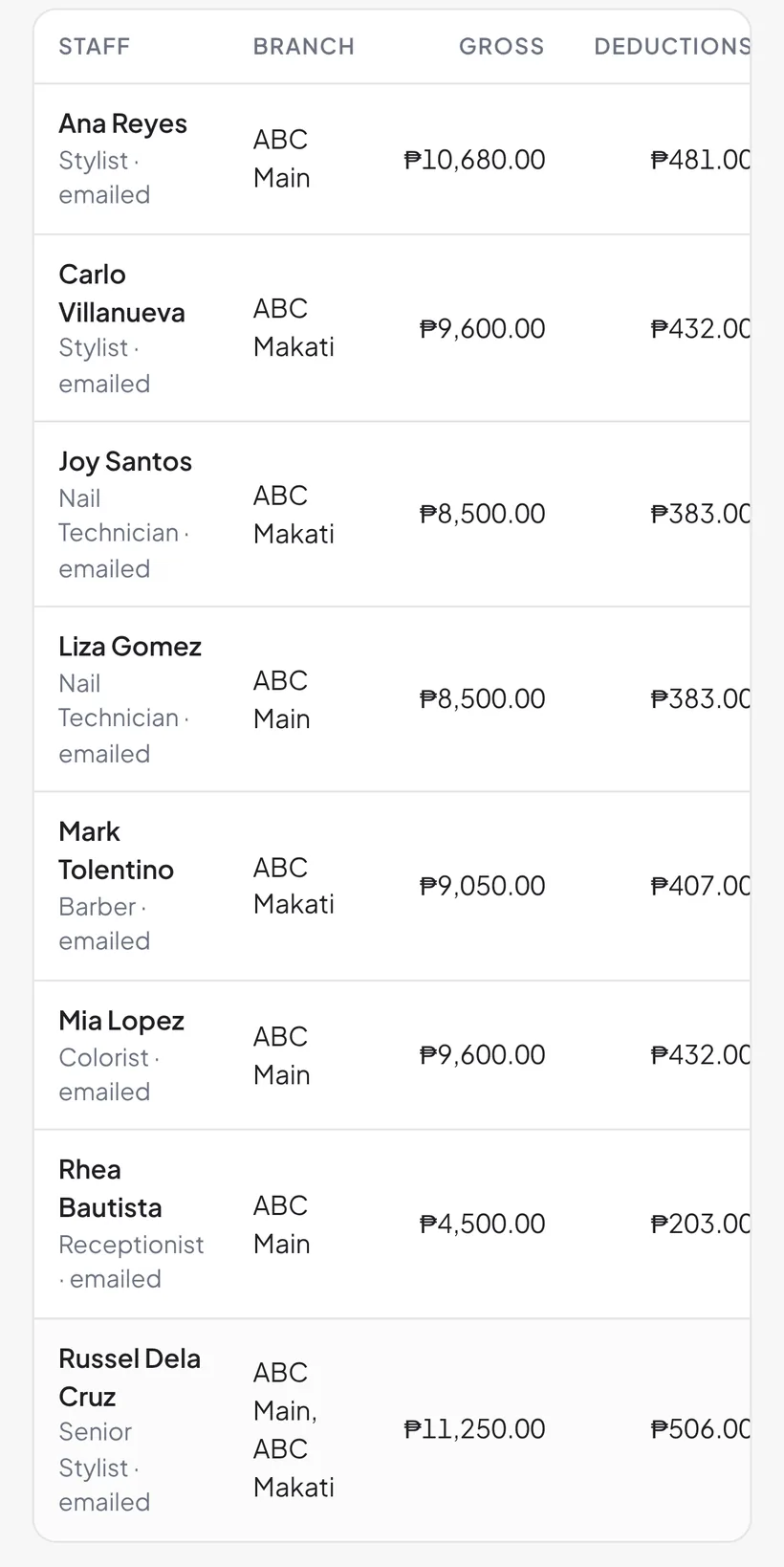
Plain words across MERS — track a sale, Staff 1 / Staff 2, Pay separately, Down payment, Does services. Totals now follow the Manila day everywhere, so a 7:30 AM sale counts today. Wide tables scroll sideways on phones, and error messages say what to do next.
Last month
September 21, 2026See who’s in and who’s out — at a glance
Two new tiles on your staff Calendar. Present shows who’s working today; Who’s out brings leave, day off, and absent into one count. Tap either to see the names.

See each day’s booking capacity at a glance
Every day on the booking calendar now shows a small tag by the date — how many slots are left, or Full when the day is booked out. Read the whole month’s availability without opening a single day.

Apply a deposit while you track the sale
Toggle a client’s deposit credit right inside the sale and see exactly what’s left to collect today — before you reach checkout. The full bill still shows; only what you collect changes.


Tie an extra charge to a service
An added charge at checkout can now attach to a specific service — so the commission flows to that service’s stylist. The client’s total is unchanged. Handy for a materials or complexity charge on one service.

Add an internal note while building a sale
Jot a staff-only note as you build the sale — “client requested X,” “redo from last visit” — not just at the final step. Never shown to the client.

Job title and access, now separate
A team member’s job title is now just a label. When you add or edit someone, you set their access level — what they can do in the system — on its own. Cleaner permissions, and a title can never accidentally hand someone the keys.

A clearer notification bell
The bell now shows an unread count and reflects how urgent things are — a gentle pulse for the everyday, a stronger beat when something needs your attention.

Last month
September 19, 2026Deposits, done right
See a client's deposit come off the bill while you track the sale — not buried at checkout. Forgot to apply one? Add it to a completed sale from Edit, no void-and-redo. And any unused balance stays as credit for their next visit.


Forgot to apply it? Fix it from Edit — no void-and-redo.


Need to fix a completed sale? You can now edit a deposit sale — change the date, add a service — without voiding and tracking it again. And if the new bill comes out smaller than the deposit, the unused amount automatically returns to the client's held credit for next time.

Set your own down-payment instructions
Each branch can write its own down-payment message — your GCash number, your rules — shown to clients on the booking page. Bold, lists and links supported, up to 400 characters.

Your appointments, on every staff phone
Connect your salon's Google Calendar once and every booking pushes to it automatically — branch, service, stylist and time on each appointment. Share the calendar with your team and it shows up in their own phone's calendar app. One-way: MERS writes appointments to its own calendar, it never reads your personal one.
Connect it once — about 2 minutes. Here's how ⤵
Connect your Google Calendar
Open MERS on a computer, go to Business Settings → System Preferences, and click the Integrations tab. Find the Google Calendar card and tap "Connect Google Calendar."

Sign in with the account that should own the calendar — use the salon's Google account, not a personal one, if you can.

Google may show a review screen ("signing back in to mers.ph" or "Google hasn't verified this app"). This is completely normal and safe — MERS is a new app still finishing Google's review. Just tap Continue (if you see "Advanced," tap that, then continue).

Tap Continue / Allow so MERS can create and manage events on its own calendar. (It asks only for calendar access — nothing else.)

You'll land back on Connected, and a calendar named MERS is created. To share it: open Google Calendar → the MERS calendar → Settings → Share with specific people → add each staff member's Gmail. It then shows in their own Google Calendar app — no MERS login on their phone.

End of Day that explains itself
Every number is now tappable. Tap a variance and see the plain-language math — opening float plus cash, minus what went out — and the exact sales and expenses behind it. Blocked from closing? It tells you who and why, instead of a cryptic error.


Plus a round of polish
Cleaner confirmation dialogs across the app, a payroll pay-period that stays put when you switch tabs, and smoother booking.
Last month
September 16, 2026Before & after photos
Capture your work. Snap a before & after right at the sale or from a client's profile — MERS saves them to your own Google Drive and shows them back neatly, grouped by service and date. Perfect for tracking transformations and for your marketing.


One thing first: photos save to your salon's own Google Drive (your storage, not ours) — so you'll connect Drive once. It takes about 2 minutes. Here's how ⤵
Connect your Google Drive
Open MERS on a computer, go to Business Settings → System Preferences, and click the Integrations tab. Find the Google Drive card and tap "Connect Google Drive."

Pick the Google account where you want your salon's photos to live. (Use the salon's account, not a personal one, if you can.)

Google will show a screen saying it's still reviewing MERS (something like "signing back in" or "Google hasn't verified this app"). This is completely normal and safe — MERS is a new app still going through Google's review. Just tap Continue (if you see "Advanced," tap that, then "Continue").

Tap Continue / Allow to let MERS save files to your Drive. You'll land back in MERS showing "Connected" — that's it! Now your before/after photos and receipts will save to your Drive automatically.

Client deposits
Taking a downpayment? Record it against the client — over GCash, cash, or card. It's held as their credit and applied automatically at checkout, so they just pay the balance. You can refund or forfeit it too, and it all shows correctly in your day's totals.

Snap your receipts
When you receive a delivery or log an expense, attach the receipt — a photo or PDF. It saves to your Drive and shows right where the money is: in your Cash Flow and Expenses. No more shoeboxes of paper.


Staff calendar — see who's around
A new Calendar in People shows who's on leave, on a day-off, or on holiday — and who was late or left early — all in one glance. No more surprises about who's in today.

Tap any dashboard tile
Your dashboard tiles are now clickable — tap Today's sales, revenue, or cash on hand to see the detail behind the number, and jump straight to the full view.

Require a social handle to book
Want to always be able to follow up with online bookers? Flip on "Require a social handle to book" in Booking → Setup, and clients must add their FB/IG/contact before they can book. Optional — turn it on per branch.
